

Help center
Enter your opening balances
Opening balances tell Bookledo what your business already had on the day you started using it. You enter them as one journal entry, built from the trial balance of the tool you are leaving.
Open the form
Select Journal in the sidebar, then Opening balances. If you are new to Bookledo, the checklist on your dashboard has the same step, called Enter your opening balances.
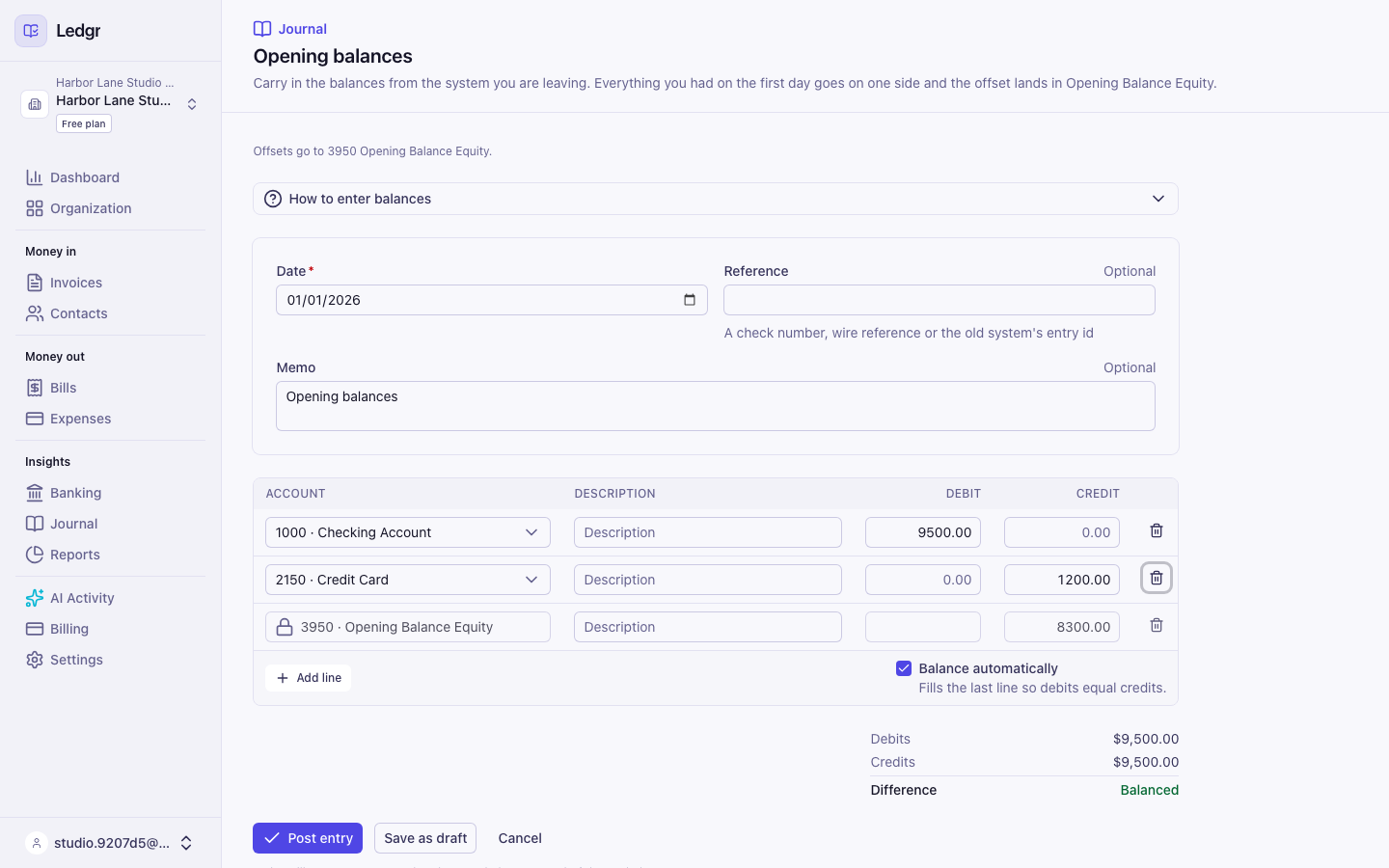
The form starts on January 1 of the current year with the memo "Opening balances". Change the date to the first day of your books if that is different.
The first time you open it, Bookledo adds an account called Opening Balance Equity to your chart of accounts. It uses code 3950, or the next free number if your chart already uses that one. If your chart already has an account with that name, Bookledo uses it. This account holds the other side of your opening entry. It should read zero once every opening figure is posted.
Get your old trial balance
- In your previous tool, run a trial balance as of the last day before your first transaction in Bookledo. If you start using Bookledo on 1/1/2026, run it as of 12/31/2025.
- Export it or copy it into a spreadsheet.
- Open the Chart of accounts tab in Bookledo under Settings. Compare the account names. Add any account your old tool had and Bookledo does not.
Work out the debits and credits
Each balance goes on one side of the entry. Select How to enter balances on the form to see this table again.
| Account type | Enter the balance as a |
|---|---|
| Bank, cash, equipment, prepaid expenses, inventory | Debit |
| Accumulated Depreciation | Credit |
| Credit cards, loans, payroll liabilities, sales tax payable | Credit |
| Owner's equity and retained earnings | Credit |
Leave out two lines.
- Accounts Receivable. Enter each unpaid customer invoice as a real invoice with its original date and due date. Aging reports and payments only work against real invoices. Create and send an invoice shows the steps.
- Accounts Payable. Enter each unpaid vendor bill as a real bill in the same way. Enter and pay a bill shows the steps.
The invoices and bills you enter also record income and expenses dated before you started. Your total equity still ends up matching your old balance sheet.
Fill in the lines
- For each balance, pick the account and type the amount in the Debit or Credit column. A line is one or the other, so typing in one column clears the other.
- Use Add line for more rows.
- Leave the last line alone. It is locked to Opening Balance Equity and Bookledo fills in its amount for you, so the entry always balances.
Under the table, Bookledo shows your debits, your credits and the difference. When the entry balances, the difference reads Balanced. If you would rather type the offset yourself, clear Balance automatically and edit the last line by hand. In that case the entry has to balance on its own before you can post it.
If something is missing, a short note next to the buttons says what, such as "Line 2 needs an account".
Post the entry
Select Post entry. Bookledo opens the new entry and it shows up in every report right away.
You can also select Save as draft to come back to it later. A draft has to balance too, because Bookledo will not store an entry that does not. Open the draft from Journal and select Post entry when you are ready.
Check the result
- Open Reports and select Trial balance.
- Choose As of a date and pick the opening date.
- Compare each balance with your old trial balance. Debits and credits should be equal.
Opening Balance Equity should be zero. If it is not, an opening figure is missing or on the wrong side.
If something is wrong
A posted entry cannot be edited. Open it from Journal and choose one of two fixes.
- Reverse posts a mirror image of the entry. Both entries stay visible, which is what you want if the period is already closed. Then enter a corrected opening balances entry. A reversal is final, so it cannot be voided or reversed later.
- Void takes the entry out of every report as if it had never been posted. Voiding is permanent, so use it only when the entry should not exist at all.
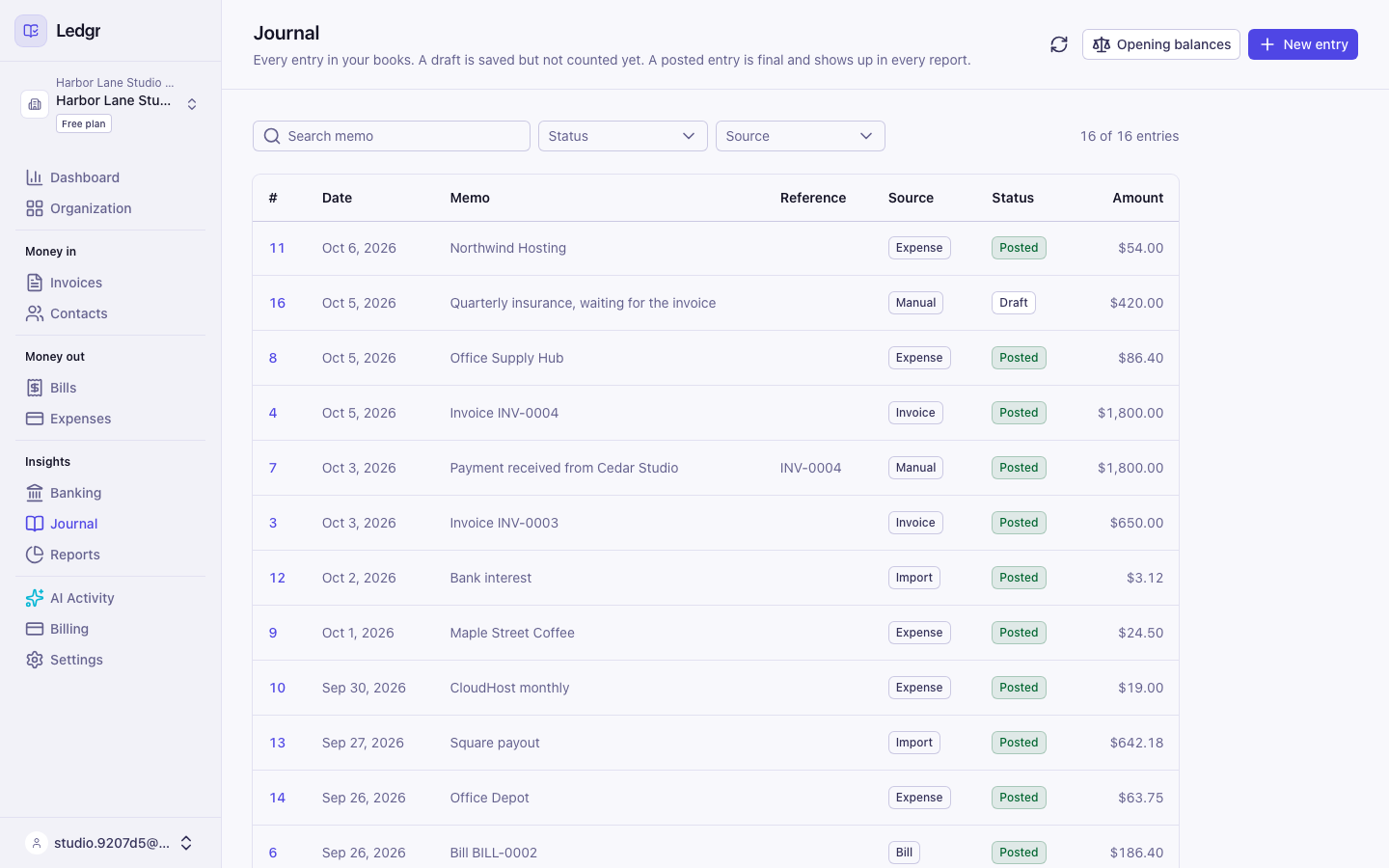
The page explains the two statuses under its title. A Draft is saved but not counted in any report yet. A Posted entry is final and shows up in every report. Select the entry number to open an entry. Use the search box and the Status and Source menus to narrow the list, and Clear to start over. If the journal cannot load, an alert says so and offers Retry.
You can also ask Claude
If you have Claude connected to your books, you can ask it to post the entry for you. Follow Connect Claude to your books and create a key with the Write scope. A key with only that scope leaves the entry as a draft for you to approve under AI Activity. Review what Claude drafted shows how.
Next steps
- Move your books from Wave if you are switching from Wave. Start the import on your opening date.
- Import bank transactions dated after your opening date.
- Run your reports to confirm everything adds up.