

Help center
Run your reports
Bookledo builds every report from the entries posted to your books. Draft invoices, bills, expenses, and anything waiting in AI Activity do not appear until they are posted.
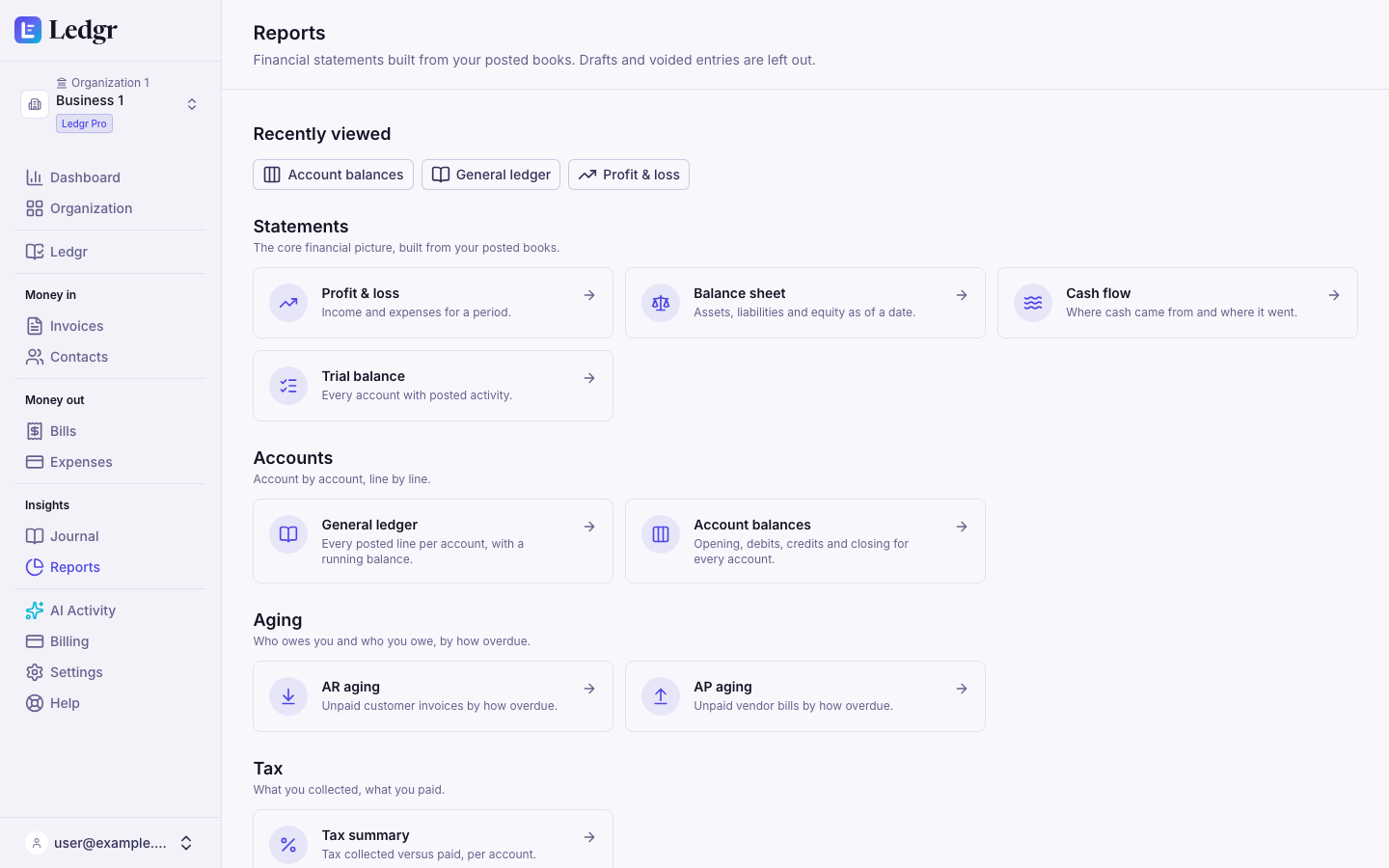
Open a report
- Select Reports in the sidebar.
- Pick a report from the cards. They are grouped under Statements, Accounts, Aging, Tax, and Organization.
- The reports you opened last appear in a Recently viewed row at the top, so you can get back to them in one click. Bookledo keeps that list in your browser, so it is only on the computer you used.
What every report page has
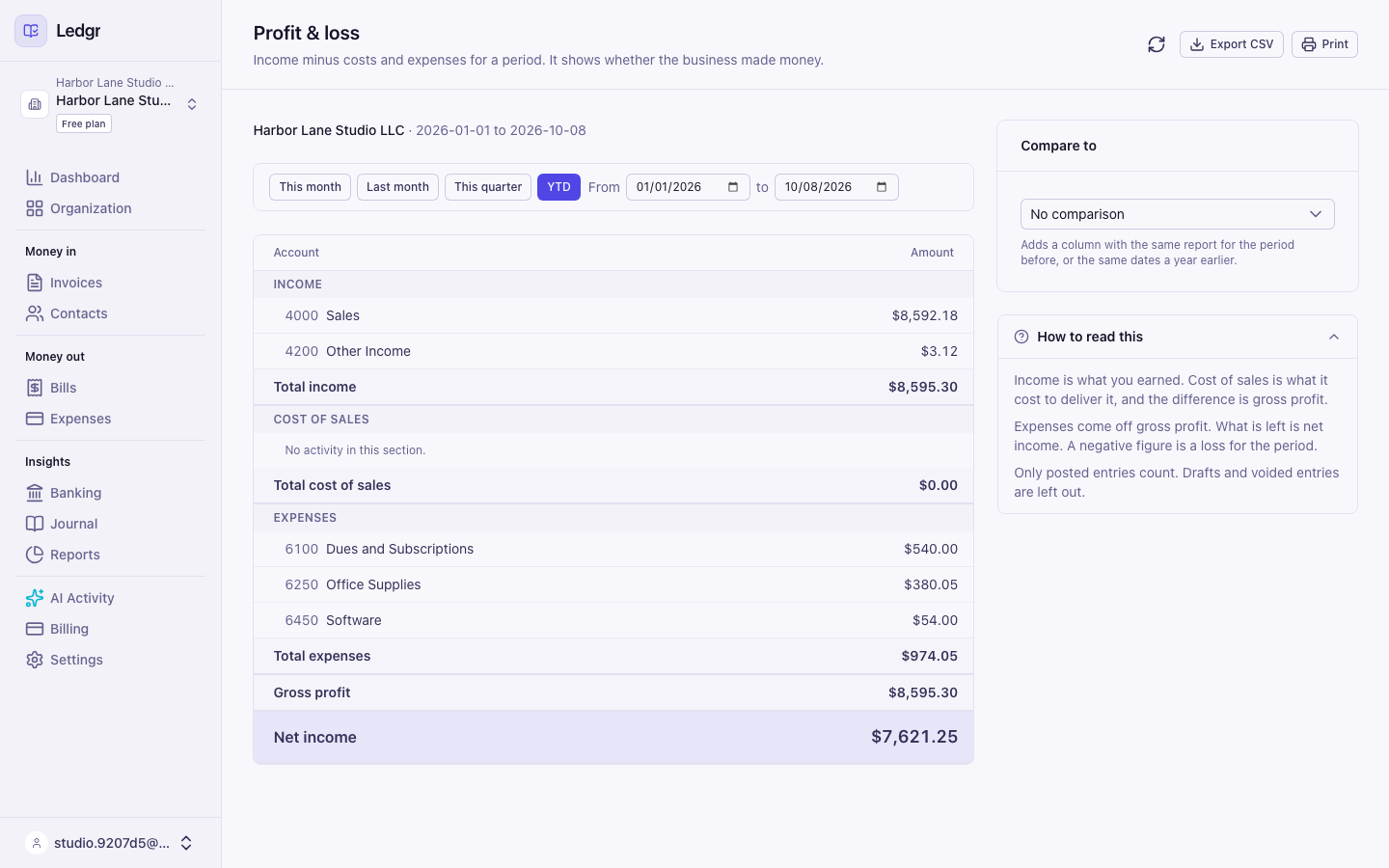
Every report page is laid out the same way.
- Title and one sentence at the top that say what the report shows.
- The business, the period and the basis under the title. It reads like Harbor Lane Studio LLC · 2026-01-01 to 2026-10-08 · Accrual basis. The basis is printed on paper copies and is the first line of every CSV export too.
- Date controls in a box under that. Every date box has a label. It reads From and to for a period, or As of for a single date. The buttons beside them, such as This month or Today, fill the dates in for you.
- The statement itself, with a side panel on the right on a wide screen. On a phone the side panel sits under the statement.
- How to read this in the side panel. Select it to open a short explanation of the report in plain words.
- Refresh (the circular arrow), Export CSV for a spreadsheet and Print for a clean paper copy.
A wide statement scrolls sideways on a narrow screen. Press Tab to reach it and use the arrow keys to scroll.
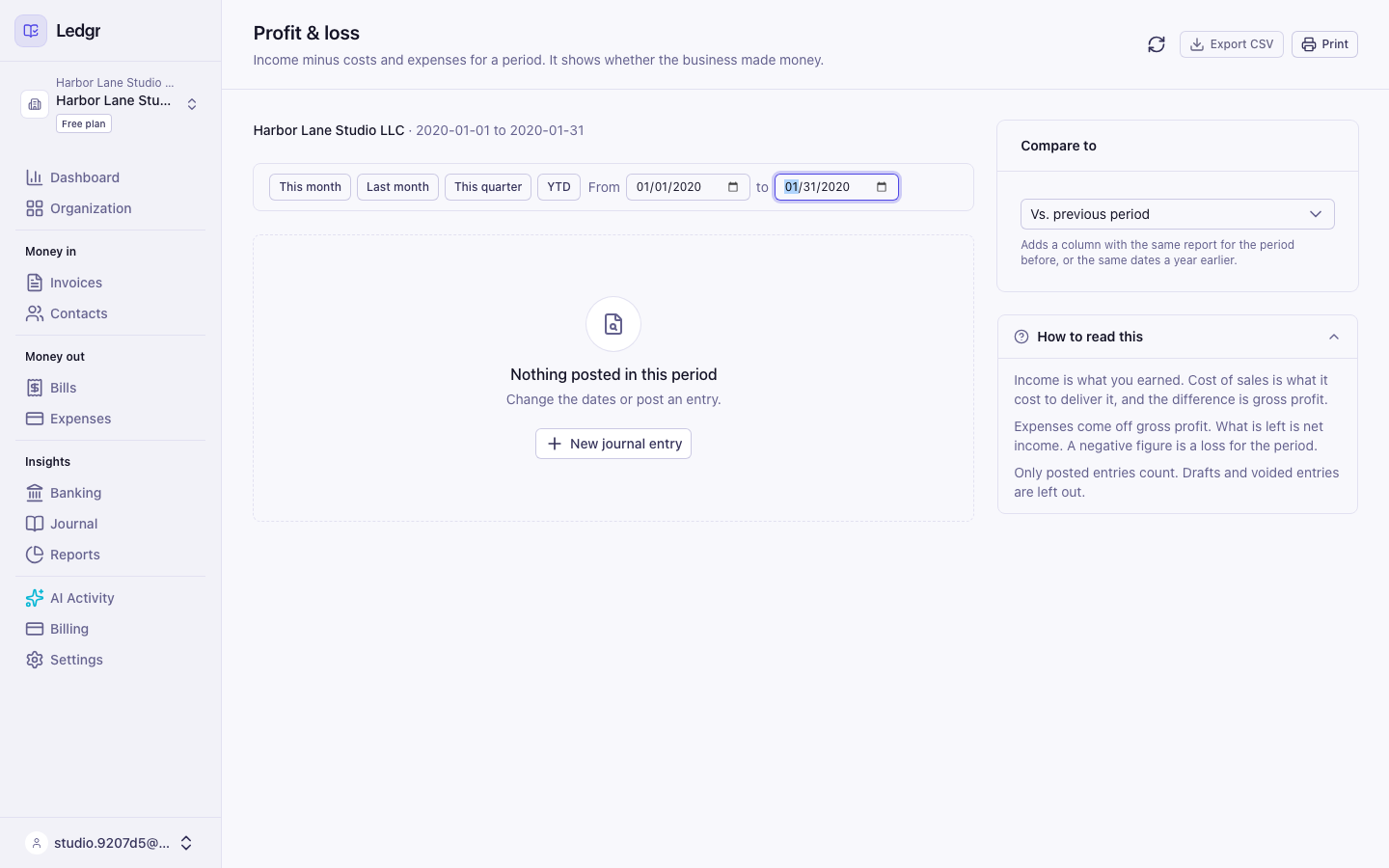
If nothing was posted in the dates you chose, the page says Nothing posted in this period instead of printing a table of zeros. Change the dates, or select New journal entry if you record entries by hand.
If a report cannot load, an alert says so and offers Retry. Nothing else on the page is lost.
Reports always name the business by its Legal Business Name, even when you gave it a shorter Display Name. A report is a statement other people may rely on, so it carries the name on your formation documents. Consolidated reports name the Organization by its legal name the same way.

Accrual or cash basis
Profit and loss, Balance sheet, Tax summary, General ledger and Account balances each have an Accrual and a Cash button under the dates.
- Accrual counts an invoice or bill on the day it is issued, whether or not it has been paid. This is what every report showed before the choice existed.
- Cash counts an invoice or bill on the day it is paid. A partly paid invoice counts in proportion to what was paid. If a customer pays half of a 1,000.00 invoice in March and the rest in April, 500.00 of income lands in each month. An unpaid invoice or bill is left out, along with the sales tax on it.
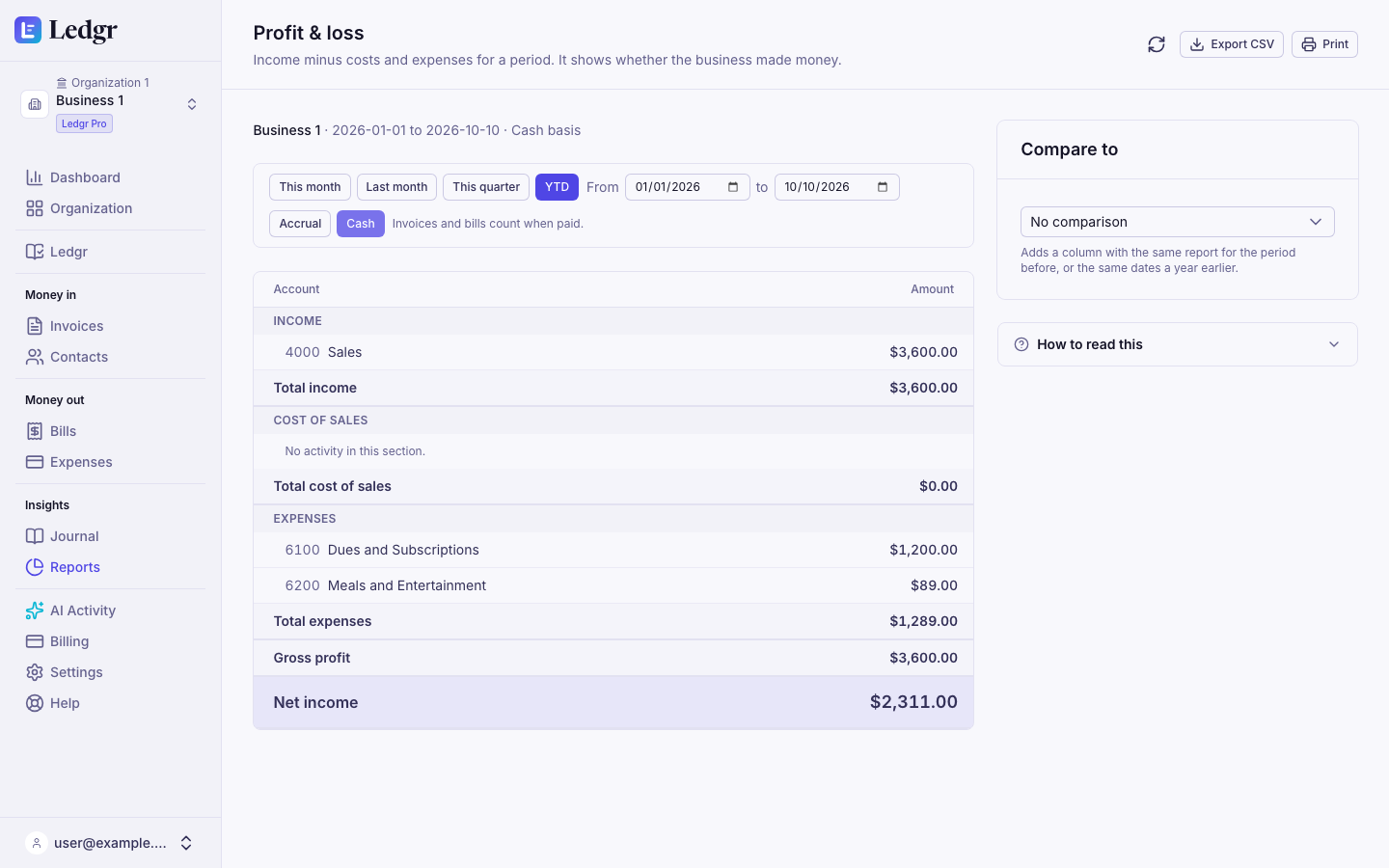
Bookledo remembers your choice for each business, for your sign in, on any computer. You can keep one business on cash and another on accrual. Switching it on one report switches every report for that business, and the dashboard's Net income (this month) card follows it too. The card's small print says which basis it is on.
A voided payment counts for nothing on the cash basis. Expenses, register transactions and journal entries count on their own date on both bases, because they already record money when it moved.
Entries imported from another system keep the dates and accounts they had there, so imported invoices and bills count on their original dates on both bases. When a business has imported entries, a note under the Cash button says so.
On the cash basis each payment carries its share of every line on the invoice or bill, rounded to the cent. Voiding or backdating a payment can move a later payment's share of a line by a cent. The totals for each invoice and bill stay exact.
Some reports only work one way, and they say so beside the period.
- Cash flow follows money in and out of your bank and cash accounts, so it is Cash basis only.
- AR aging and AP aging list what is still owed, so they are Accrual basis only.
- Trial balance and Consolidated reports are Accrual basis only. For balances by account on the cash basis, use Account balances.
General ledger
The general ledger lists every posted line, account by account, with a running balance. Use it to see exactly how an account got to its balance.
- Open General ledger under Accounts.
- Choose the dates.
- To narrow it down, pick one account in the All accounts menu, or one customer or vendor in the All contacts menu.
- Choose Accrual or Cash.
Each account starts with a Starting balance row, then lists its lines in date order with Debit, Credit and Balance, and ends with a Totals and ending balance row. Select any description to open its journal entry. On the cash basis, an invoice or bill line is dated on the day it was paid, so its journal entry, which carries the issue date, can show a different date.
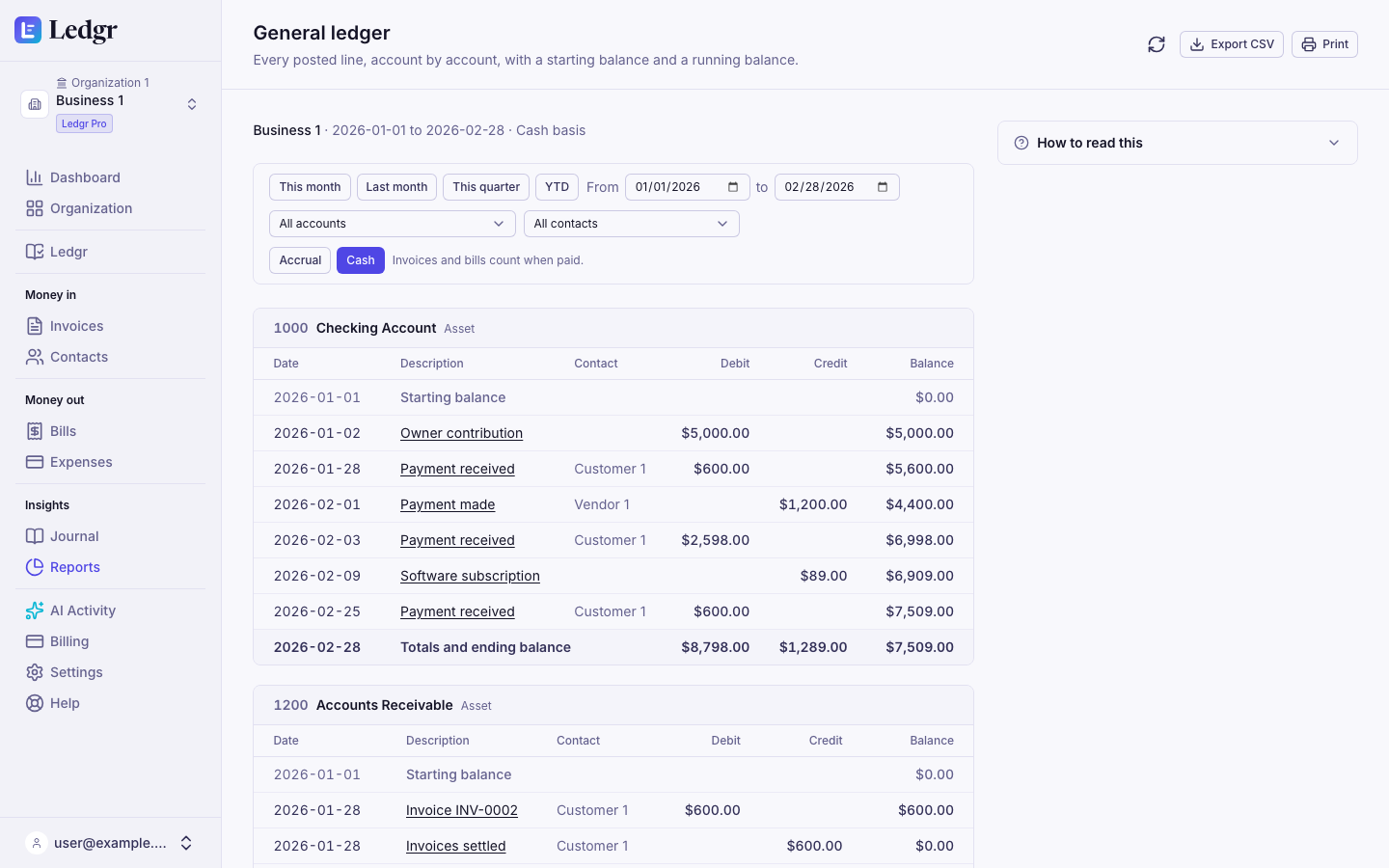
Balances read the way each account normally carries them. Assets and expenses grow with debits. Liabilities, equity and income grow with credits.
Income and expense accounts start from January 1 of the start date's year, so their starting balance is the year to date. Bank, receivable, payable and equity accounts start with everything posted before the first day.
Account balances
Account balances shows one row for every account with an opening balance, the debits and credits during the period, and the closing balance.
- Open Account balances under Accounts.
- Choose the dates and the basis.
- Check the green box in the side panel. It reads Debits equal credits when the books balance.
- Select an account to open its general ledger for the same dates.
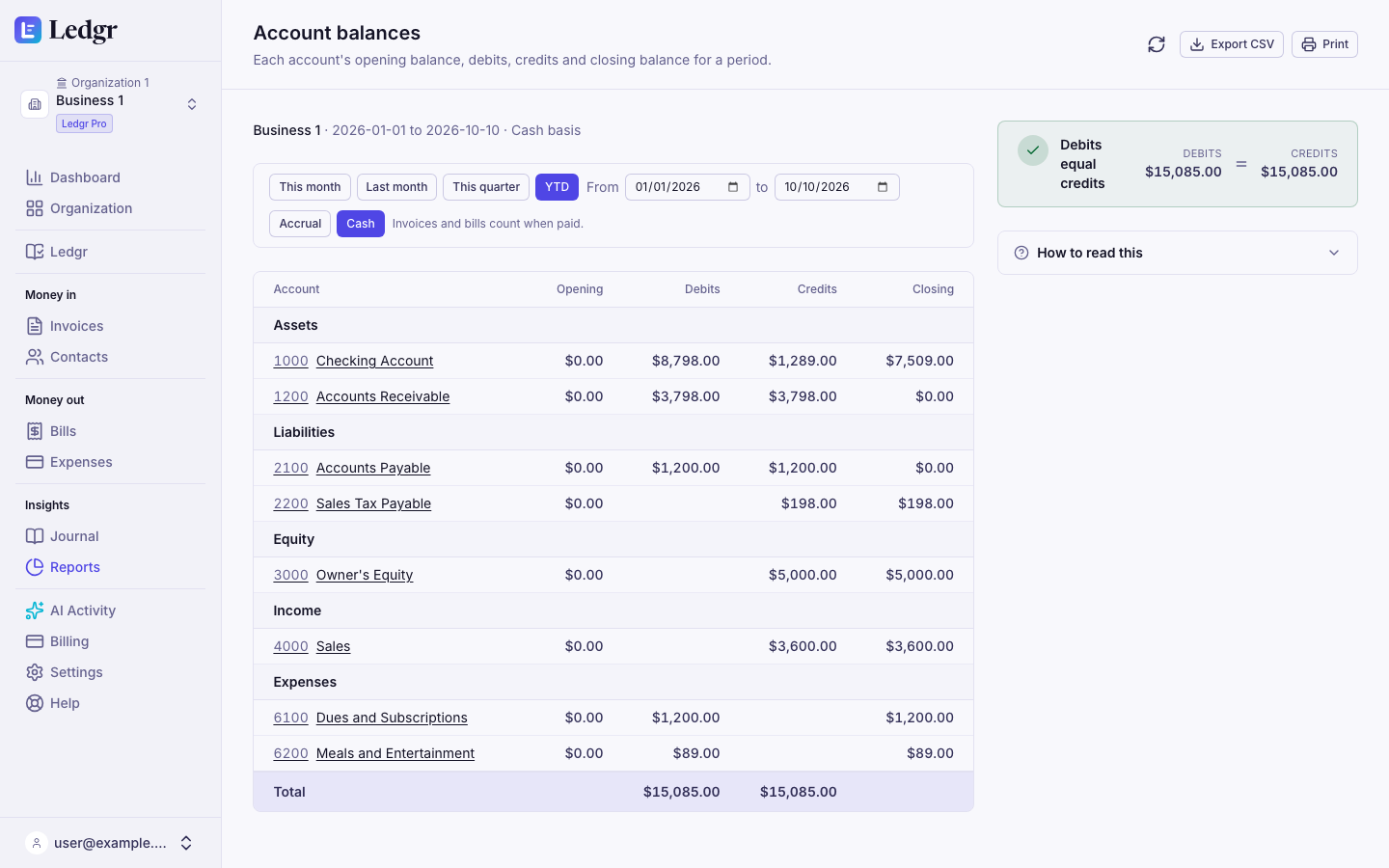
Profit from years before the start date shows once under Equity, as Net income from earlier years. A period that runs past December 31 carries income and expense balances through it, so for a clean year pick dates inside one calendar year.
Trial balance
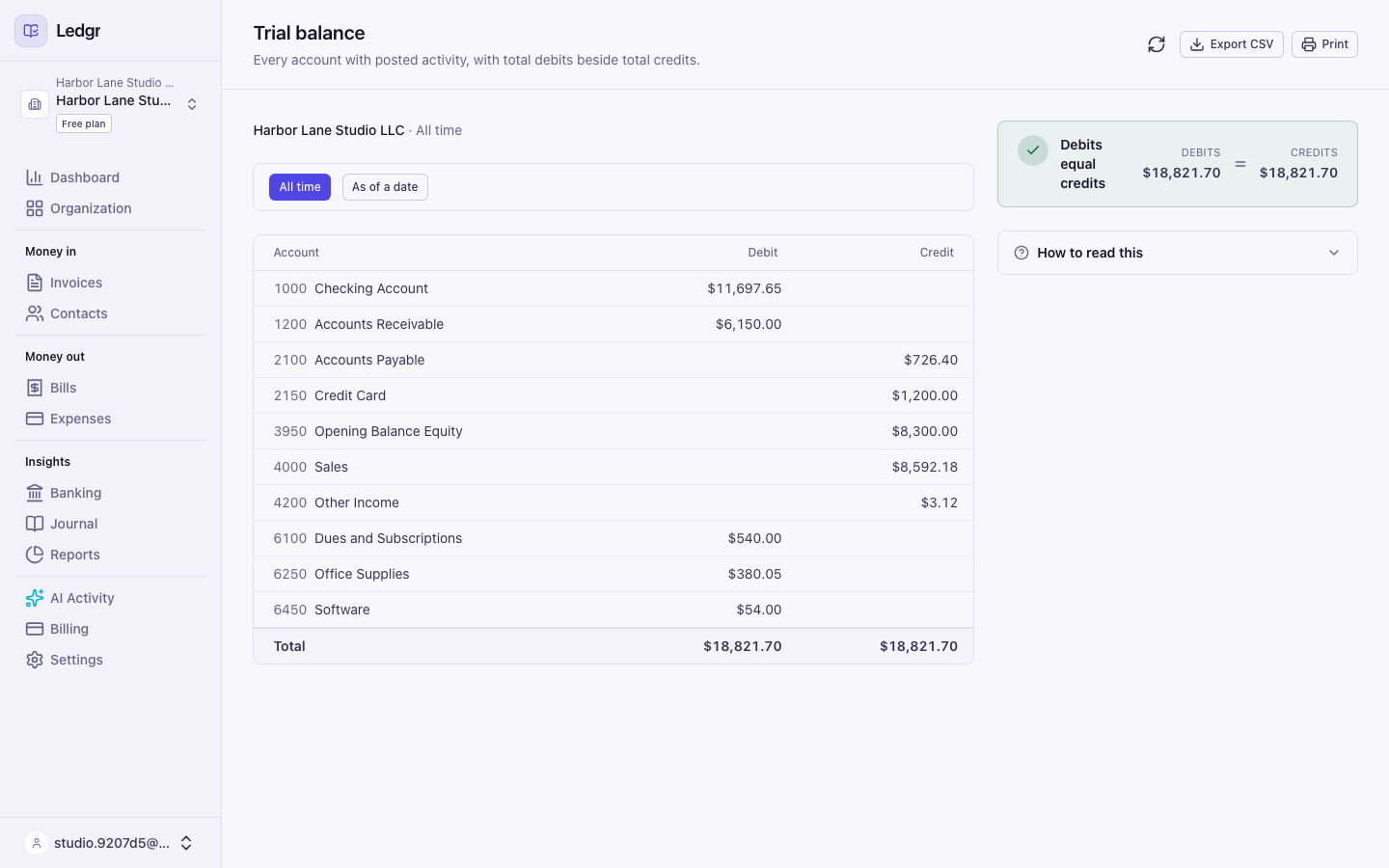
The trial balance lists every account with activity and its debit or credit balance. Use it to confirm your books are in order.
- Open Trial balance.
- Leave All time selected to see everything, or select As of a date and pick a date.
- Check the green box in the side panel. It reads Debits equal credits when the books balance.
Profit and loss
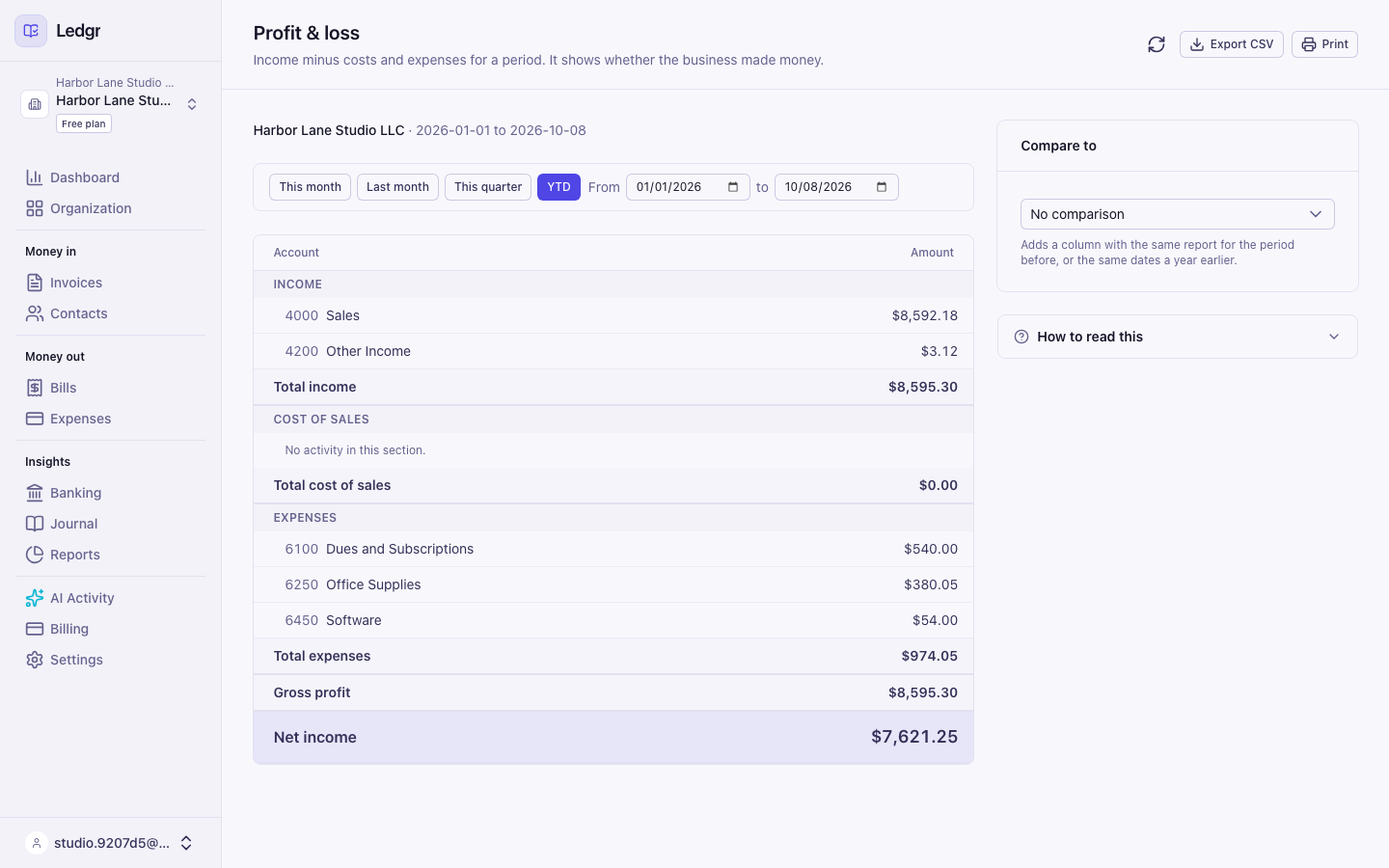
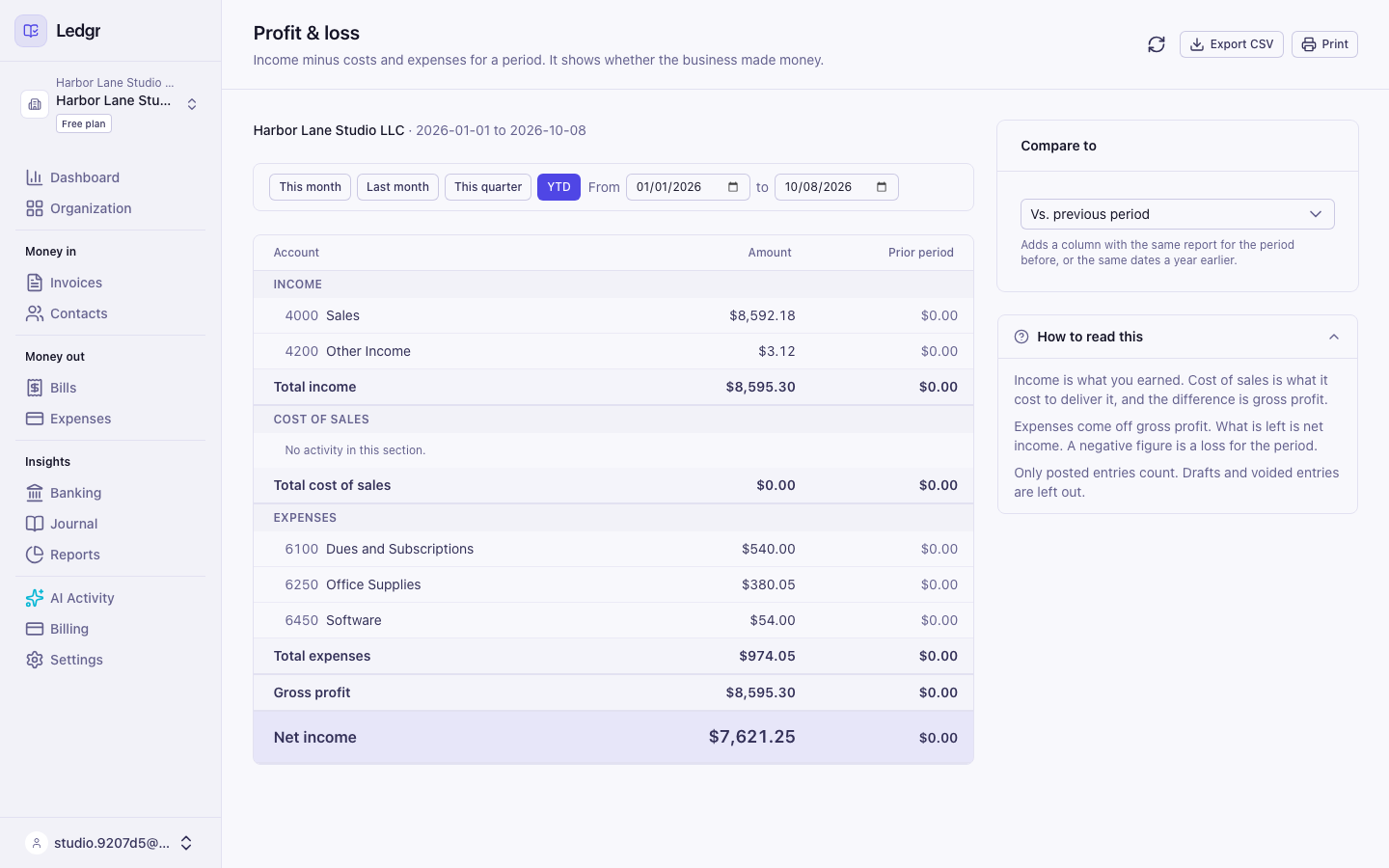
The profit and loss report shows income, cost of sales, and expenses for a period, with net income at the bottom.
- Open Profit & loss.
- Choose This month, Last month, This quarter, or YTD. You can also type your own start and end dates in the two date boxes.
- To compare with an earlier period, open the Compare to box at the right and choose Vs. previous period or Vs. previous year. A second column of amounts appears.
Balance sheet
The balance sheet shows what you own, what you owe, and what is left for the owner on a single date.
- Open Balance sheet.
- Choose Today, Month end, Quarter end, or Year end, or type a date in the date box.
- Check the green box in the side panel. It reads Assets = Liabilities + Equity when the sheet balances.
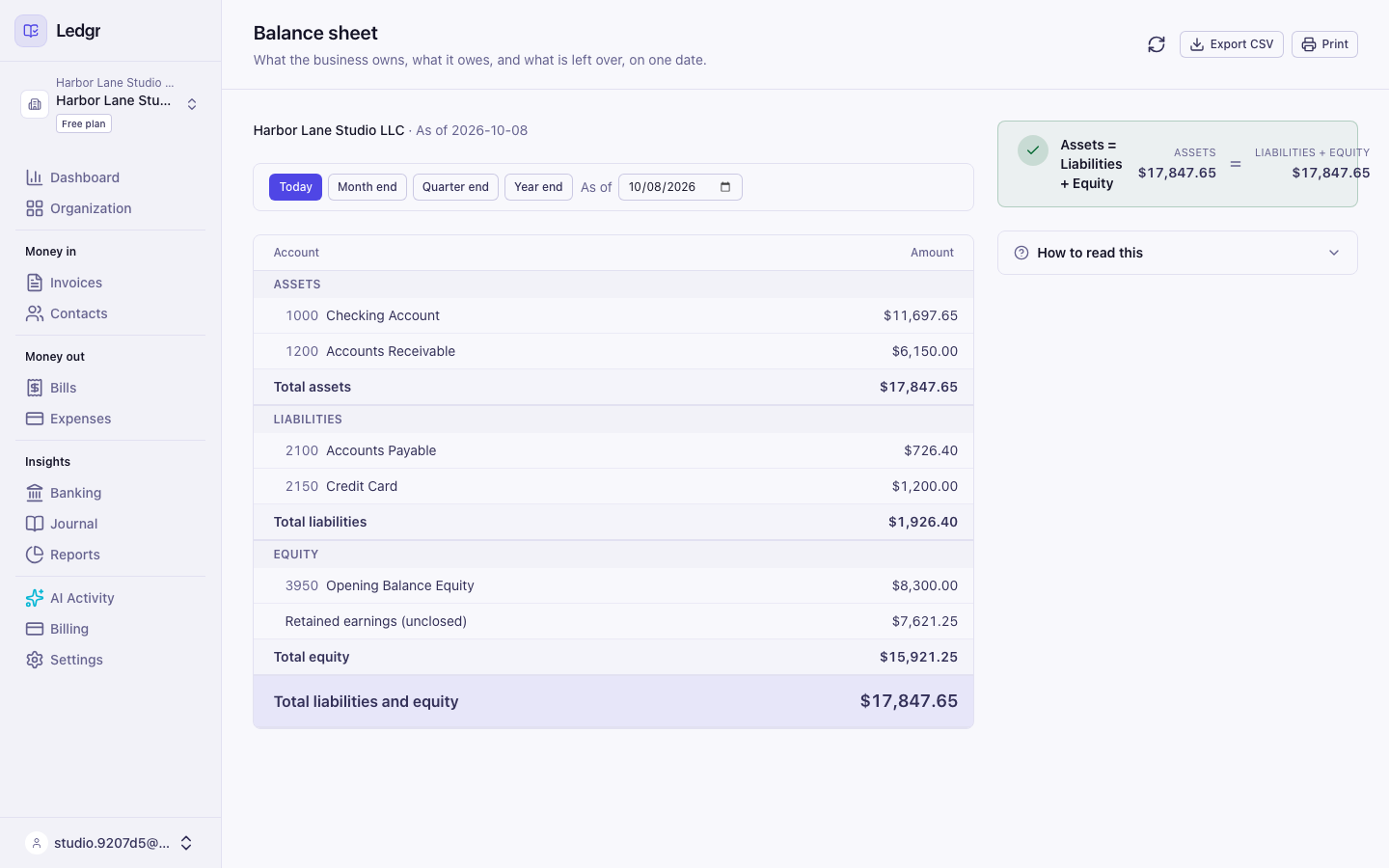
The equity section includes a line called Retained earnings (unclosed). It holds profit that has not been moved to the Retained Earnings account yet.
Accounts receivable aging
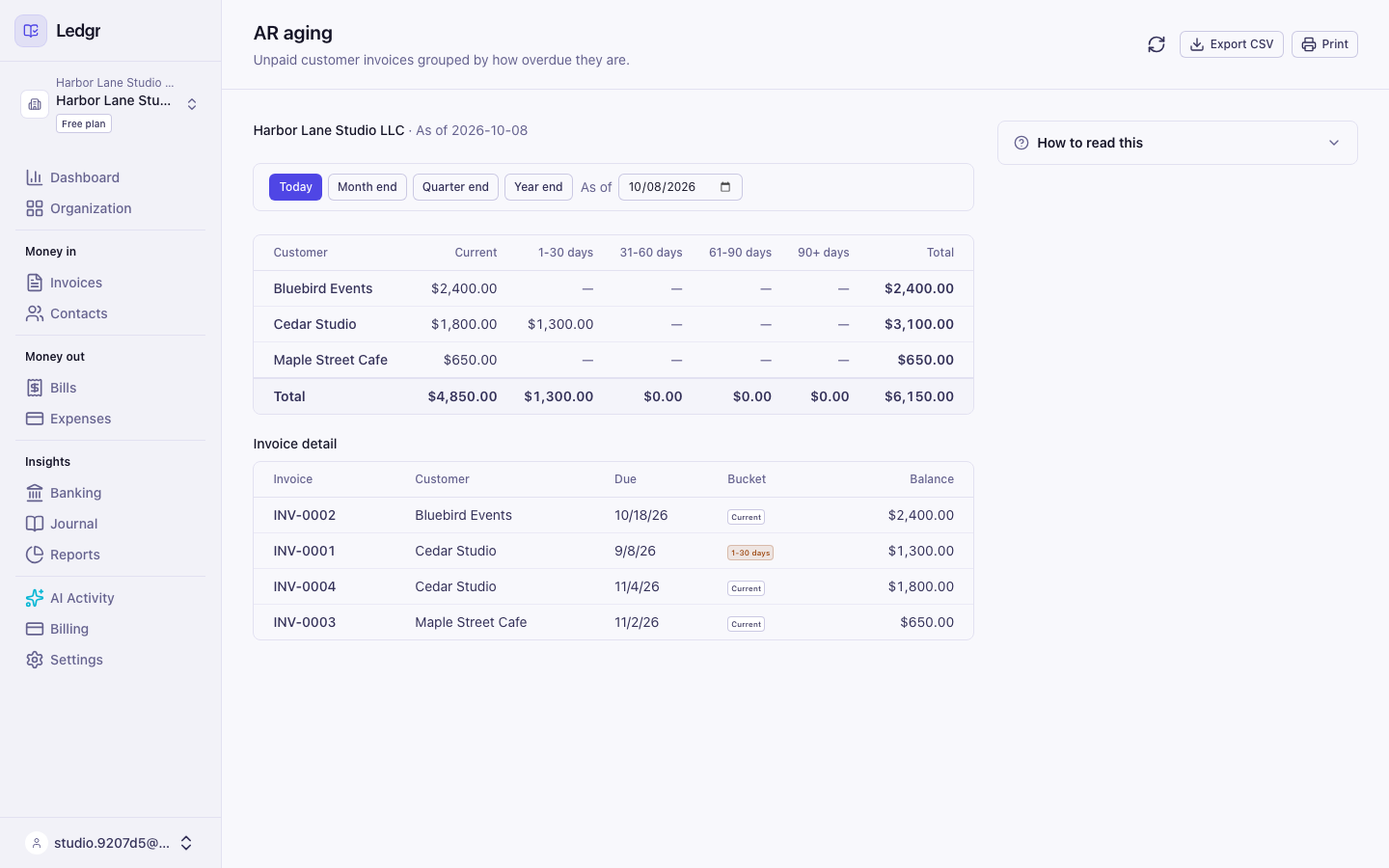
The AR aging report shows unpaid customer invoices grouped by how overdue they are.
- Open AR aging.
- Choose a date with Today, Month end, Quarter end, Year end, or the date box.
- Read the top table for each customer's totals under Current, 1-30 days, 31-60 days, 61-90 days, and 90+ days.
- Read the Invoice detail table below it for each unpaid invoice, its due date, and its balance.
AP aging works the same way for unpaid vendor bills.
Cash flow and tax summary
Cash flow shows where cash came from and where it went. It starts with opening cash and ends with closing cash. A green box in the side panel confirms that opening cash plus the net change equals closing cash. Tax summary shows tax collected and tax paid for a period. Both use the same date controls as the reports above.
From version 0.3.0, sales tax you pay on a purchase, whether entered as an expense or categorized from a bank line, is kept as part of that expense rather than counted as tax paid.
Reports across your Organization
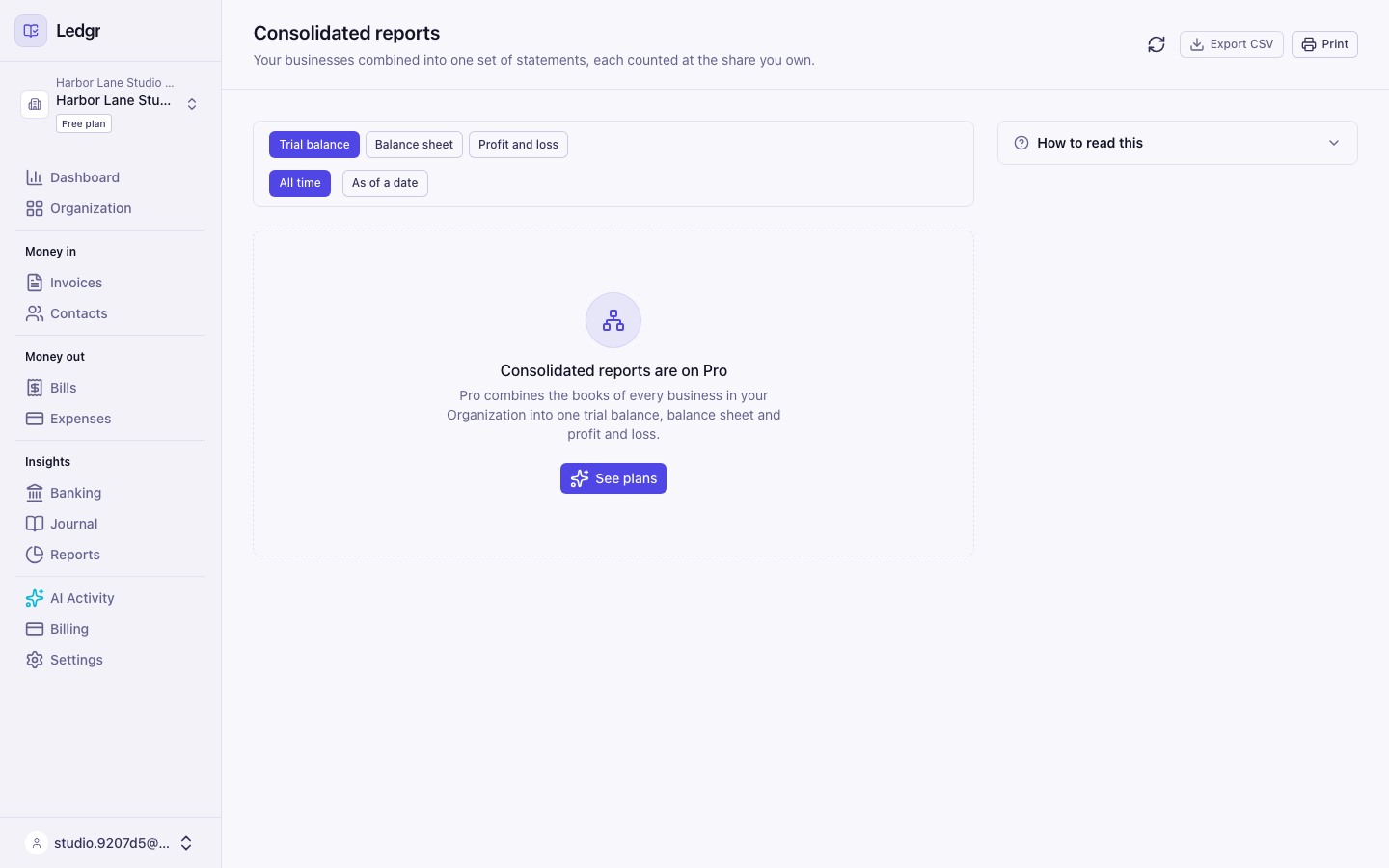
A consolidated report combines the books of every business in your Organization into one statement. It covers the Organization you are working in. Consolidated reports are part of the Pro plan.
On the Free plan the page says Consolidated reports are on Pro and shows a See plans button. Select it and pay in the window that opens. The statement appears on the same page as soon as the payment is confirmed, and you do not need to reload. Upgrade to Pro explains each step.
- Select Reports in the sidebar, then open Consolidated reports under Organization.
- Check the chips beside Businesses included in the side panel. They list every business in the report and the percent the Organization owns of each one.
- Choose Trial balance, Balance sheet, or Profit and loss.
- Set the date. The trial balance offers All time or As of a date. The balance sheet uses a single date. Profit and loss uses a date range and starts on January 1.
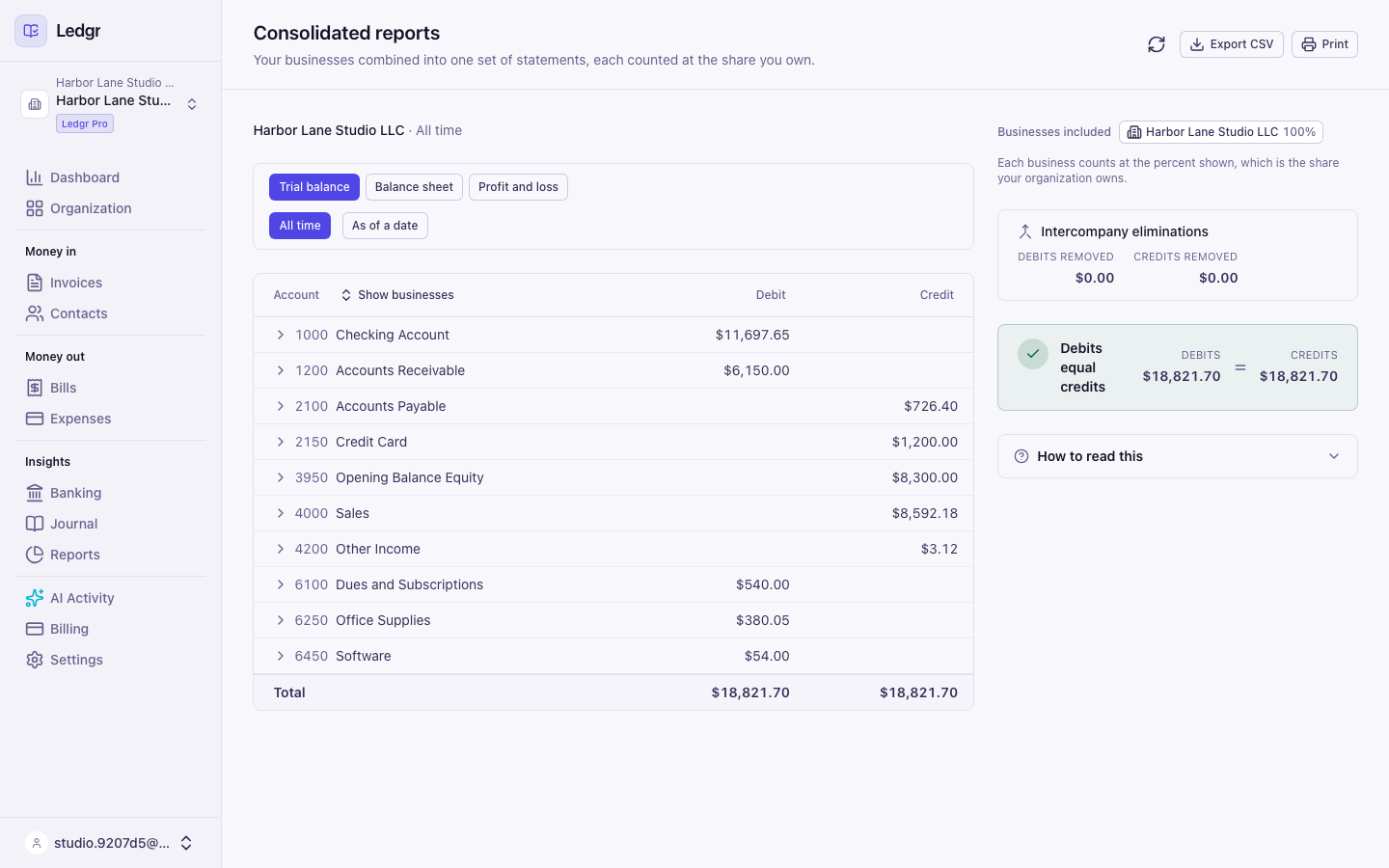
To report on a different Organization, switch to it first with the menu at the top of the sidebar.
A business the Organization owns only part of counts at that percent. If the Organization owns 60 percent of a business, 60 percent of each of its balances goes into the totals. A business owned in full counts at its whole amount. Each amount is rounded to the cent.
Accounts from different businesses are combined by account code. Select the arrow beside any account to see how much each business contributed at its percent. Select Show businesses at the top of the table to open every account at once.
Balances between your own businesses are removed so they do not inflate the totals. The Intercompany eliminations box in the side panel shows the debits and credits that were removed.
If the balances between your businesses do not match, a highlighted line reads Unreconciled intercompany balance. That amount is exactly how far the statement is out. For example, if one business records 1,000.00 owed to it and the other records 900.00 owed by it, the line shows 100.00. Fix the entry in one of the businesses, then reload the report.
If you do not have access to the books of a business in the Organization, Bookledo leaves it out of the totals. A yellow notice reading Some businesses are not in these totals names it and gives the reason. Ask an owner of that business to invite you, then reload the report. Own and share your businesses explains invites and roles.
Export CSV includes one row for each account and one row for each business under it, with the business name first.
Consolidated reports need a signed in session. An API key belongs to one business, so Claude cannot run them.