

Help center
Connect Claude to your books
You can let Claude read your Bookledo books, and on the Pro plan you can let it propose changes. Claude connects with an API key you create. Each key belongs to one business, so Claude only sees the books of the business the key was made in.
A key never reaches past its business, even when the business belongs to an Organization with other businesses in it. The Organization overview, consolidated reports, ownership, and the members list all need you to be signed in to Bookledo. Claude cannot open them with a key.
Connect Claude in three steps
Everything happens on one page. Select AI Activity in the sidebar, then open the AI access tab.
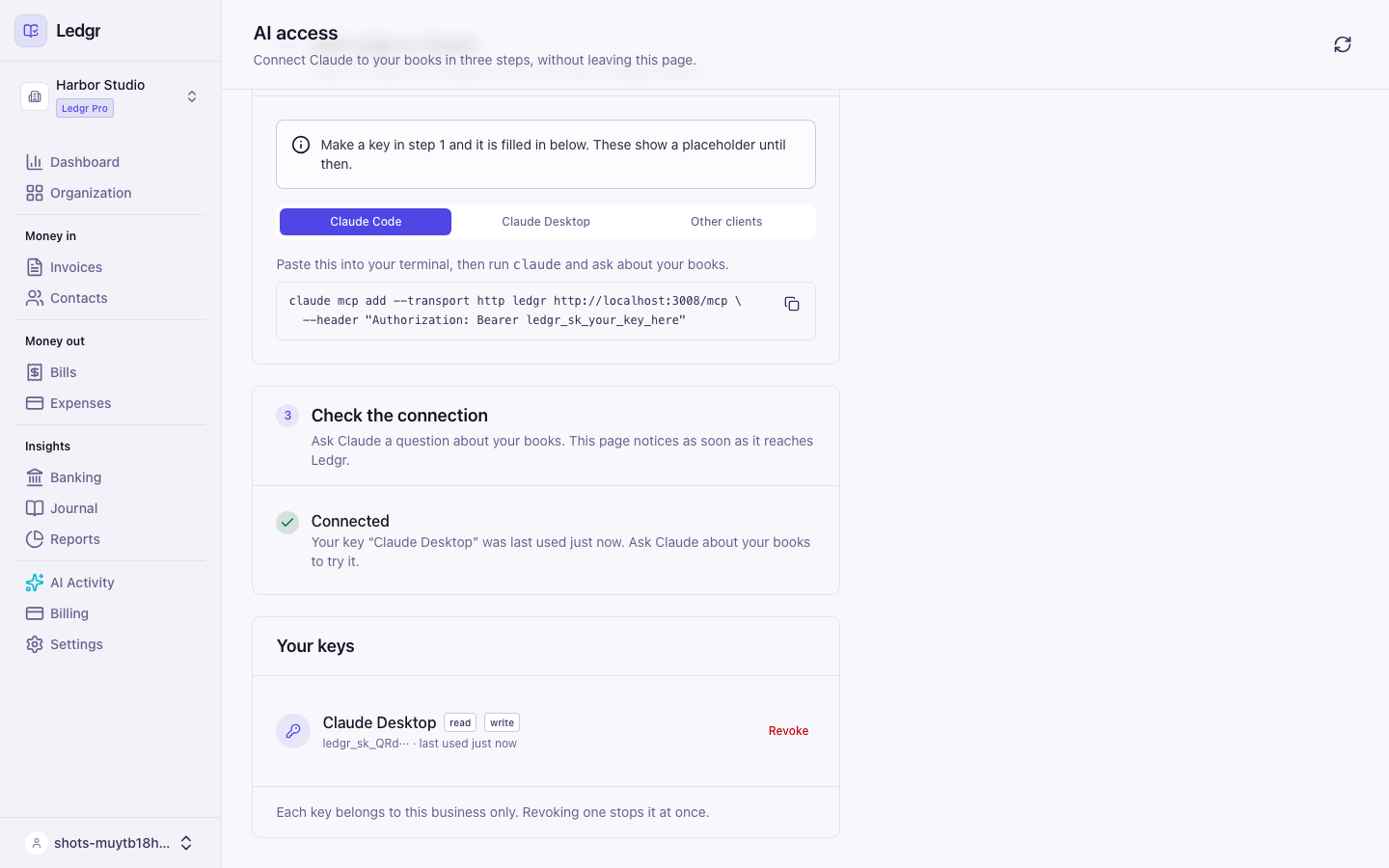
Step 1. Create a key
- Type a Key name, such as Claude Desktop. The name helps you recognize the key later.
- Choose what the key can do. The next section explains each choice.
- Select Create key.
- Copy the key from the yellow box and store it in a password manager. Bookledo shows the full key one time only. Keys made before the rename start with ledgr_sk_ and keep working.
If you lose a key, revoke it and make a new one. To revoke, select Revoke on the key's row under Your keys and confirm. The list shows each key's first characters, what it can do, and when it was last used.
Step 2. Add Bookledo to Claude
Your new key is already filled into the setup text, so there is nothing to edit. Choose the tab for the app you use and copy the text with the copy button above it.
Claude Code. Paste the command into your terminal.
Claude Desktop. In Claude Desktop, open Settings, then Developer, then Edit Config. Paste the text in, save the file, and restart Claude Desktop.
Other clients. Any app that speaks MCP over HTTP takes the same address and one header. The third tab shows that shape.
Treat the key like a password and do not share it. If you select Hide key, the page forgets the key and shows a placeholder in its place. The key itself keeps working.
Step 3. Check the connection
Ask Claude a question, such as "What is my profit and loss for this quarter?" The page checks every few seconds and changes from Waiting for the first request to Connected when Claude reaches your books. Select Check now to look right away.
Choose what the key can do
- Read lets Claude look at your books. It can list invoices and run reports. It cannot change anything.
- Write lets Claude create and edit records. Without Confirm, everything it writes lands as a draft for you to approve.
- Confirm lets Claude post its writes directly instead of leaving drafts. It requires Write.
Start with Read. Add Write when you want Claude to do data entry. Add Confirm only for a key you trust. You cannot change a key's scopes after you create it. To change them, make a new key and revoke the old one.
What the Free plan allows
On the Free plan, keys are read only. Write and Confirm show a lock and an Upgrade to Pro button. Claude can still read your books and run reports.
- Select Upgrade to Pro next to the choice you want.
- Pay in the window that opens. Upgrade to Pro explains each step.
- When the payment is confirmed, the window closes and the same choice is switched on for you. Your key name is still there. Select Create key.
You stay on the same page the whole time.
Ask Claude about your books
Once Claude is connected, ask in plain language.
- "What is my profit and loss for this quarter?"
- "Which customers have invoices more than 30 days overdue?"
- "Show me my balance sheet as of 9/30/2026."
How drafts work
Claude proposes and you decide. When a key has Write but not Confirm, anything Claude creates is saved as a draft. A draft does not appear in your reports and does not change any balance until you approve it.
Claude can draft invoices, bills, expenses, and journal entries.
Approve or reject drafts
- Select AI Activity in the sidebar. A number beside it shows how many drafts are waiting. The Review tab is where drafts appear.
- Drafts are grouped under Bills, Expenses, Invoices, and Journal entries. Each row shows what Claude proposed, the date, and the amount.
- Select the green check mark on a row to approve it, or the red X to reject it.
- In the window that opens, select Approve or Reject to confirm.
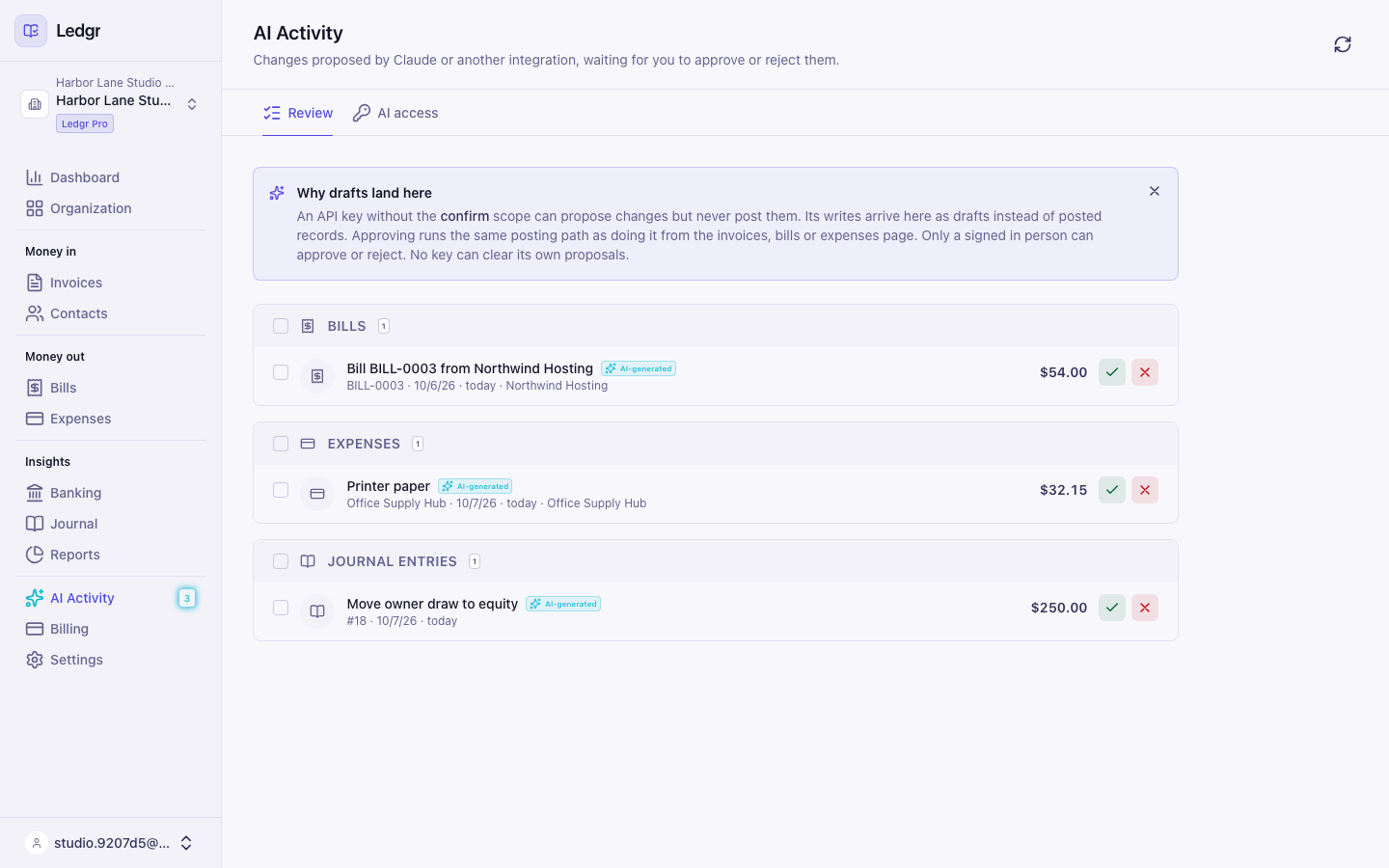
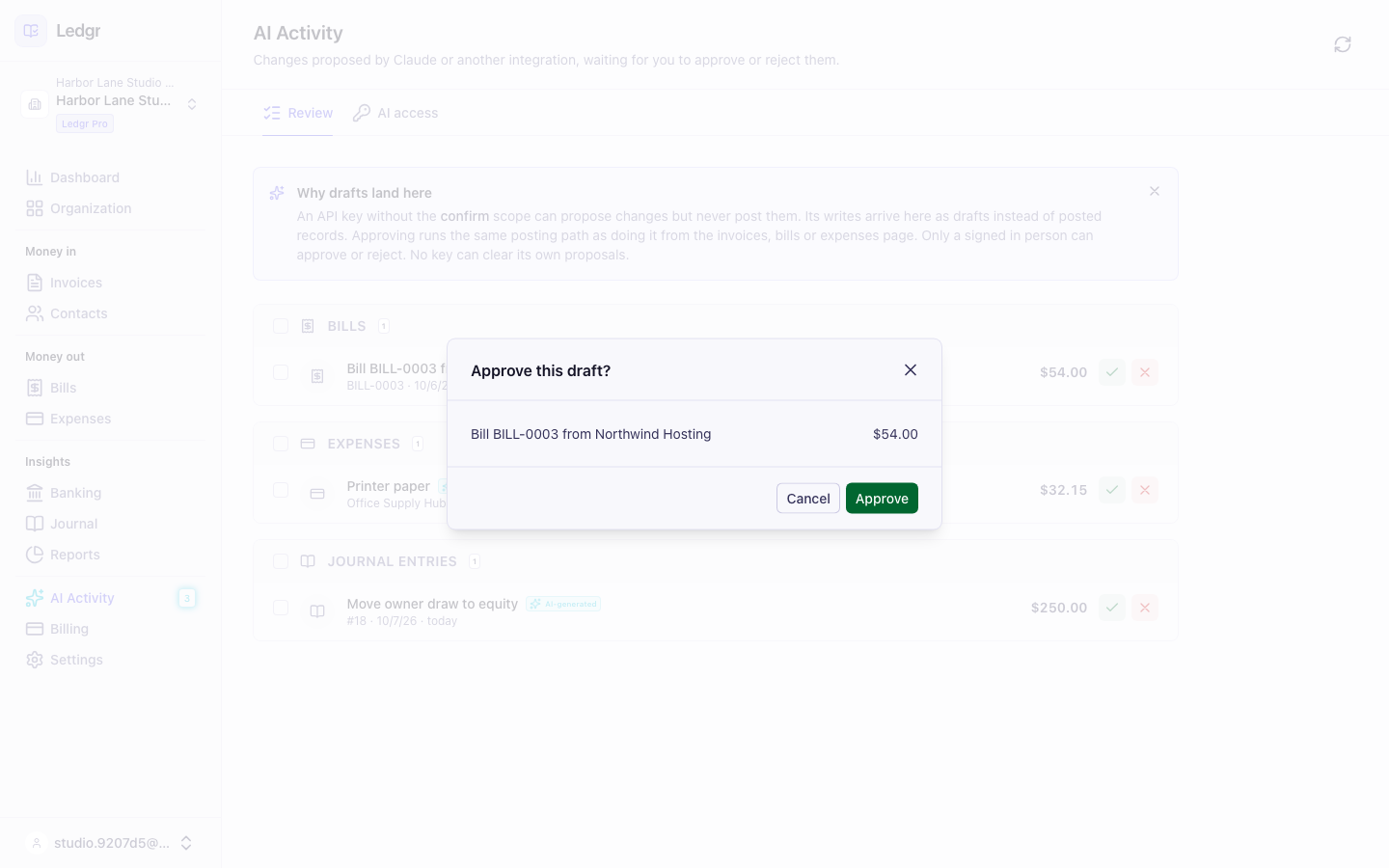
To handle several drafts at once, tick the boxes beside them and use the buttons that appear at the top of the list. Review what Claude drafted covers the whole screen.
Approving a draft posts it to your books in the same way as if you had entered it yourself. Only a person signed in to Bookledo can approve or reject drafts. A key cannot approve its own work, even a key with Confirm.
If something goes wrong
Posted entries cannot be edited or deleted. If Claude posts something wrong through a Confirm key, correct the row on the Books page, or void the invoice, bill, payment or expense it belongs to. A journal entry Claude typed in can be reversed from the Journal page.
If Claude says a request needs a signed in session, it asked for something that covers your whole Organization. Open that page in Bookledo yourself.
If Claude says a request needs a plan upgrade, the key was made on the Free plan or lacks the Write scope. Open AI Activity, then AI access, and create a new key with the scopes you want. Scopes cannot be changed after a key is created.