

Help center
Create and send an invoice
Bill a customer, post the invoice to your books, get it to them, and record the payment when it arrives. Bookledo does not send email. You print or save the invoice as a PDF and send it with your own email, then mark it as sent in Bookledo so you can keep track.
Before you start
You need a customer. If the person or company is not in your books yet, add them while you build the invoice (step 2), or open Contacts and select New contact.
Create the invoice
- Select Invoices in the sidebar, then select New invoice. The four figures at the top of the Invoices page show what is outstanding, what is overdue, what is still a draft, and what was paid this month.
- Choose the Customer. Type to search. If they are not listed, select the plus button beside the field, enter a name, and select Create. To start an invoice from a customer's own page, open Contacts, open the customer, and select New invoice. The customer is already filled in.
- Check the Issue date. It starts as today.
- Set the Due date, or leave it empty for no due date. Select Net 15 or Net 30 to set the date that many days after the issue date. Select Clear to remove it. An invoice with a due date that has passed shows as Overdue.
- Fill in the first line. Describe what it was for, enter the Qty and the Unit price, and check the Income account. The income account is where the sale is recorded, and Sales is right for most work. If you charge sales tax, choose a Tax rate for the line. Select Add line for more.
- Add Notes or Terms if you want them. Both are printed on the invoice for your customer.
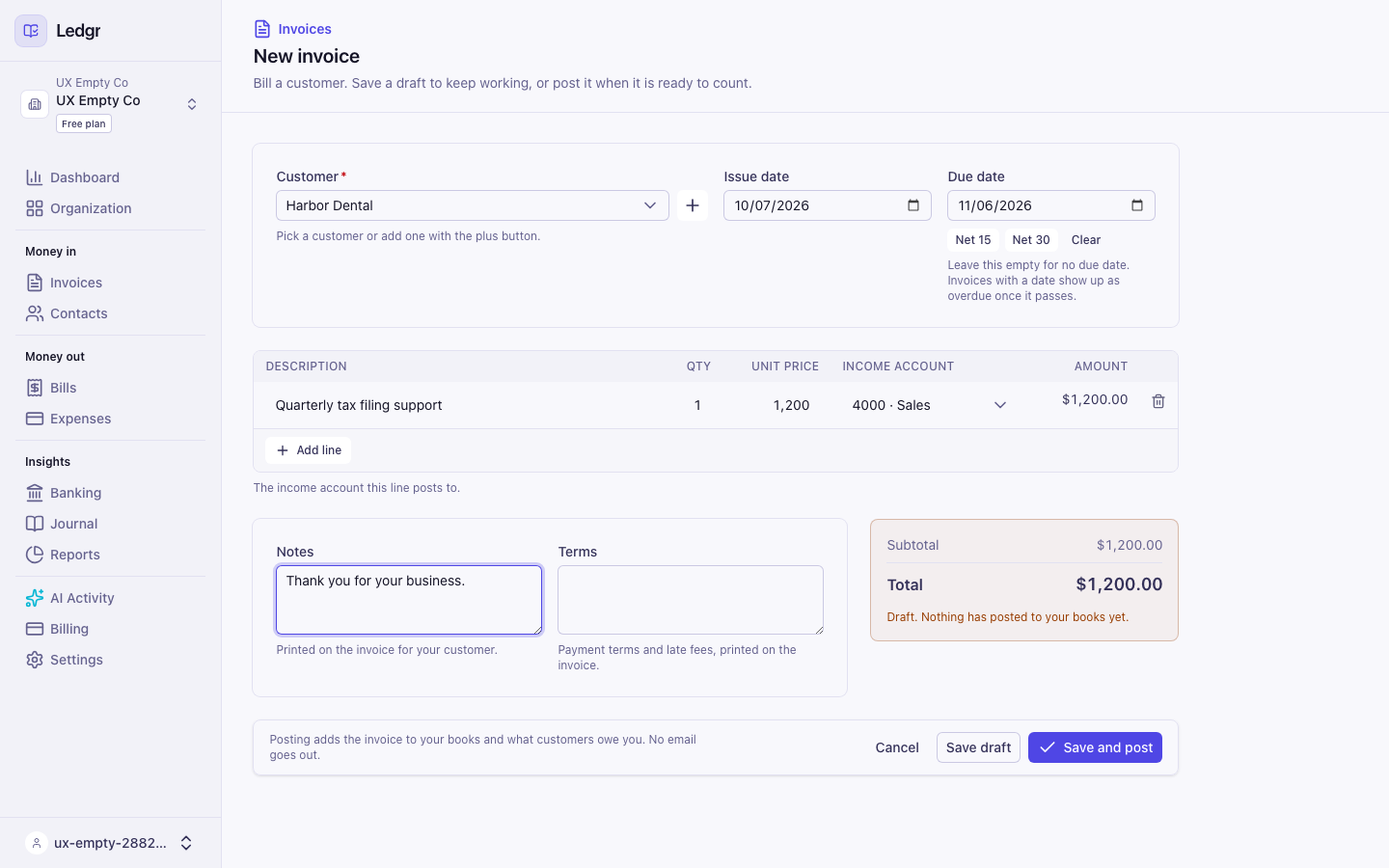
The Total card shows the amount as you type. The page warns you before you leave with changes you have not saved.
Save a draft, or post it
At the bottom of the page you have two choices.
- Save draft keeps the invoice so you can finish it later. A draft is not in your books yet. It does not count toward what customers owe you, and it does not appear on reports.
- Save and post saves the invoice and adds it to your books in one step.
If you select Save and post, Bookledo asks you to confirm. Once posted, an invoice is final. To correct it, void it and issue a new one.
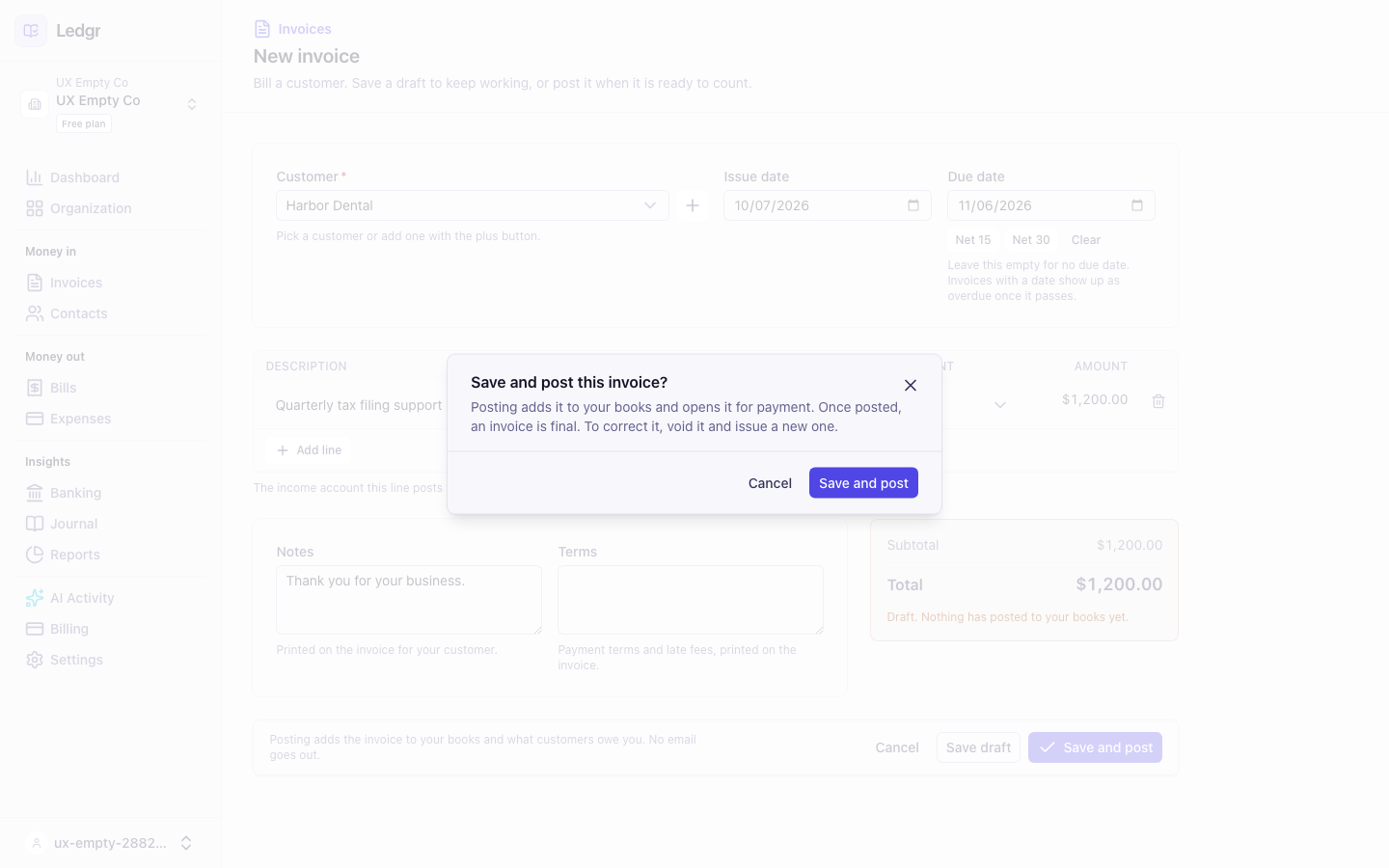
After you confirm, the invoice opens with the status Open. The Invoices list, the dashboard, and your reports update without you reloading the page.
To post a draft later, open it and select Save and post, or open the Actions menu on its row in the Invoices list and select Post.
Send it
- Open the invoice.
- Select More, then Print or save as PDF. The invoice opens in a new tab, ready to print or save.
- Send it to your customer with your own email.
- Back in Bookledo, select Mark as sent in the blue note at the top of the invoice.
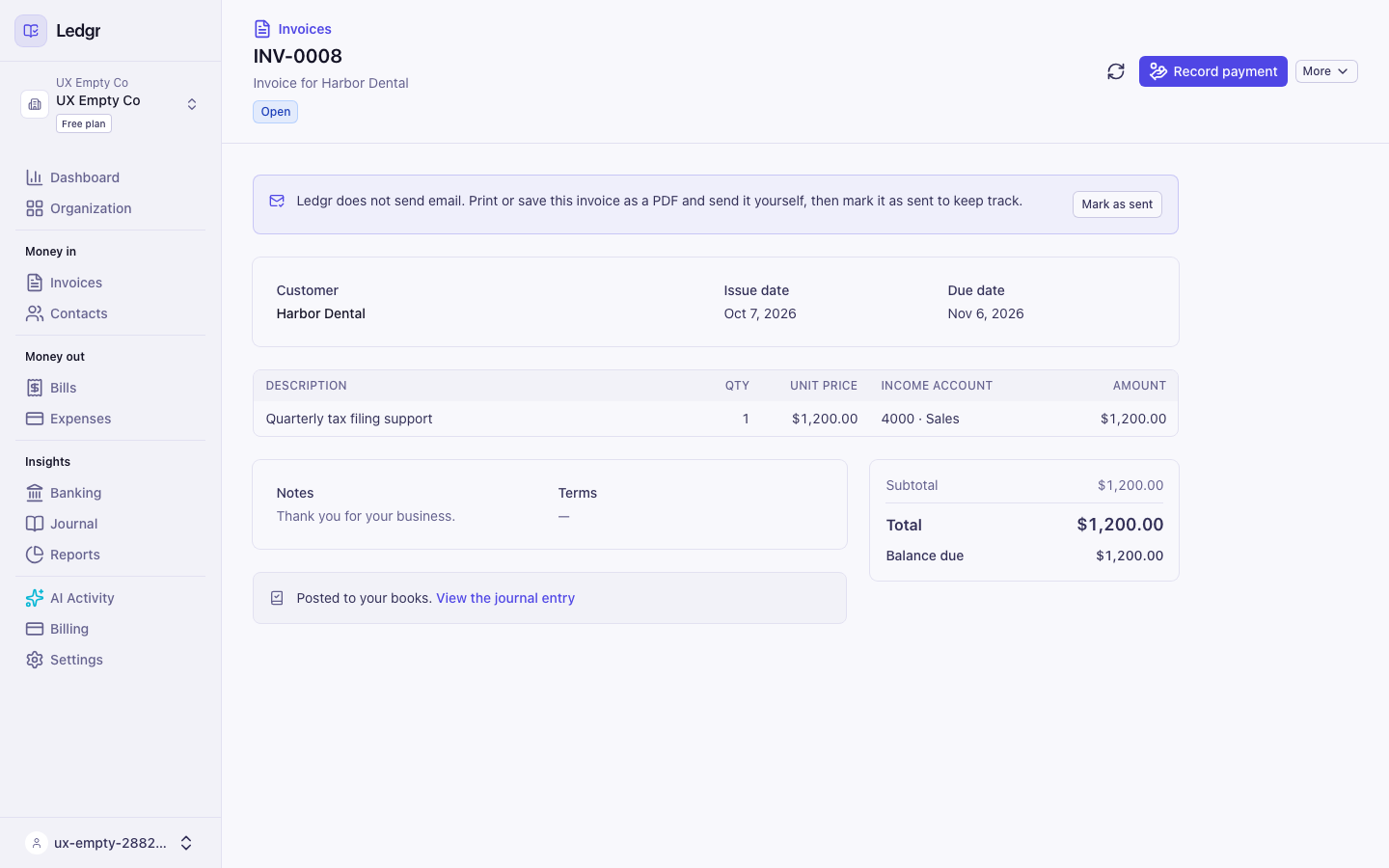
Marking an invoice as sent only records the date you did it. Nothing goes out from Bookledo.
Record the payment
When the money arrives, record it against the invoice.
- Open the invoice and select Record payment. You can also open the Actions menu on the invoice's row in the list and select Record payment.
- Check the Date received and Deposit to, the account the money went into, such as your checking account.
- The Amount starts as the full balance. Enter less for a partial payment. Add a Reference such as a check number if you like.
- Select Record payment.
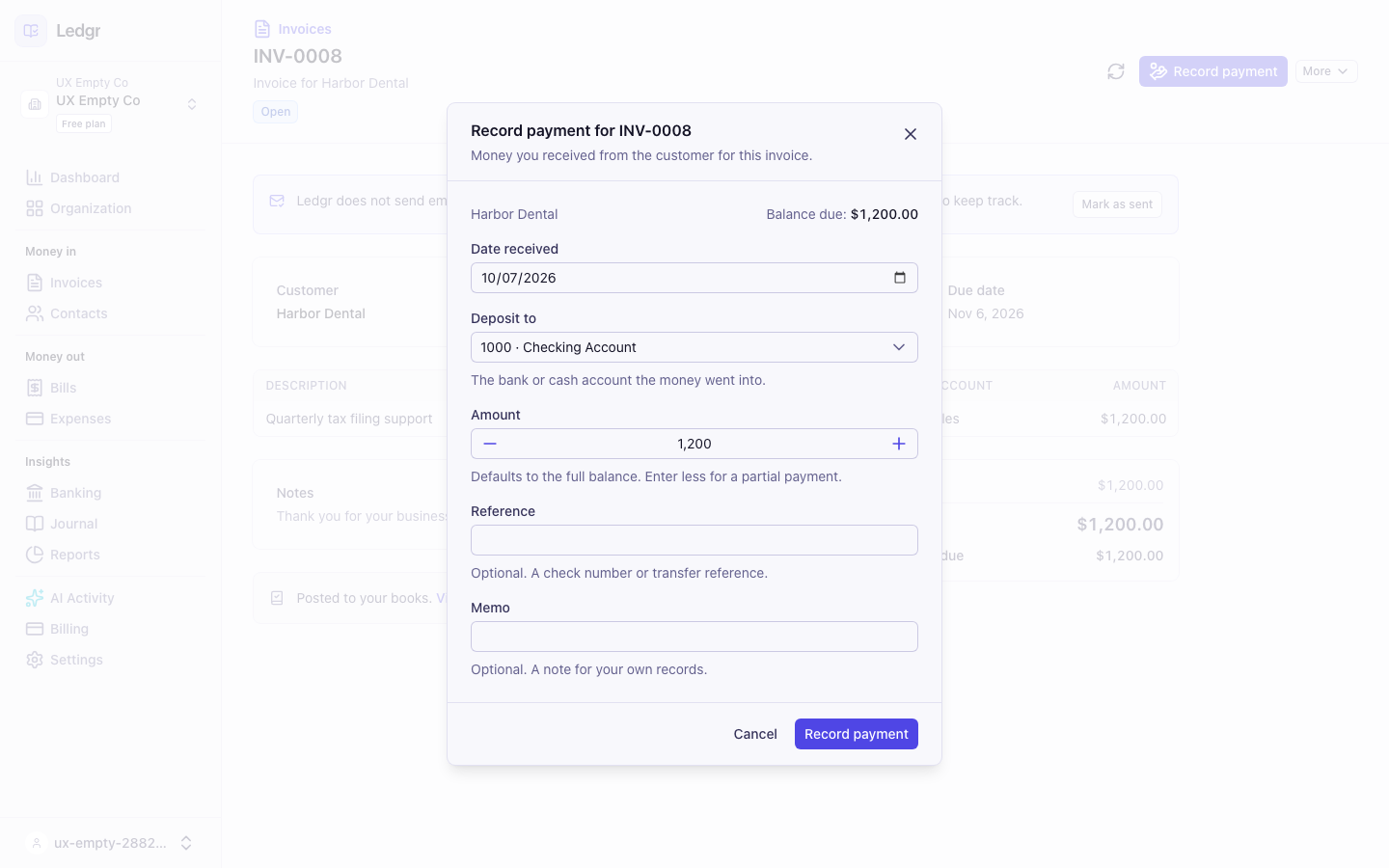
The invoice shows Partially paid or Paid, and the balance falls by the amount you entered. If you enter more than the balance, Bookledo keeps the extra in Undeposited Funds until you apply it.
Find and filter your invoices
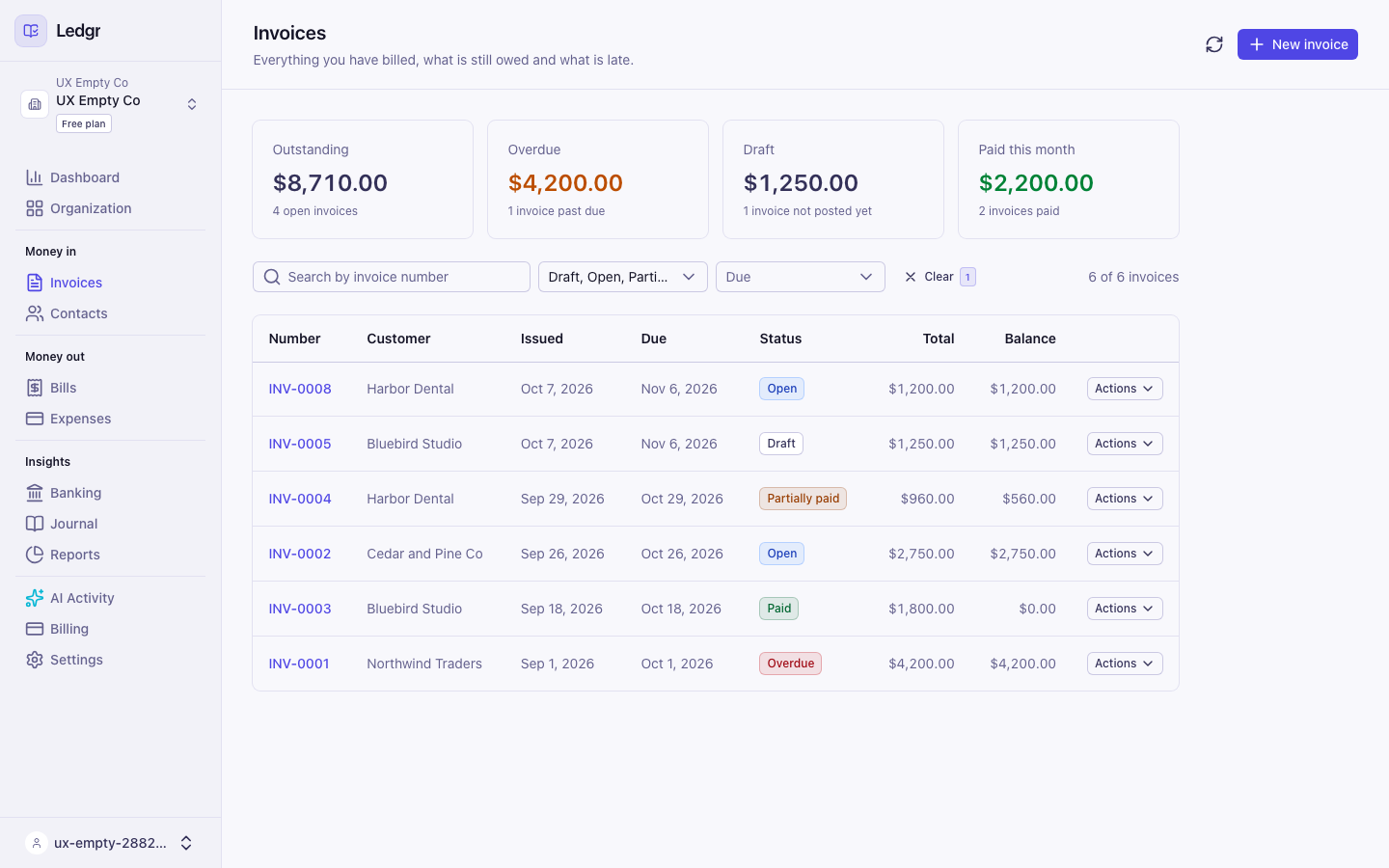
- Select a figure at the top of the Invoices page to see just those invoices. For example, select Overdue to list the invoices past their due date.
- Search by invoice number, or filter by Status or Due. Select Clear to remove the filters.
- If a search finds nothing, the page says No invoices match these filters and offers Clear filters.
- If the list cannot load, the page says so and offers Retry.
Copy, correct or cancel an invoice
- Duplicate makes a new draft with the same customer, lines, notes and terms, dated today. Find it in More on the invoice, or in the Actions menu on its row.
- Void takes a posted invoice out of your books and every report. It cannot be undone. An invoice that has a payment on it cannot be voided. Void the payment first.
Keyboard
Every step works without a mouse. Press Tab to move through the form, Enter to open the customer list and choose from it, and Enter on Save and post to open the confirmation window.
Next steps
Enter and pay a bill. Run your reports to see what customers owe you in the AR aging report.