

Help center
Review what Claude drafted
When Claude works in your books with a key that can propose changes but not post them, everything it creates waits for you as a draft. A draft does not appear in any report and does not change any balance until you approve it. This article shows how to review drafts on the AI Activity page.
If Claude is not connected yet, start with Connect Claude to your books.
Open the review screen
- Select AI Activity in the sidebar. A number beside it shows how many drafts are waiting. The number goes down as you work, without reloading the page.
- Stay on the Review tab. The other tab, AI access, holds your keys and the setup for Claude.
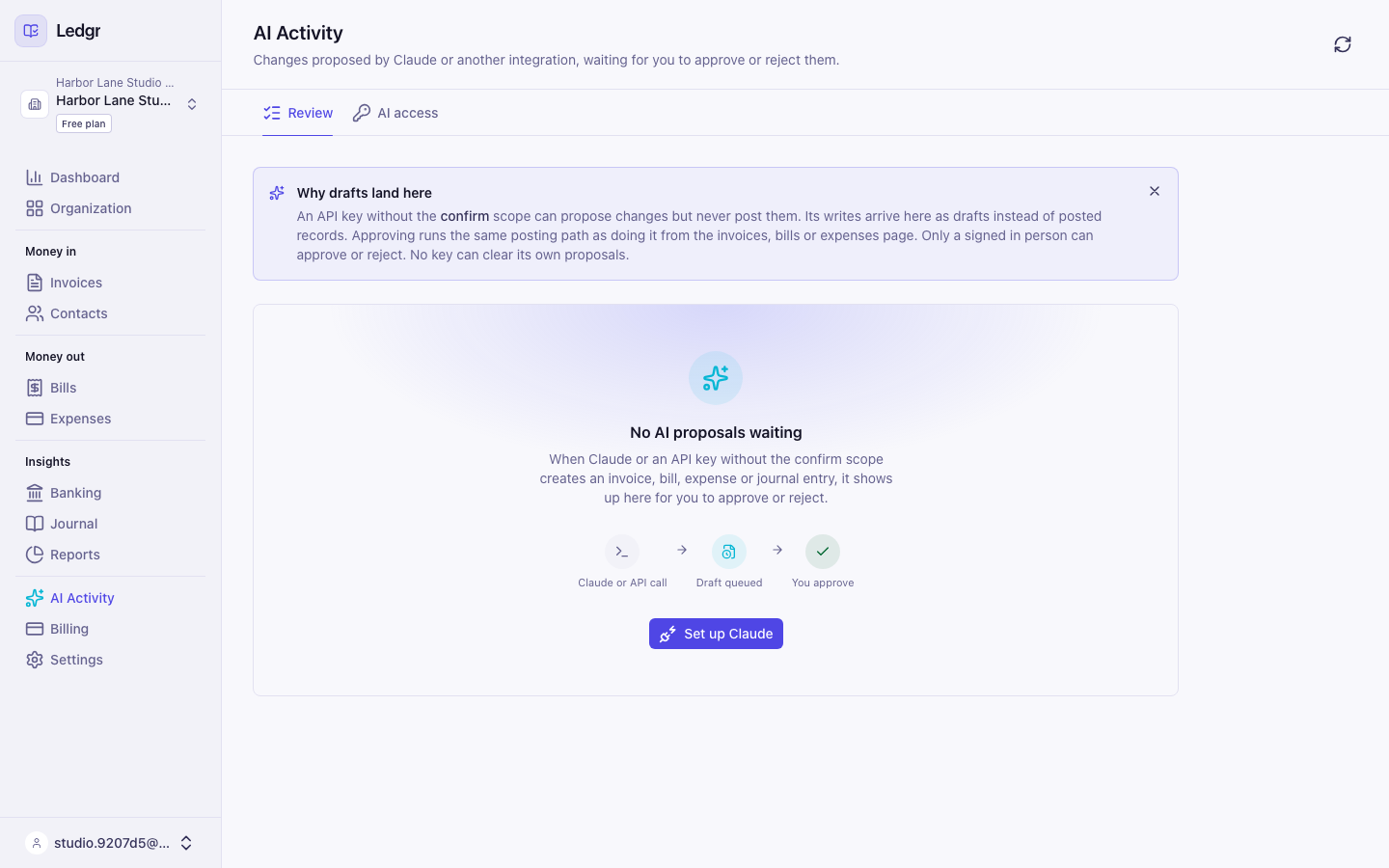
If nothing is waiting, the page says No AI proposals waiting and shows how a proposal reaches you. Select Set up Claude to go to the setup page.
Read a draft
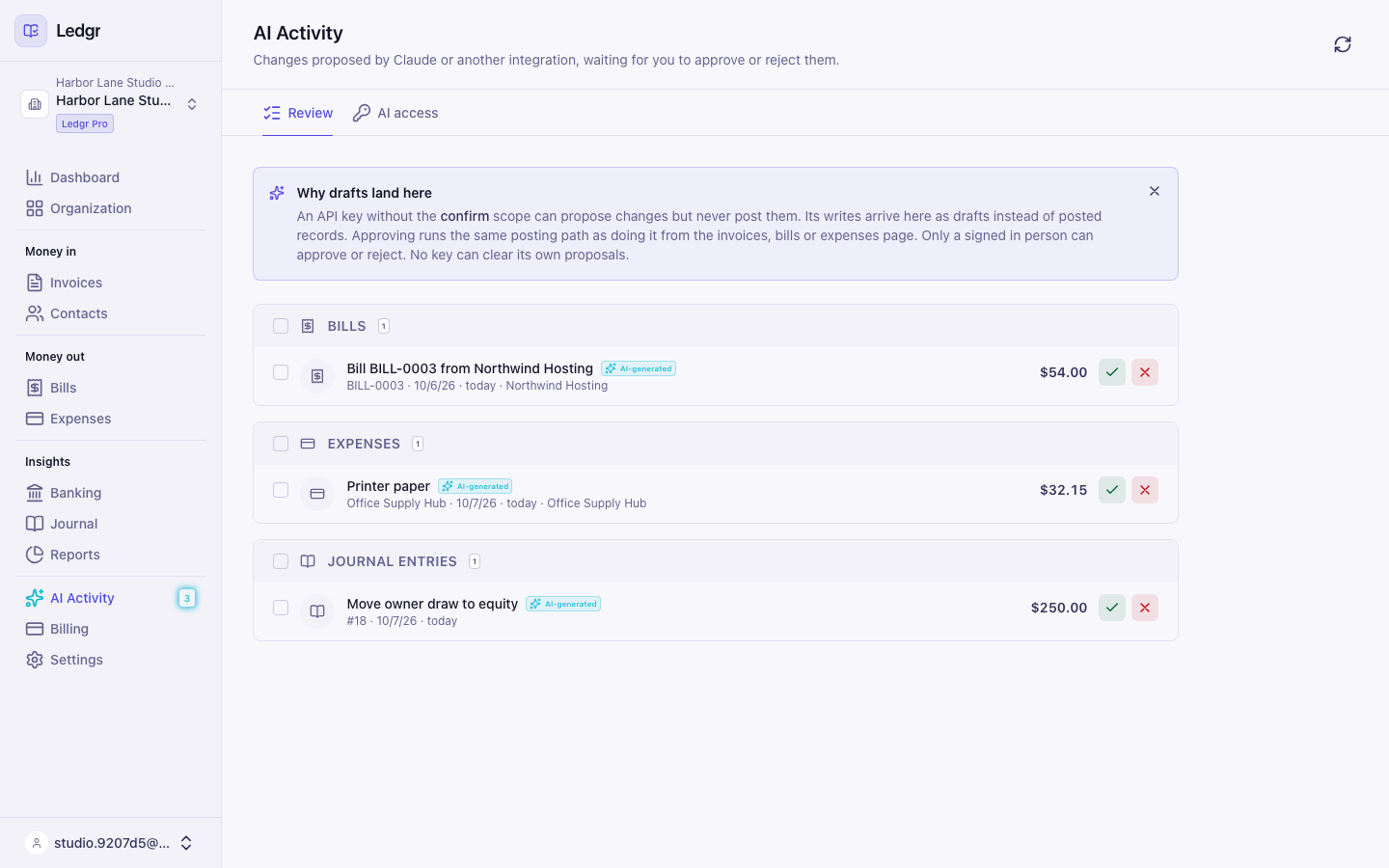
Drafts are grouped under Bills, Expenses, Invoices and Journal entries. Each row shows what Claude proposed, its number, the date, how long ago it arrived, the contact if there is one, and the amount. A small AI-generated tag marks every row.
The note at the top, Why drafts land here, explains that a key without the confirm scope can propose changes but never post them. Select the X on the note to hide it. Bookledo remembers that on this computer.
Approve a draft
- On the row, select the green check mark.
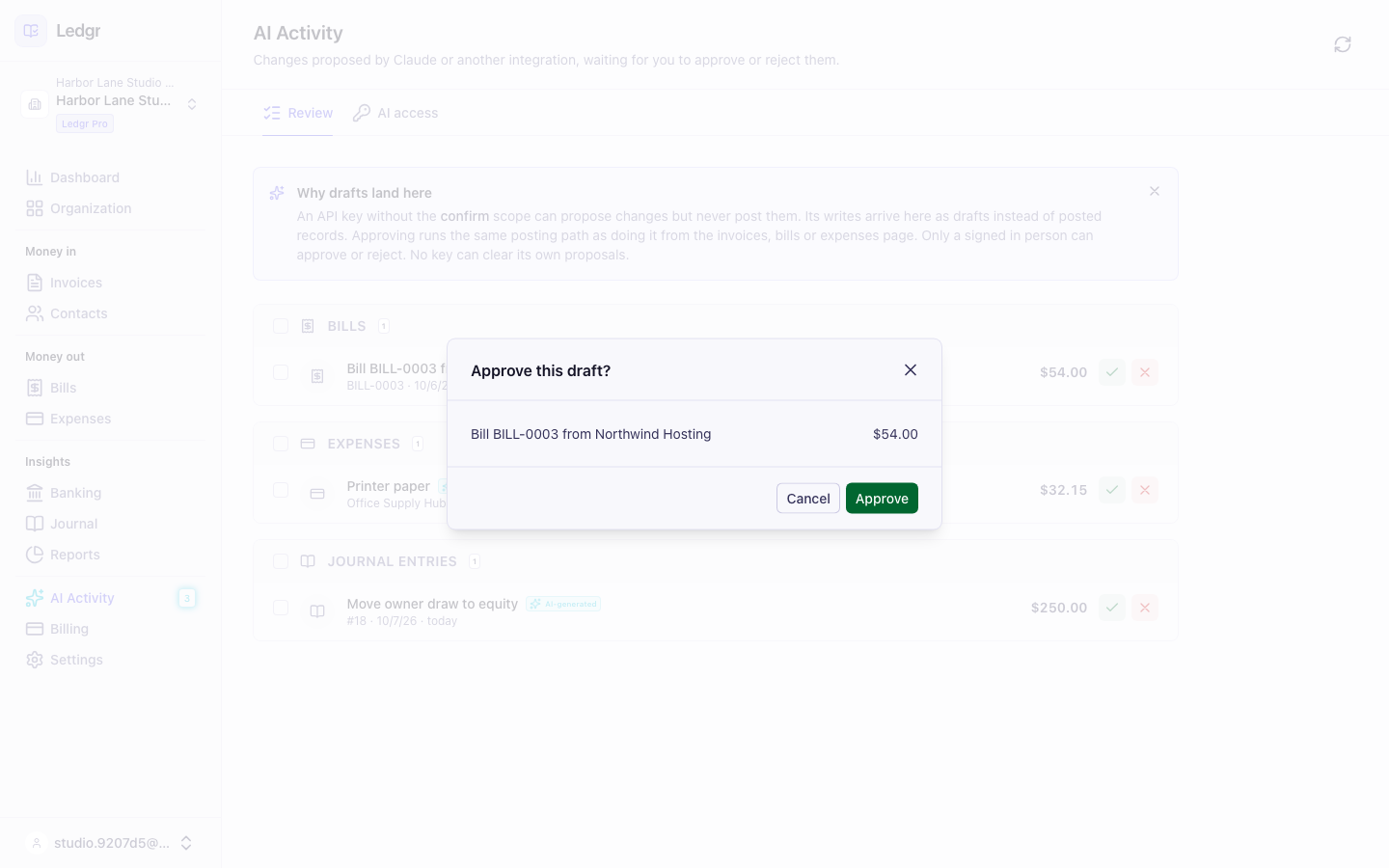
- Check the window that opens. It repeats what Claude drafted and the amount.
- Select Approve.
Bookledo posts the draft to your books in the same way as if you had entered it yourself. The row leaves the list, the sidebar number goes down, and your reports and dashboard figures update on their own.
Reject a draft
- On the row, select the red X.
- Select Reject in the window that opens.
A rejected draft is discarded. It never reaches your books.
Handle several drafts at once
- Tick the box on each row you want. Tick the box in a group header to pick the whole group.
- A bar appears above the list with the number you picked.
- Select Approve selected or Reject selected, then confirm.
If one draft cannot be approved, for example because someone else handled it a moment earlier, Bookledo tells you how many could not be done. The others still go through.
Use the keyboard
Press Tab to move through the rows. Each check mark and X is named after its draft, for example Approve Printer paper, so a screen reader says which draft you are on. Press Enter to open the window, then Tab to Approve or Reject and press Enter again. Press Esc to close the window without doing anything.
If the list will not load
An alert says Couldn't load the queue and offers Retry. Select Retry. If it keeps failing, wait a minute and select the refresh button at the top right of the page.
Who can approve
Only a person signed in to Bookledo can approve or reject a draft. A key cannot approve its own work, even a key with the confirm scope.
Next steps
- Connect Claude to your books covers keys, scopes and setup.
- Run your reports to see approved drafts in your numbers.