

Help center
Import bank transactions
You can bring in your bank activity from a CSV file, an OFX, QFX or QBO file, or a PDF statement. Imported lines wait on the Books page with an Uncategorized badge. Nothing reaches your books until you match or categorize each line.
Download a file from your bank
- Sign in to your bank or to the tool you are moving away from.
- Export the transactions for the period you want. Choose CSV if you can, or OFX, QFX, QBO, or the download labeled Quicken, Money or QuickBooks. If your bank only offers a PDF statement, download that.
- Save the file to your computer. Files can be up to about 8 MB.
Bookledo keeps books in US dollars. An OFX file in another currency is refused.
Import the file
- Select Books in the sidebar.
- At the top of the page, select the bank or cash account the file belongs to. If you leave All accounts selected, the file goes into your first bank account. The import window names the account it is importing into, so you can check before you upload.
- Select Import statement at the top right. You can also select the arrow on an account at the top of the page and choose Import statement in the panel that opens, which imports into that account.
- Choose CSV, OFX / QFX / QBO, or PDF to match your file.
- Drop the file on the upload area, or select it to browse.
If your file is OFX, QFX or QBO, the next screen asks you to confirm and select Import. No mapping is needed. Skip ahead to the results.
If your file is a PDF, follow the steps under "Check a PDF statement" below.
Map your CSV columns
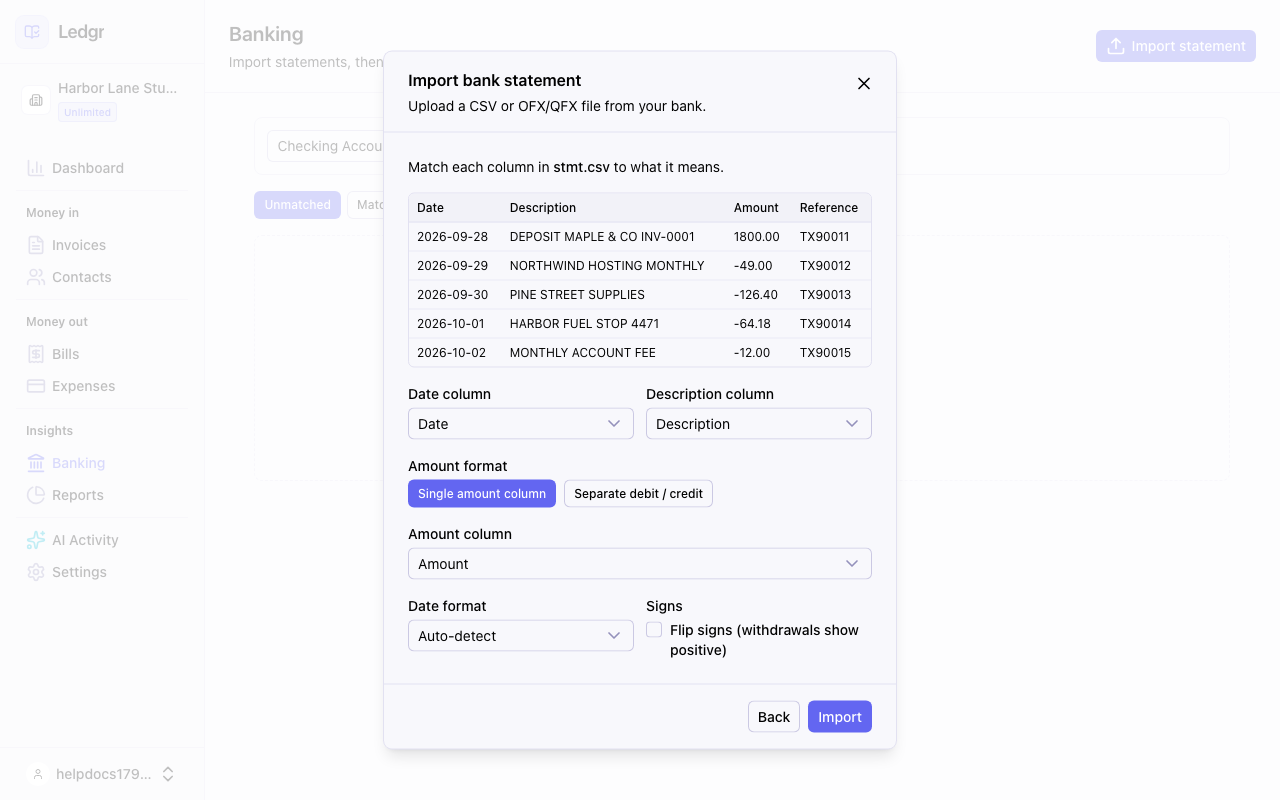
The mapping screen shows the first rows of your file so you can see what each column holds.
- Set Date column to the column with the transaction date.
- Set Description column to the column with the payee or memo text.
- Choose how your file shows amounts. Pick Single amount column if one column holds both deposits and withdrawals, then set Amount column. Pick Separate debit / credit if the bank uses two columns, then set Debit (money out) column and Credit (money in) column.
- Leave Date format on Auto-detect for dates like 2026-09-28 or 09/28/2026. Choose a day first format such as DD/MM/YYYY if your bank writes the day before the month.
- Check Flip signs (withdrawals show positive) if your file lists withdrawals as positive numbers. Bookledo expects money out to be negative.
- Select Import.
Check a PDF statement
A PDF has no columns for Bookledo to map, so Bookledo reads each line of the statement and shows you what it found. Nothing is imported until you confirm it.
- After you choose PDF, pick Bank account or Credit card under Statement type. Card statements show charges as plain numbers and payments as negative ones, so Bookledo needs to know which kind it is reading.
- Drop the PDF on the upload area. Bookledo reads it and opens a table of the transactions it found.
- Check each row. You can change the date, the description, or the amount by typing in it. Money out is negative.
- Uncheck any row you do not want to import, such as a pending item or a line that is not a transaction.
- Read any row with a yellow note under it. A note means Bookledo had to guess something, usually whether the amount is money in or money out. Fix the amount if the guess is wrong.
- If every deposit came out negative, select Flip all signs.
- Compare the totals under the table with the totals printed on your statement. Money in, Money out, and Net change add up only the rows that are checked.
- Select Import to bring in the checked rows.
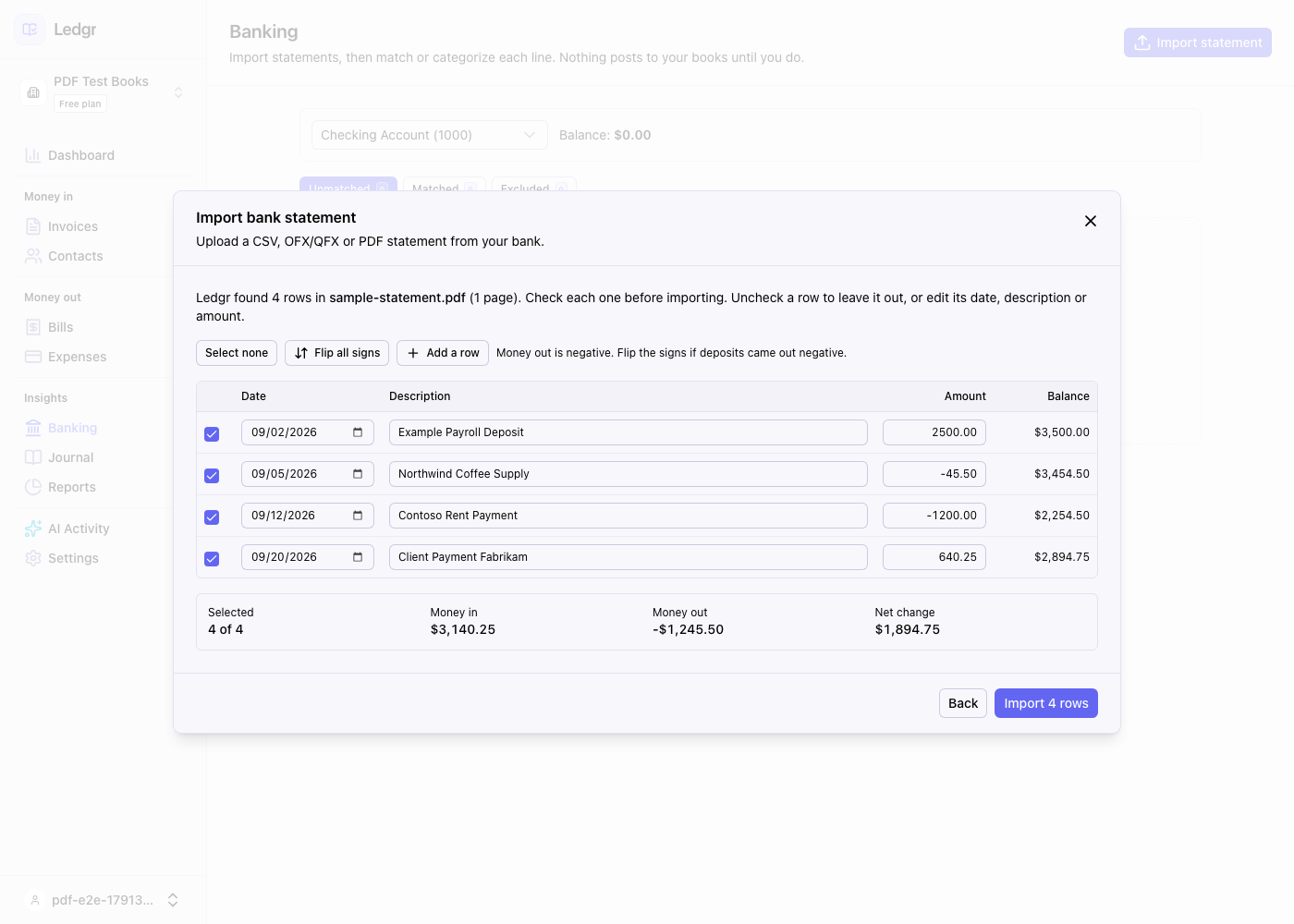
If Bookledo found a line that starts with a date but could not read an amount, it lists it under lines Bookledo could not read below the totals. If that line is a real transaction, select Add a row and enter it yourself.
If your statement does not show a year anywhere, Bookledo says which year it used. Check the dates before importing.
When a PDF cannot be read
- This PDF has no text to read. The statement is a scanned image or a photo, and there is no text in it for Bookledo to pick up. Download the statement from your bank as CSV instead.
- This PDF is password protected. Open it, save a copy without a password, and import the copy. Or download CSV instead.
- No transactions could be read from this PDF. The layout is one Bookledo cannot follow. Download CSV instead.
Read the results
When the import finishes, Bookledo shows how many transactions it brought in.
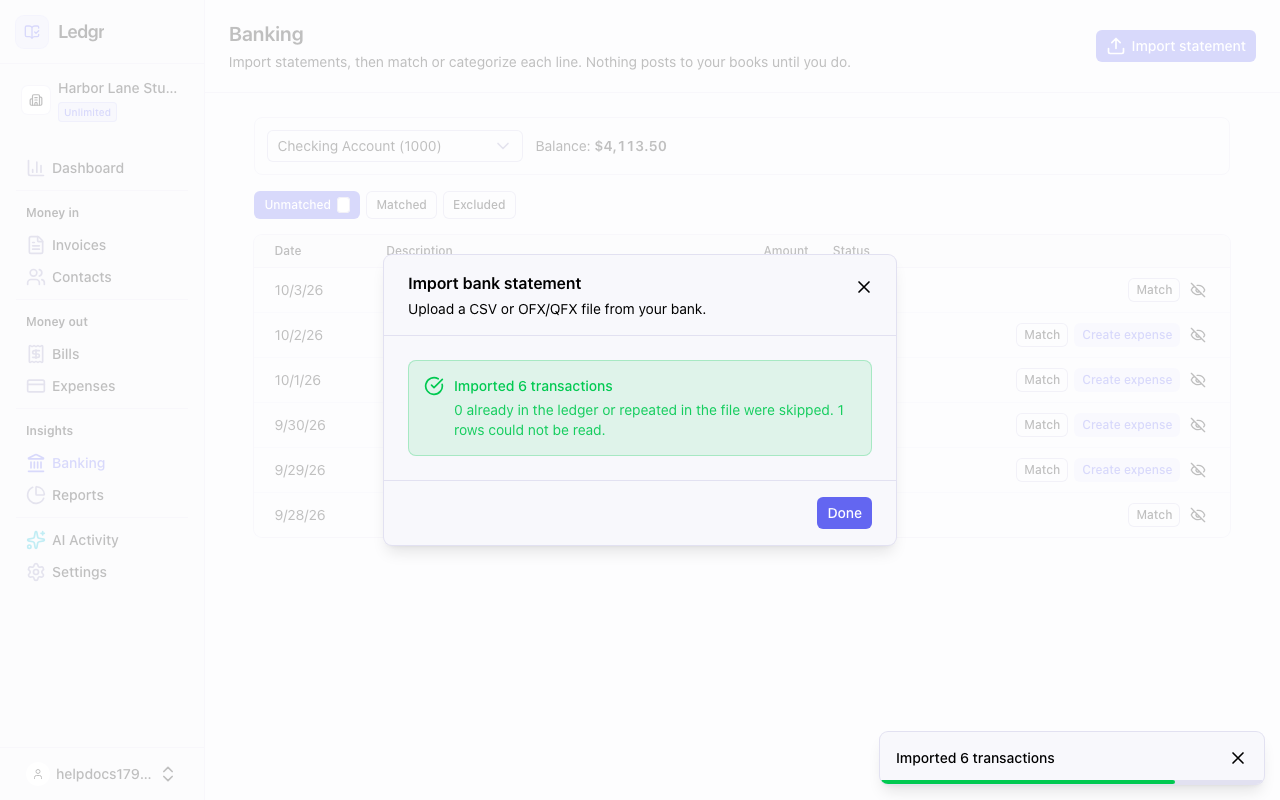
- Imported is the number of new lines added to the Books page.
- Skipped is the number of lines Bookledo already had, plus lines repeated inside the file.
- Could not be read is the number of rows Bookledo could not turn into a transaction, usually because the date was missing or in a different format than the one you chose.
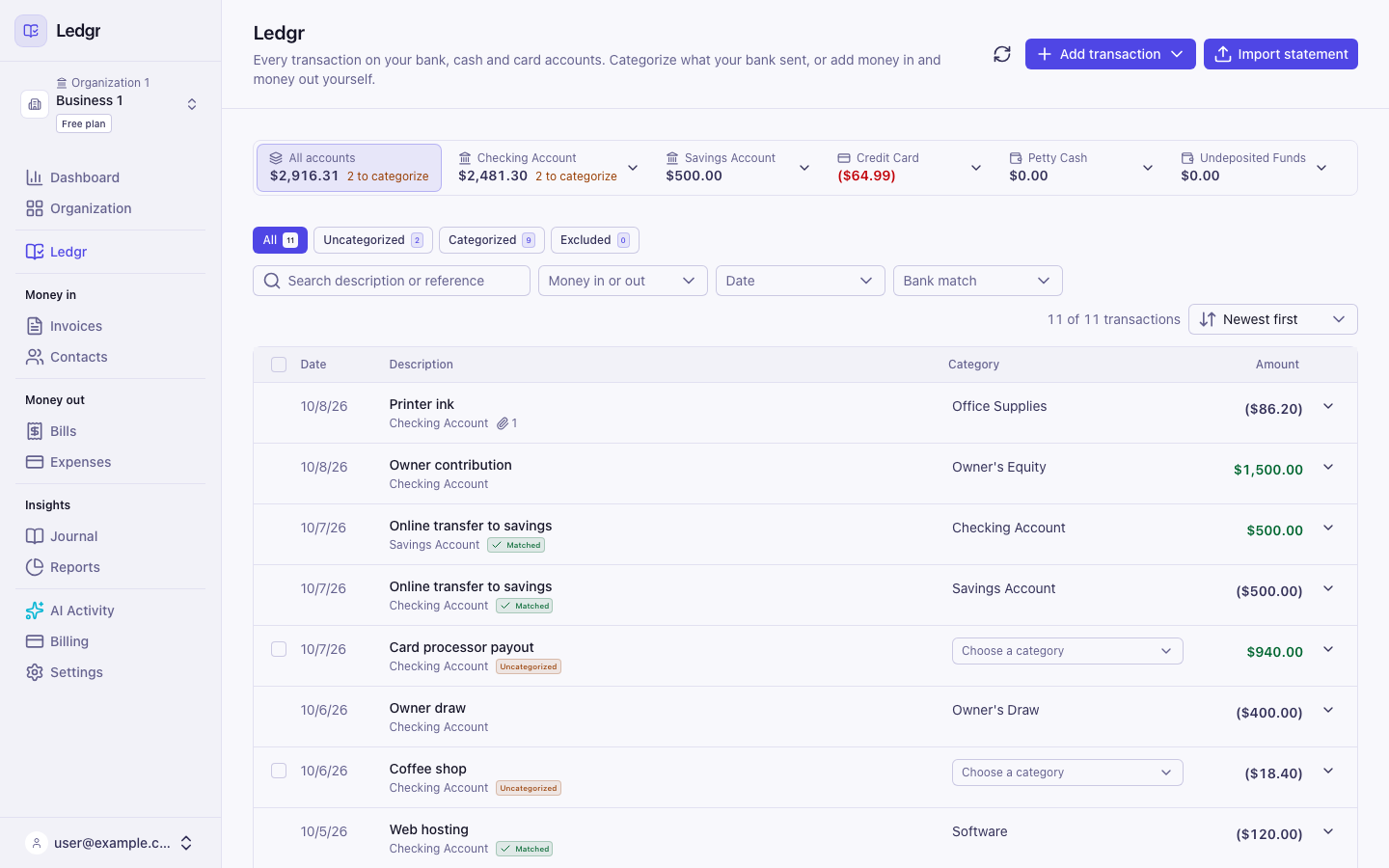
Select Done. Your new lines appear on the Uncategorized tab, and the count on the tab and on the account go up to match.
Rows that need a look are listed under the counts, with the row number and the reason. Open the file in a spreadsheet and find those rows. Fix them, or change Date format, and import again. Lines that already came in are skipped, so a second import is safe.
Importing the same file twice
Bookledo treats two lines as the same transaction when the account, date, amount, and description all match. Capital letters and extra spaces do not count as differences. This means you can import overlapping statements without creating duplicates, and it works across formats. A PDF row that matches a line you already brought in from CSV is skipped too.
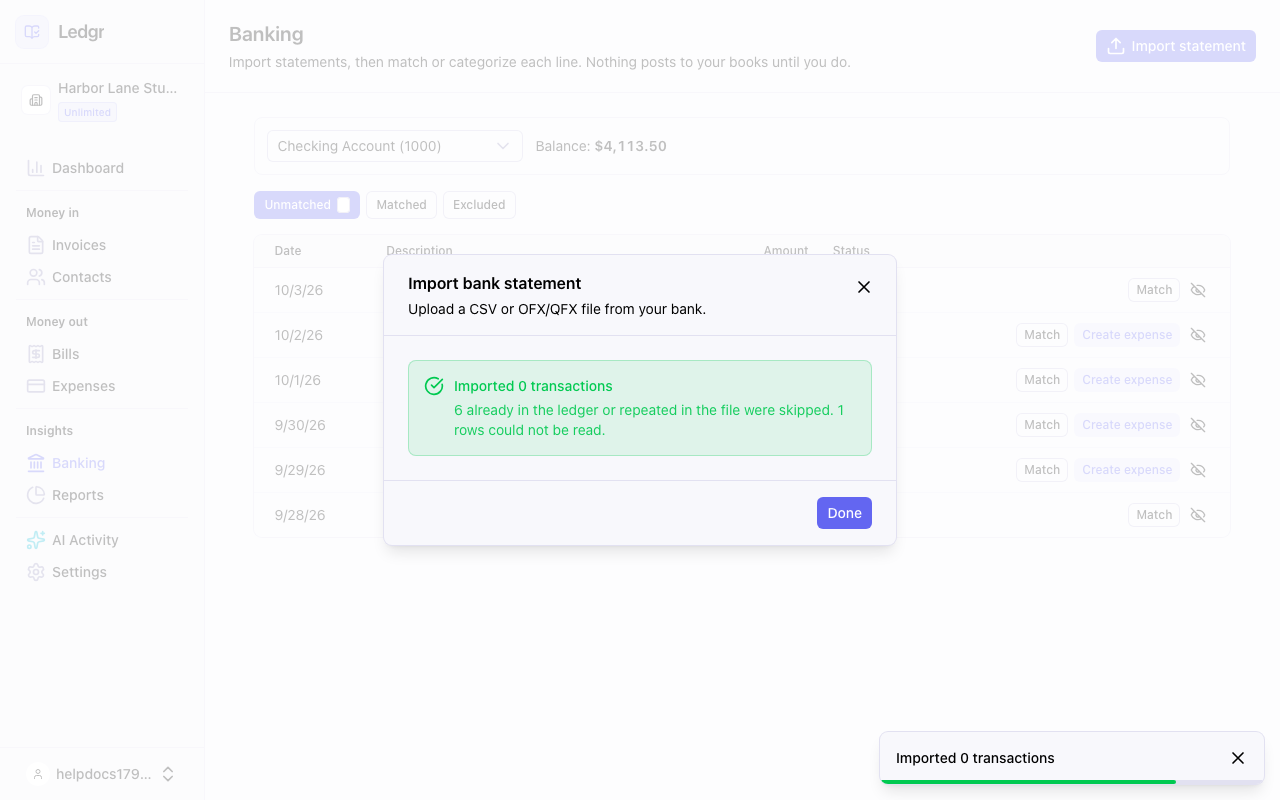
Two things follow from this.
- If your bank really charged you the same amount, to the same payee, with the same description, on the same day, Bookledo counts those lines as one. Record the second charge by hand as an expense.
- If you change a description in the file, or in the PDF review table, Bookledo sees a new transaction.
Bank reference numbers
OFX, QFX and QBO files carry a transaction ID from the bank, called the FITID. Bookledo stores it with the line. If you later import a line that has the same ID as one you already have but a different date, amount, or description, Bookledo keeps the one it already has, skips the new one, and lists it in the results so you can check it.
If the import fails
- No usable rows were found. Check the column mapping and the date format. The columns you picked do not hold dates and amounts. Go back and choose again.
- The file is empty or too large. Split a very large file into smaller date ranges.
- Not a bank or cash account. Pick an account with the bank or cash subtype in the account picker. You can set the subtype under Settings and Chart of accounts.