

Help center
Move your books from Wave
Bookledo can read the accounting export from Wave and bring in your history with its categories, so years of categorized transactions do not have to be categorized again. You see exactly what will happen before anything is written, and running the same file again never adds a transaction twice.
Before you start
Decide how much history to bring over. There are two ways to switch, and they should not be mixed.
- Bring your whole history. Import everything from the day your business started in Wave. Do not enter opening balances in Bookledo, because the history already adds up to them.
- Start fresh on a date. Enter opening balances as of a date, as described in Enter your opening balances, then import only the Wave transactions from that date on.
If you already entered opening balances, Bookledo notices and asks you to start the import on that date. Anything before it is already inside the opening balances and would be counted twice.
Export your books from Wave
- Sign in to Wave.
- Select your business name at the top right, then Business settings.
- In the settings menu, scroll down to Other and select Data Export.
- Select Accounting. Wave emails a download link to the main email address on your Wave account. The link works for 24 hours.
- Open the email and select Download data export. Unzip the download if it comes as a zip file.
- Keep the file named for accounting or transactions. The bill items, customers and vendors files are not needed.
Wave exports one business at a time. If you have more than one business in Wave, export each one and import it into its own business in Bookledo.
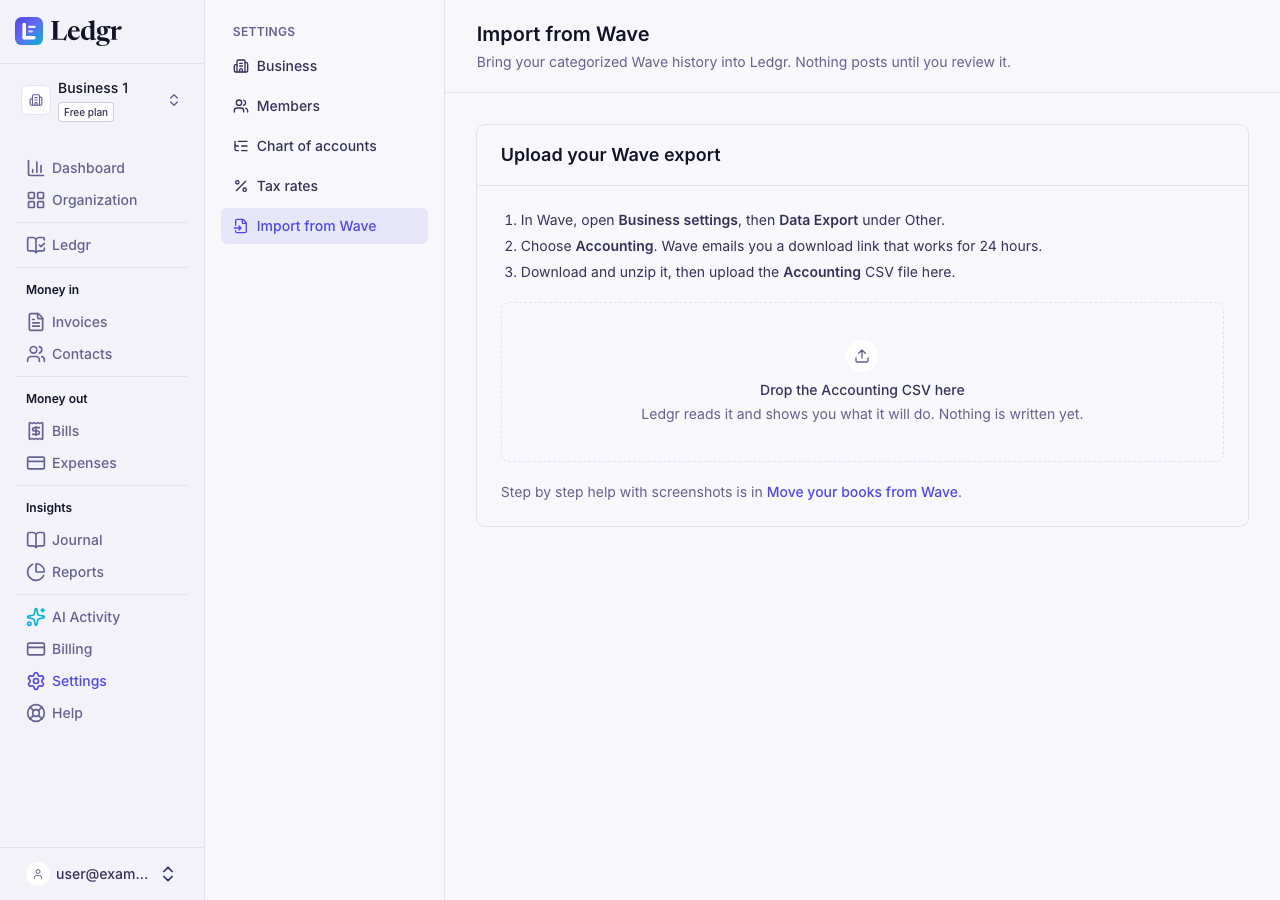
Upload the file
- In Bookledo, open Settings and select Import from Wave.
- Drop the accounting CSV file on the upload area, or select it to browse.
Bookledo reads the file and opens the review. Nothing is written yet.
Review the import
The review shows everything the import will do.
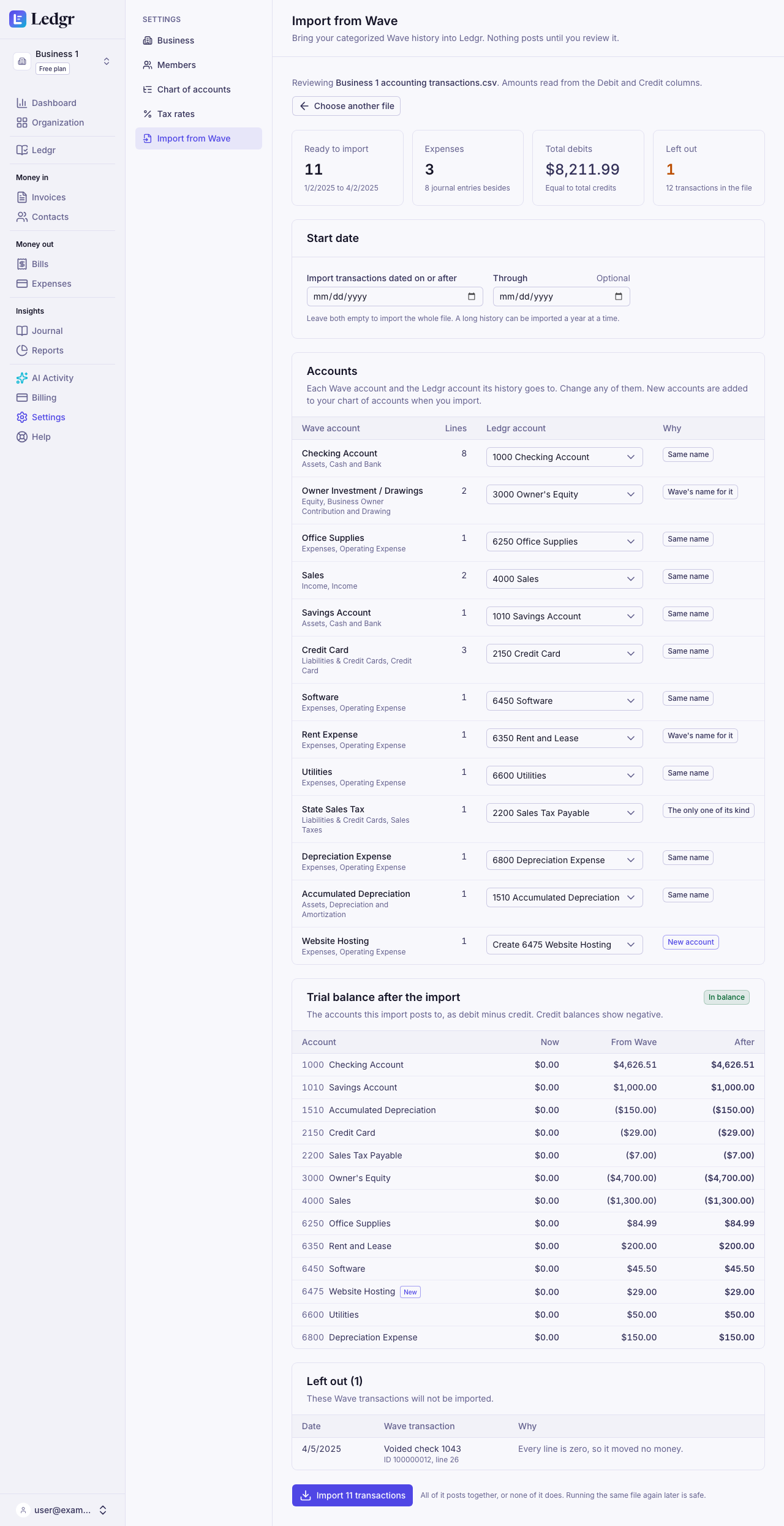
The counts. How many transactions are ready, the dates they cover, how many become expenses, the total of all debits, and how many are left out.
Start date. Leave it empty to import the whole file. Set a date to import only transactions dated on or after it. If your business has opening balances, select Use opening balance date. Fill in Through as well to import one stretch at a time. A history of many years imports faster a year at a time, and importing the same file again for the next year picks up where the last one stopped.
Entries already in Bookledo. If you already recorded money in Bookledo on the same bank, cash or card accounts in the same dates, the review says how many entries there are and holds the import. Wave probably has the same money, and importing it would count it twice. Move the start date past them, or check the register, and if they are different money, check the box that says so. Statement lines you imported into Bookledo but have not categorized are not counted here. After the import, match each one to its Wave entry rather than categorizing it.
Accounts. Each Wave account is listed with the Bookledo account its history goes to. Bookledo pairs them for you.
- Same name means your chart of accounts has an account with the same name and kind.
- Wave's name for it means Wave and Bookledo call the same account by different names, such as Rent Expense and Rent and Lease.
- The only one of its kind is used for accounts a business keeps one of, such as sales tax.
- New account means your chart has nothing that matches. Bookledo adds it, with Wave's name, when you import.
To change a pairing, open the menu next to the Wave account and choose another account, or choose Create to add a new one. The menu only offers accounts of the same kind, so an expense in Wave stays an expense in Bookledo. If Wave's file did not say what kind an account is, choose the kind when you create it.
Trial balance after the import. Each account the import posts to, with its balance now, the change from Wave, and the balance after. The badge reads In balance when debits and credits will be equal.
Left out. Wave transactions that will not be imported, with the reason. A transaction of zero, such as a voided check, is left out. A transaction whose lines do not add up is left out rather than imported half way. Transactions that were imported before are counted at the top and not listed. A transaction you imported and then voided in Bookledo is listed and never imported again, so a void stays a void.
Import
Select Import. The button names how many transactions will post.
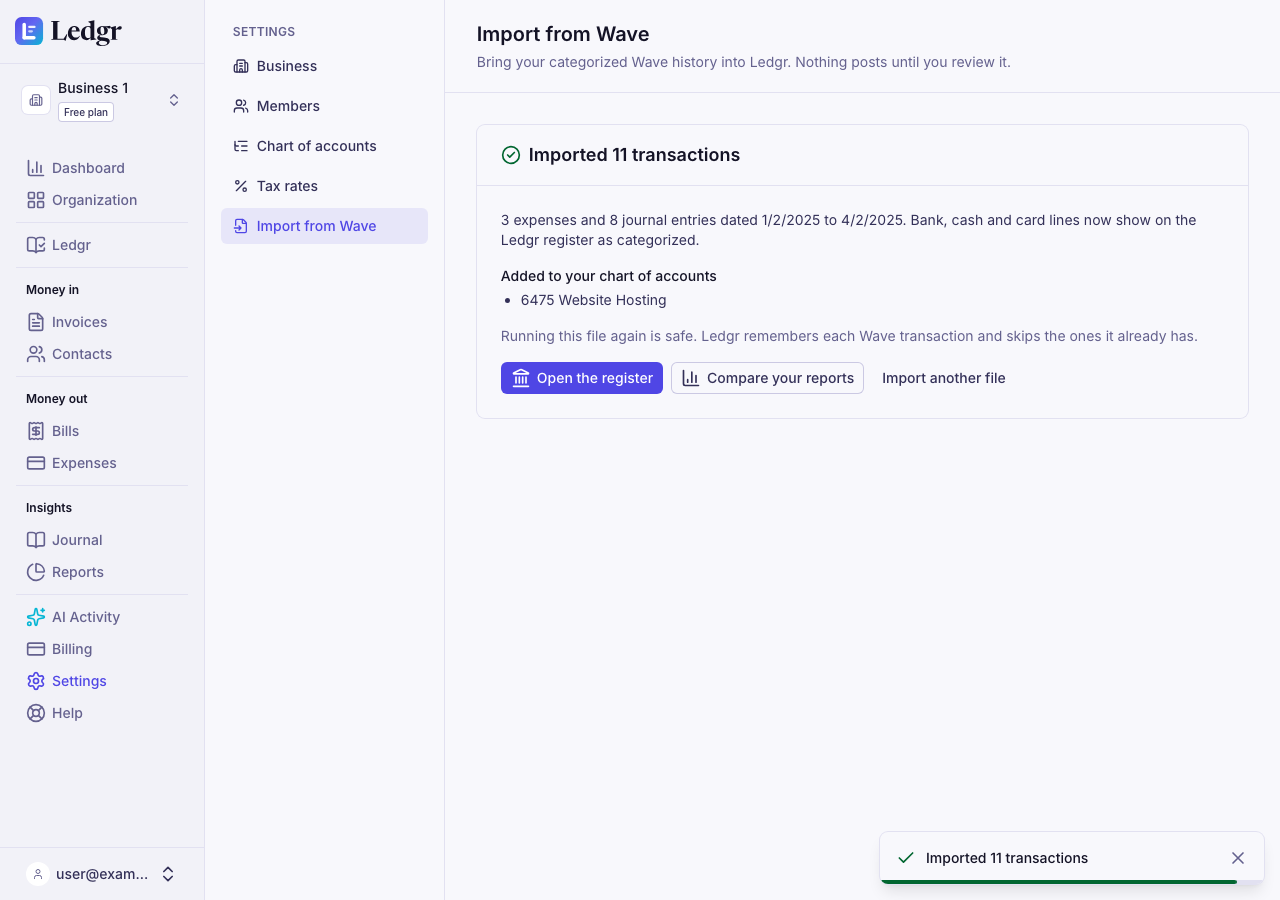
The whole file posts together, or none of it does. If anything goes wrong, Bookledo names the Wave transaction it could not post and nothing is written, so you can fix it and try again.
Each Wave transaction becomes one entry with Wave's date and description. A purchase paid from a bank, cash or card account becomes an expense, so it shows on the Expenses page. Transfers, deposits, owner money, card payments, splits, sales tax and Wave journal transactions become journal entries with Wave's debits and credits. Search for the word Wave and the Wave transaction ID on the Books register to find one.
Check the result
- Open Reports and run the Profit and loss for each year you imported.
- Run the Balance sheet as of the last day of each year.
- Run the same reports in Wave for the same dates, on the accrual basis. The totals should match.
If a total is off, look at the Left out list from the review, and at any account you paired by hand.
Import again later
You can upload the same file again, or a newer export that overlaps it. Bookledo remembers every Wave transaction it imported and skips it. If a transaction was changed in Wave after you imported it, it is listed under Left out and your books keep the first version. Correct it in Bookledo if the change matters.
When your bank statements arrive
Imported bank and card transactions show on the Books register as categorized. When you later import a bank statement or connect your bank, a statement line for the same money is offered as a match to the imported entry instead of being booked again. Categorize and reconcile your transactions shows how to match a line.
Bookledo can also read a QuickBooks (QBO) download from your bank. Import bank transactions shows how.
What does not come over
- Invoices and bills. Money on Wave invoices and bills comes over as journal entries on Accounts Receivable and Accounts Payable, so your balances match. The invoice and bill documents themselves are not created. An invoice still unpaid when you switch stays in the Accounts Receivable balance. When the customer pays, record it with a journal entry that debits your bank account and credits Accounts Receivable. If you started fresh with opening balances and entered your open invoices as real invoices in Bookledo, pay them in Bookledo, and leave their Wave payments out with the start date or by entering them only once.
- Customers and vendors. A name on a Wave transaction is linked to a Bookledo contact with the same name. Otherwise the name is added to the entry's description.
- Receipts. Wave's receipt images are a separate export. Attach the ones you need to the expense in Bookledo.
You can also ask Claude
If Claude is connected to your books, it can run the import too. With a key that has only the Write scope, every entry lands as a draft for you to approve under AI Activity. Accounts the import creates are added to your chart right away, even when the entries are drafts. A key can import up to 250 transactions at a time. Larger files are imported here. See Connect Claude to your books.