

Help center
See and record every transaction in Books
The Books page is one register of every transaction on your bank, cash and card accounts. Payments on invoices, payments on bills, expenses, entries you add yourself, and the lines your bank sends all show here as stacked rows, newest first. You can record money in and money out from this page, and you can open any row to see everything behind it.
Open the register
Select Books in the sidebar. It sits above Money in and Money out.
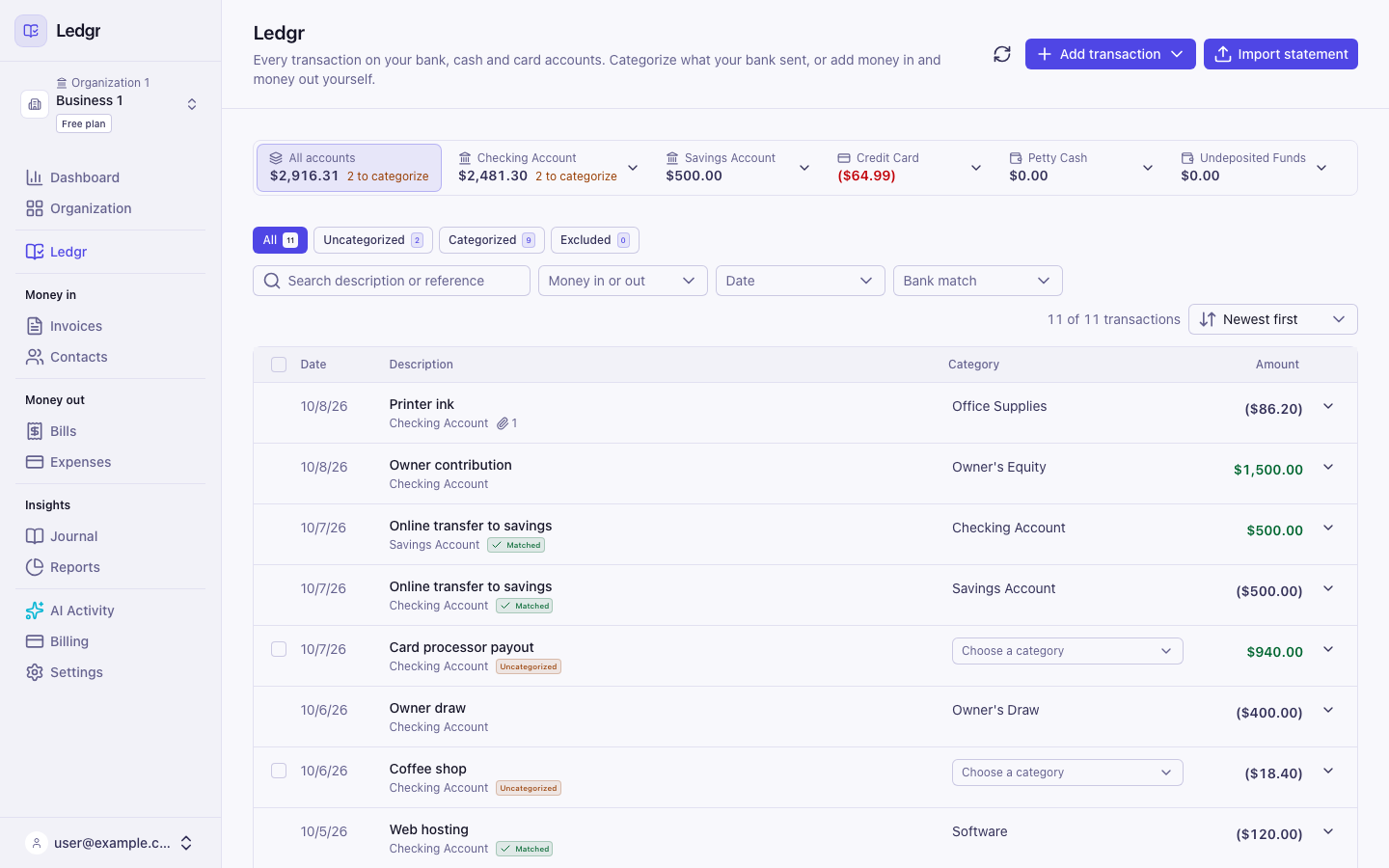
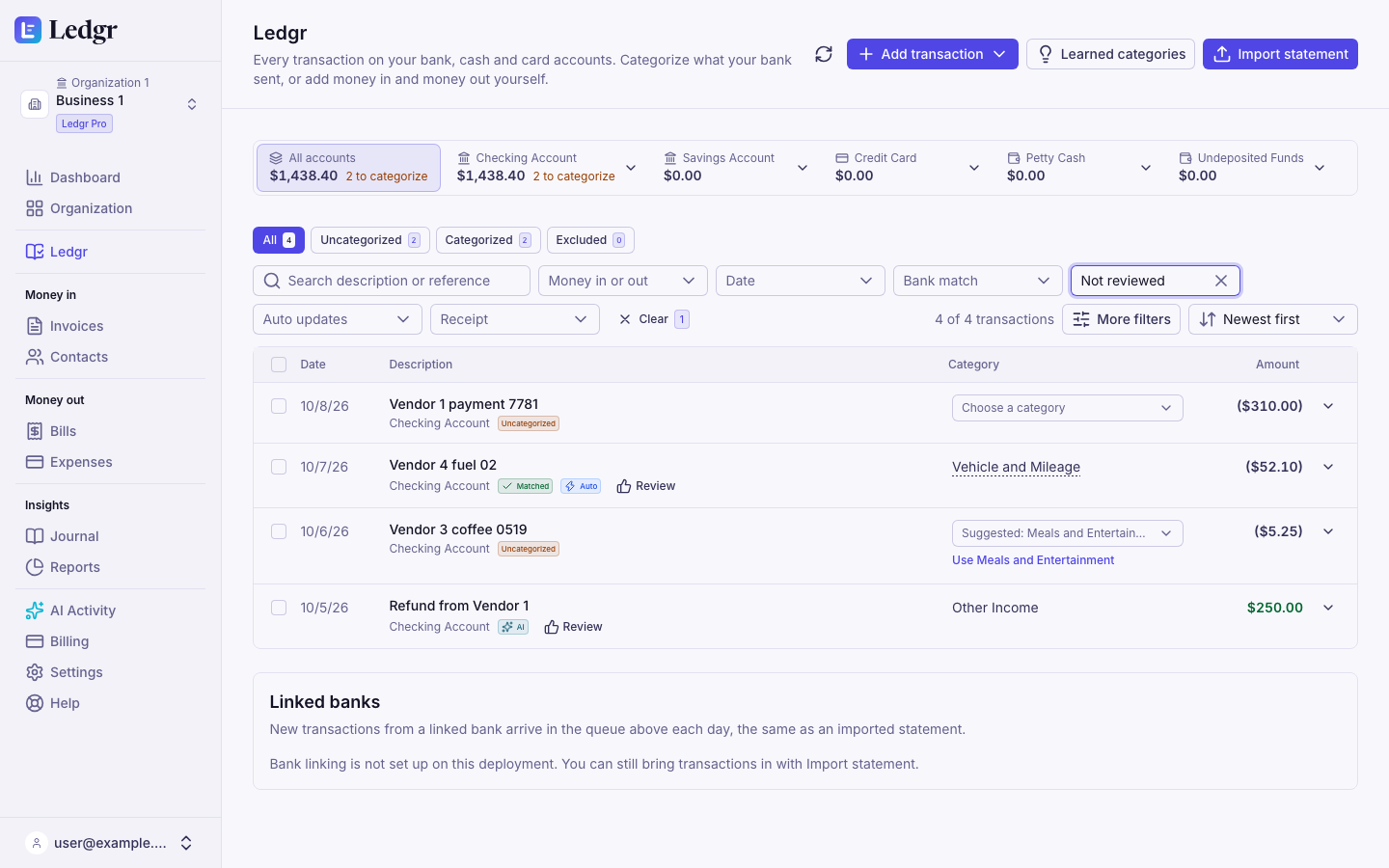
Each row shows the date, the description, the account the money moved on, the category, and the amount. Money in shows in green. Money out shows in parentheses. A row from your bank that is not in your books yet shows an Uncategorized badge and a category picker. A row that is tied to a line from your bank shows a Matched badge. A row in your books shows Reviewed once someone has looked at it, or a Review button until then. A row Bookledo categorized for you shows an Auto badge, with its category underlined in dots until you review it.
If you used the old Banking page, its bookmarks and links open this page.
Pick an account
The accounts sit in one row at the top of the page, bank accounts first, then cards, then cash. All accounts shows the total of every bank, cash and card account together. Each account after it shows its own balance in Bookledo, and how many of its bank lines are waiting for a category. If you have more accounts than fit, scroll the row sideways.
- Select an account to show only its transactions. Each row that is in your books then shows the account's Balance after it, under the amount. Select All accounts to show everything again.
- To see more about an account, select the arrow beside it. A panel opens under the accounts with its account number, its balance, how many lines are waiting, and the bank linked to it, if any. From there you can import a statement into that account or open your chart of accounts.

A card balance shows in red parentheses while you owe money on the card. The All accounts total subtracts it, so the total is what you have after your card balances.
Find a transaction
- Tabs. All shows everything in your books plus the bank lines waiting for a category. Uncategorized shows only the bank lines that still need one. Categorized shows what is in your books. Excluded shows the bank lines you set aside. The number on each tab updates as you work.
- Search. Type part of a description or a reference number.
- Money in or out. Show only deposits or only withdrawals.
- Date. Show this month, last month, or this year.
- Bank match. Show only the transactions that are matched to a line from your bank, or only the ones that are not. Use it to find what your bank has not shown yet.
- Status. Show only the transactions you reviewed, or only the ones nobody has reviewed yet. Lines still waiting for a category count as not reviewed.
- Auto updates. Show only the transactions Bookledo categorized for you.
- Receipt. Show only the transactions with a file attached, or only the ones without.
- More filters. Pick a Category, a custom transaction date range with a start and an end date, or a Last modified range. A custom date range replaces the Date choice. Select Apply to use them, or Clear all to remove them.
- Sort. Choose newest first, oldest first, largest first, or smallest first.
Select Clear to remove the search and filters. The count beside the sort shows how many transactions match.
See everything behind a row
Select the arrow at the right end of a row. The row opens in place.
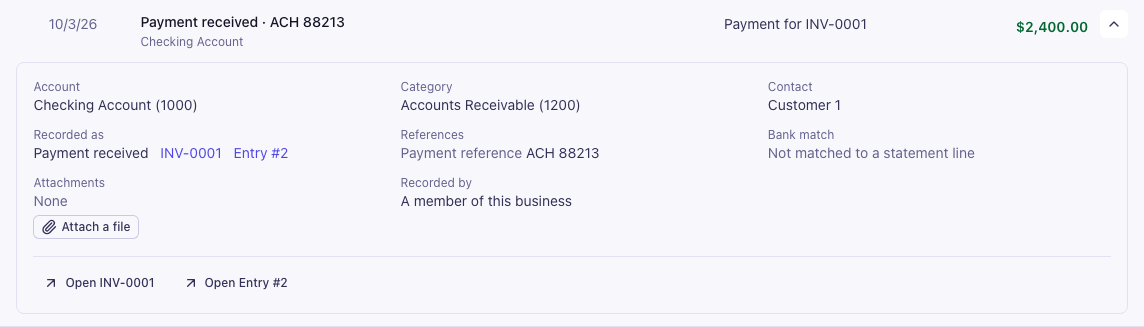
An open row shows the following.
- Account and Category. If the money was split across several accounts, each one is listed with its amount.
- Contact, when the transaction names a customer or vendor.
- Recorded as, with a link to the invoice, bill, expense or journal entry behind the row.
- References, such as the payment reference, the vendor's receipt number, or your bank's own id for the line.
- Bank match, which says whether a line from your bank is tied to this transaction.
- Attachments, the number of files kept with it. Select Attach a file to add a receipt or other image or PDF. It is kept with the expense, invoice, bill or payment behind the row, so it shows there too. Open the record to view the files.
- Recorded by, the person or the Claude key that recorded it.
- Categorized automatically, when Bookledo booked the row from what you chose before, with the reason. Select Confirm category to mark it reviewed, or Change category to edit it.
- History, when the row was edited. It lists the entry it replaced and the reversal that canceled it, with who made each and when.
- A note when Claude proposed a change to the row that is waiting in AI Activity.
The buttons at the bottom depend on the row. A categorized row offers Edit, Unmatch when it is matched, and a button to open each record behind it. If a row cannot be edited here, such as a payment on an invoice, the panel says where to change it instead. An uncategorized row offers Categorize, Expense with tax for money out, Match and Exclude. Categorize and reconcile your transactions explains each one.
Select the arrow again to close the row.
Add a deposit or a withdrawal
Use this for money that moved without a bank line or a document, such as cash you put into the business, a cash purchase, interest, or a move between two of your own accounts.
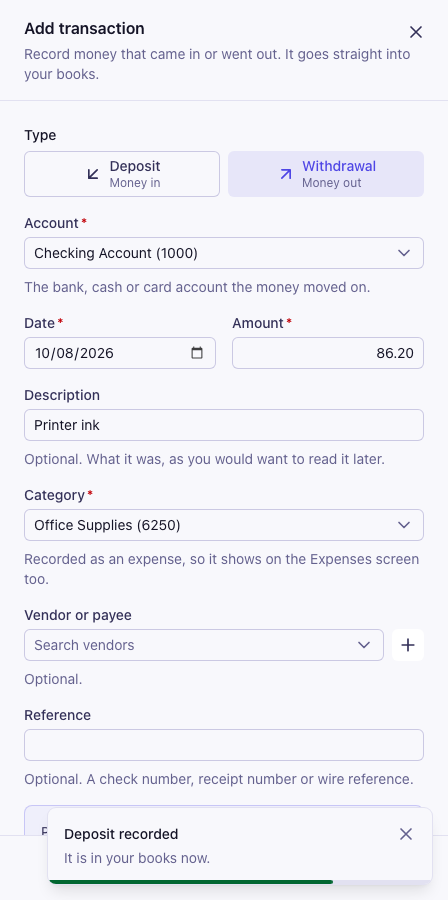
- Select Add transaction at the top of the page, then Deposit for money in or Withdrawal for money out. You can switch between the two in the panel. Journal entry in the same menu opens the journal entry screen for anything that needs its own debits and credits.
- Check the Account. It starts with the account you picked at the top of the page.
- Enter the Date and the Amount.
- Enter a Description you will recognize later. This is optional.
- Choose a Category. For a withdrawal, expense accounts come first. For a deposit, income accounts come first. You can also pick one of your other accounts, a loan, a card, Owner's Equity for money you put in, or Owner's Draw for money you take out. The list is the same one a bank line offers.
- Choose a Vendor or payee or a Customer or payer if you want one. This is optional.
- Enter a Reference, such as a check number. This is optional.
- Select Save withdrawal or Save deposit.
To book one payment across several categories, select Split transaction under the category. Each line gets its own category, amount and note. On a withdrawal where every line is an expense, each line can also carry the sales tax inside its amount. Left to assign shows what is still to split, and you can save once it reaches zero. Select Use one category to go back.
A withdrawal to an expense category is recorded as an expense. It gets an expense number and shows on the Expenses page as well. Anything else is recorded as a journal entry and shows on the Journal page.
A withdrawal from one of your accounts to another, such as checking to savings, shows on the register under both accounts.
Money from a customer for an invoice belongs on the invoice, and money for a bill you entered belongs on the bill. Bookledo does not let you pick Accounts Receivable or Accounts Payable here, so the invoice or bill always shows as paid. Create and send an invoice and Enter and pay a bill show how to record those payments. They appear on the register as soon as you do.
Edit a transaction
Your books never change a transaction in place. When you edit a row that is already in your books, Bookledo posts a reversing entry that cancels the original on the original's date, and a new entry with your changes. The register then shows the corrected row once, and its History keeps the original and the reversal.
- Open the row with the arrow at its right end.
- Select Edit.
- Change what you need. You can change the type, account, date, amount, description, category, sales tax, contact and reference. Select Split this transaction to book it across several categories.
- Select Save changes.
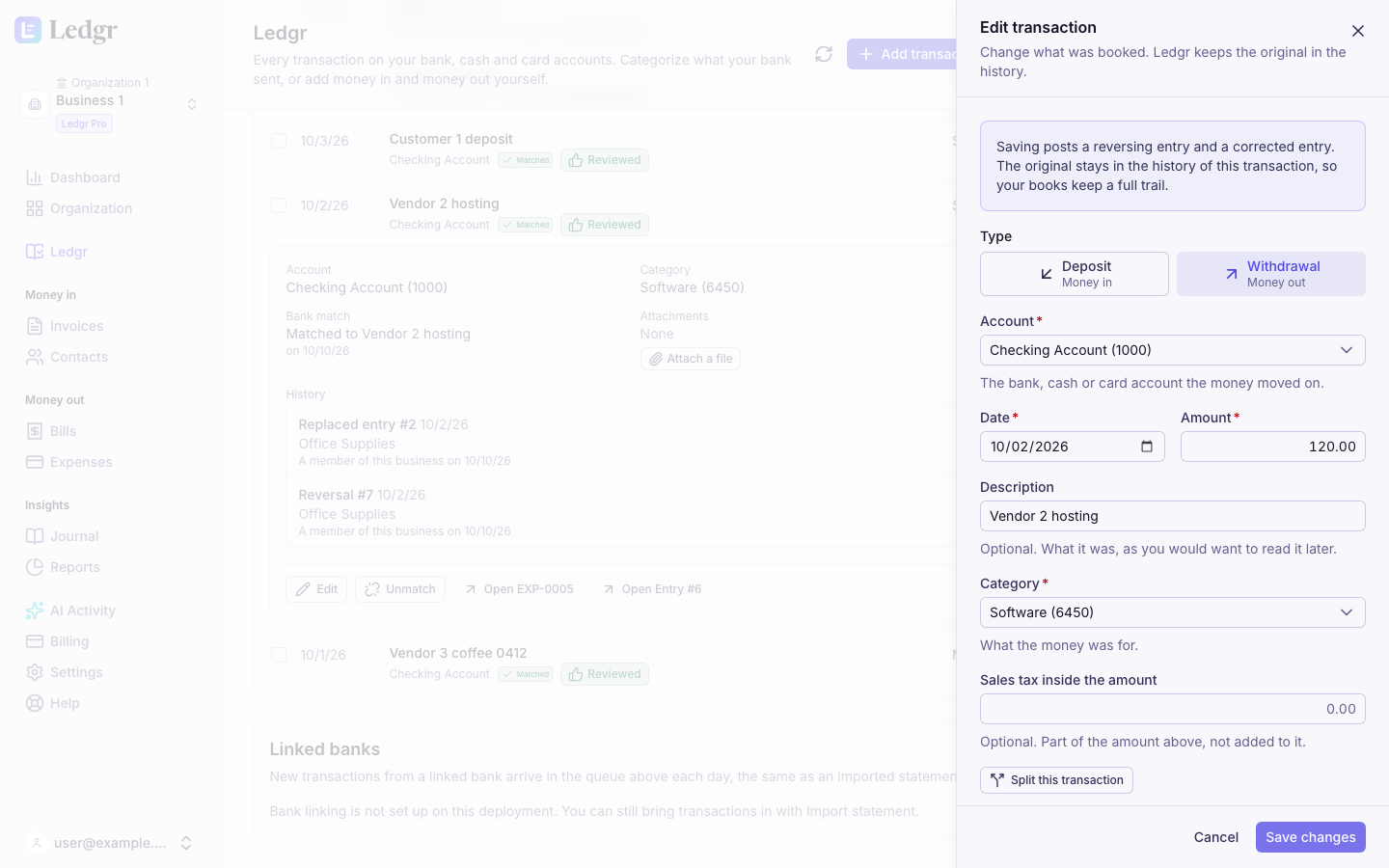
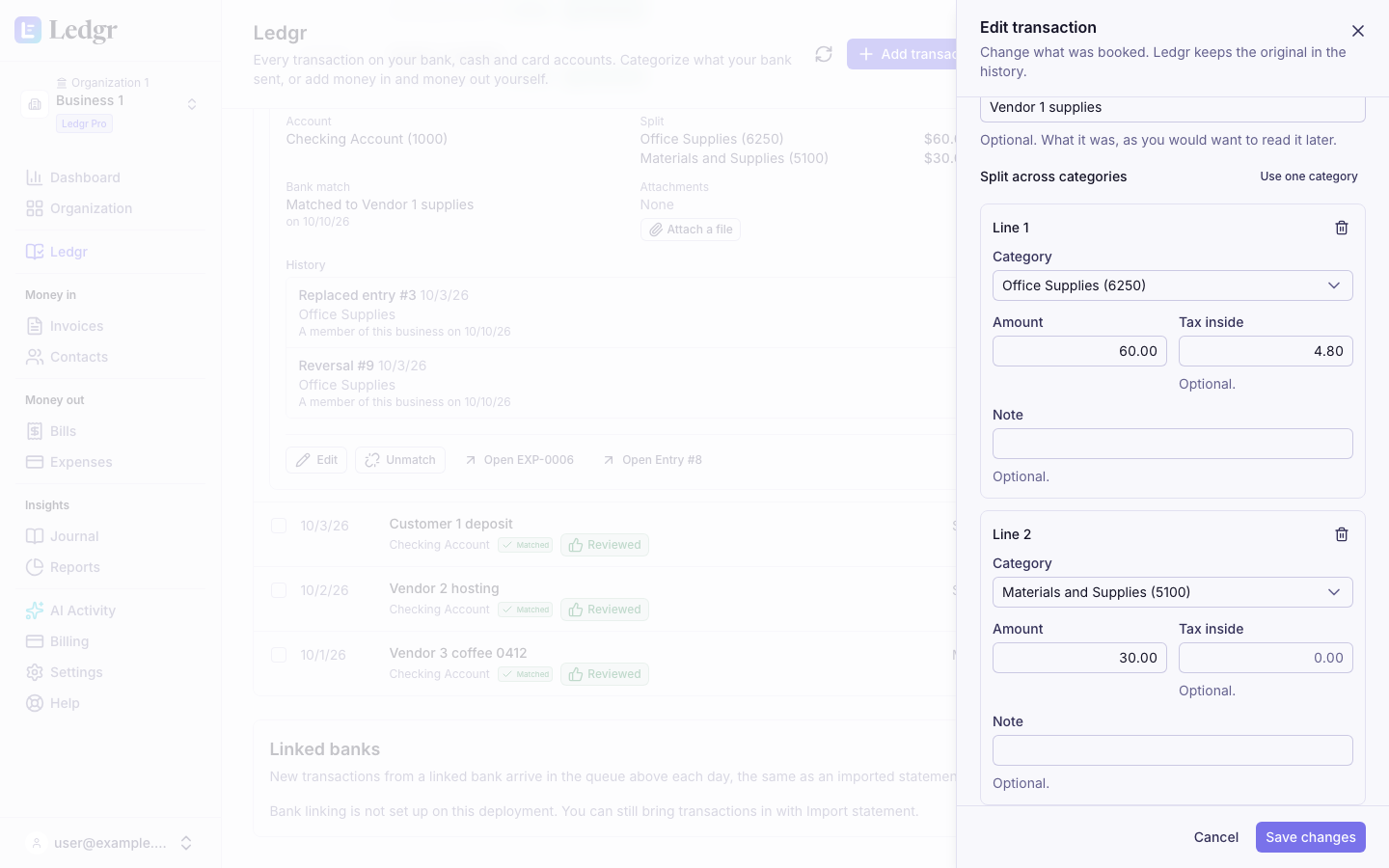
When a row is matched to a line from your bank, the line says how much moved and on which account. You can change the category, split, contact, description and reference, and the line stays matched to the corrected row. The date can move up to 14 days from the date of the line it was booked from or is matched to. The amount, the type and the account change only after you select Unmatch on the row. Bookledo remembers which row a line was booked from, even after you unmatch it or change the row's amount or account. It will not book or match that line to anything else while the row counts, so the money is never counted twice. To use the line for something else, void the row first, or edit it back to the line's amount and account and match them again. Reversing a row on the Journal page also returns its line to Uncategorized. An entry that an invoice, bill, payment or expense posted is voided from that document, never from the Journal page, so the document stays right. A reversal is final. It cannot be voided or reversed, because either would bring back the entry it canceled and could count the money twice. If you reversed something by mistake, record the transaction again. The entry page says why when the Void and Reverse buttons are missing. If the row now disagrees with your bank, the line stays in Uncategorized as a reminder, and you can exclude it. Files attached to the row move to the corrected one.
A line from your bank that is not in your books yet shows what your bank says happened, so its date, amount, type and account cannot be changed. You can change its description, and choosing a category books it. If the line itself is wrong, exclude it, then import the right statement or add the transaction yourself.
A payment on an invoice or a bill belongs to that invoice or bill. A journal entry with debits and credits on several accounts belongs on the Journal page. The open row says so in place of Edit.
Mark transactions reviewed
Reviewed means someone looked at a transaction and agrees with it. It changes nothing in your books. Bookledo records who reviewed it and when.
- A transaction you record yourself counts as reviewed by you.
- A transaction Claude records, or that Bookledo categorizes for you, starts as not reviewed.
- Select Review on a row to mark it reviewed. Select Reviewed to take it back.
- To review many at once, check them and select Mark reviewed in the bar above the list.
Approving something Claude proposed in AI Activity also marks it reviewed by you.
Change many transactions at once
Check the box at the start of each row you want. A bar appears above the list with what you can do for all of them.
- Mark reviewed marks every checked transaction reviewed.
- Bulk edit, for two or more rows, sets a Category, a Contact or an Account on every checked row. The account changes only on rows in your books, since a line from your bank stays on the account it came from. Leave a field empty to keep what each row has. Check Mark selected transactions as reviewed to review them in the same step. Each row in your books is corrected with a reversing entry, the same as editing it on its own. A line from your bank that is given a category is booked.
- Void takes the checked rows out. A row in your books is voided, so it stays on record and leaves your reports, and a line from your bank that was matched to it goes back to Uncategorized. A line from your bank that is not in your books is excluded.
- Merge, for exactly two rows, joins two rows that are the same money into one. Pick the row to keep. A line from your bank and a row in your books are matched. Two lines from your bank become one by excluding the copy. Two rows in your books become one by voiding the copy, and its bank line moves to the row you kept. Both rows must be on the same account for the same amount.
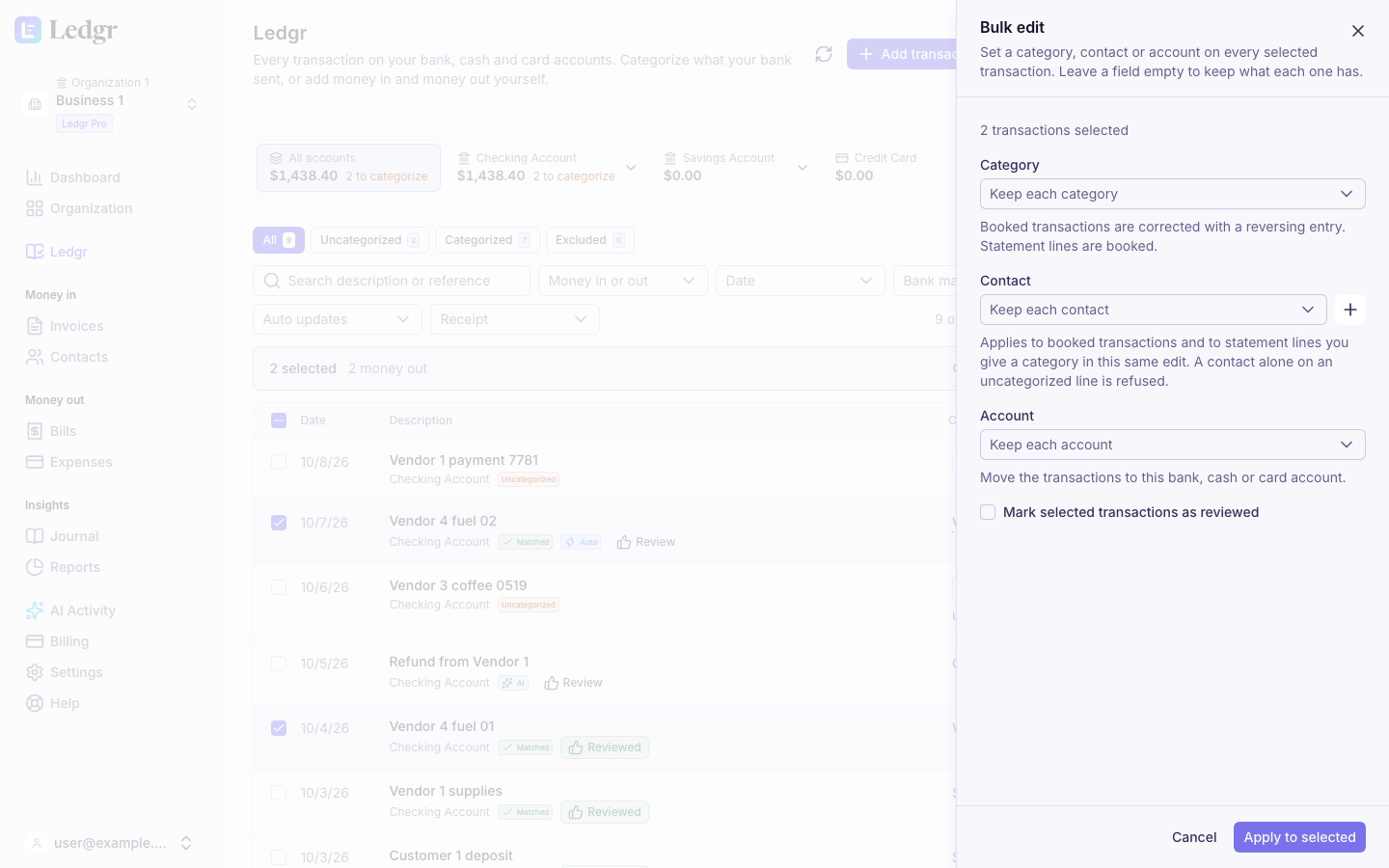
Bulk edit, Void and Mark reviewed apply to every checked row or to none. If any row cannot take the change, nothing is changed, and the panel lists each row that was refused and why. Uncheck those rows or fix them, then try again.
A transfer between two of your accounts shows on both, and checking both rows acts on the transfer once.
How the register stays in step
The register reads straight from your books and from the bank lines you have not categorized yet. It keeps no copy of its own, so there is nothing to sync.
- Recording a payment on an invoice or a bill, or recording an expense, adds a row here at once.
- Categorizing a bank line here creates an expense or an income entry, which shows on Expenses or Journal and in your reports at once.
- Voiding an expense or a journal entry removes its row, and a bank line that was matched to it goes back to Uncategorized.
- Editing a row posts a reversal and a corrected entry, so your reports show the corrected amounts at once.
If the list ever looks out of date, select the refresh button at the top right of the page.
When Claude records for you
If Claude is connected with a key that can propose changes but not confirm them, what it records lands in AI Activity as a draft. It shows on the register once you approve it. Review what Claude drafted explains how. A draft does not count as a match until it is approved, so a line it covers still shows as uncategorized, with a note that a proposal is waiting. Approving it books the line and matches it in one step. An edit Claude proposes works the same way. The row keeps its original until you approve the change. If Claude drafts both sides of a transfer, approve the side it recorded and then use Match to entry on the other line, rather than approving a second entry for the same money.
Not available yet
- Sales tax on a deposit, and a different contact on each line of a split.
Next steps
Categorize and reconcile your transactions covers the bank lines waiting for a category. Reconcile an account checks an account against a statement's closing balance.