

Help center
Own and share your businesses
This article covers recording who owns each business, changing ownership, recording payouts to owners, and inviting the people you work with.
Who can own a business
Every business in Bookledo has one or more owners, and each owner holds a percent. An owner can be any of these.
- An Organization in Bookledo. For example, your holding company owns 60 percent of your events business.
- A person. A person does not need a Bookledo login. You can link the person to a login later.
- A placeholder. Use a placeholder for an owner you have not set up yet, such as "Others" or "Investor to be named". A business can have several placeholders.
An Organization has owners too, and those are people or placeholders. Bookledo follows the chain up to the people at the top. For example, if Harbor Holdings owns 60 percent of a business, and Alex owns half of Harbor Holdings, Alex ends up with 30 percent of that business.
See who owns a business
- Select Organization in the sidebar and open the Ownership tab.
- Under Business ownership, the Owners of card lists each owner of the business you are in, its Share, and how much it has been Paid out.
- Under Organization ownership, the same card lists the people and placeholders who own the Organization you are in.
- In each card, Who owns it, as people shows the people and placeholders at the top of the chain and the share each one ends up with.
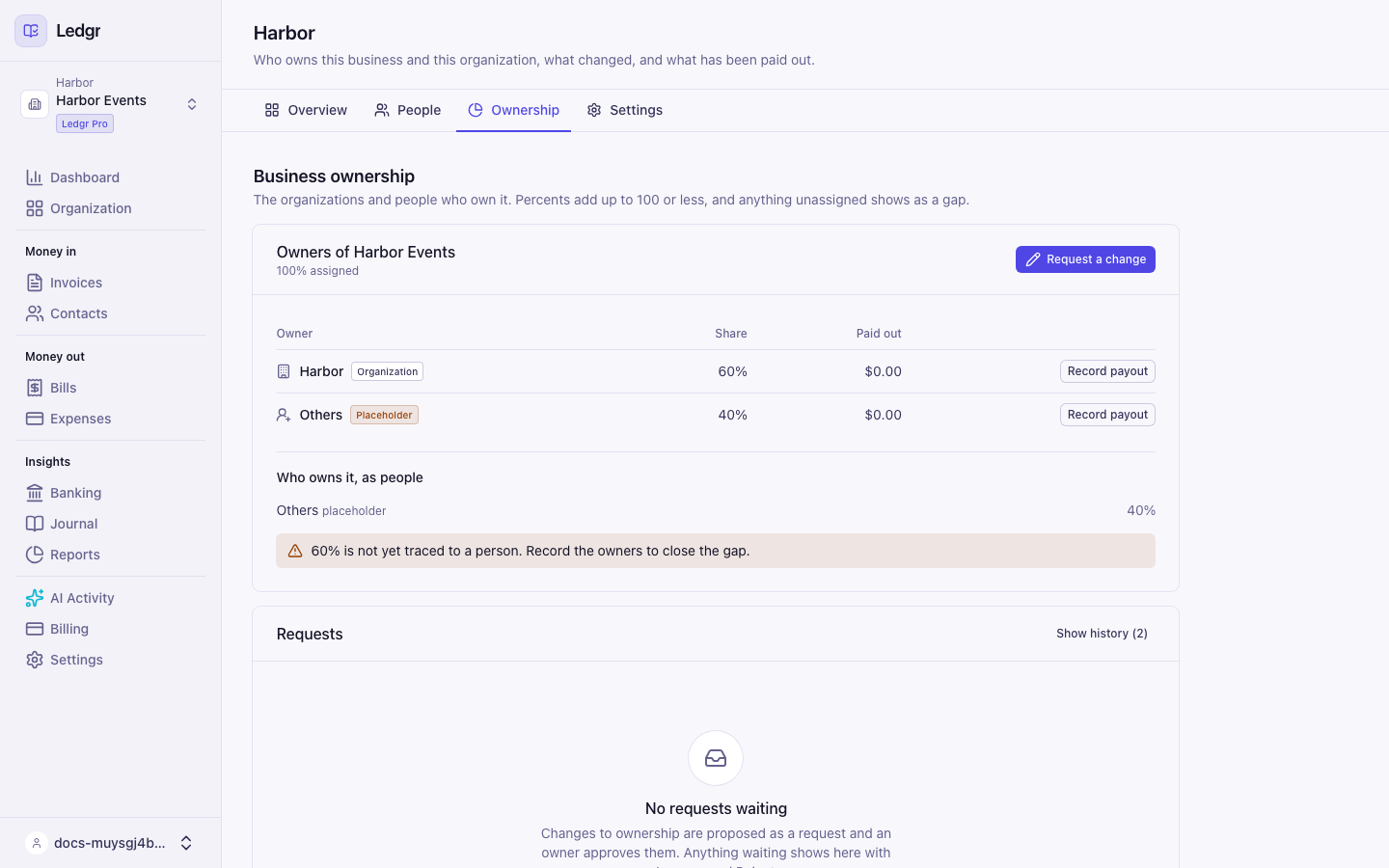
When the people at the top do not add up to 100 percent, a warning under the card names the gap, such as 60% is not yet traced to a person. The gap closes once every owner is recorded, including the owners of any Organization in the chain. A new business starts with its Organization as the only owner, so it shows a gap until you record the people who own the Organization.
Request an ownership change
Every ownership change starts as a request, and an owner of the business approves it. You need to be an owner or an admin to make a request.
- Select Organization in the sidebar and open the Ownership tab.
- In the card you want to change, select Request a change.
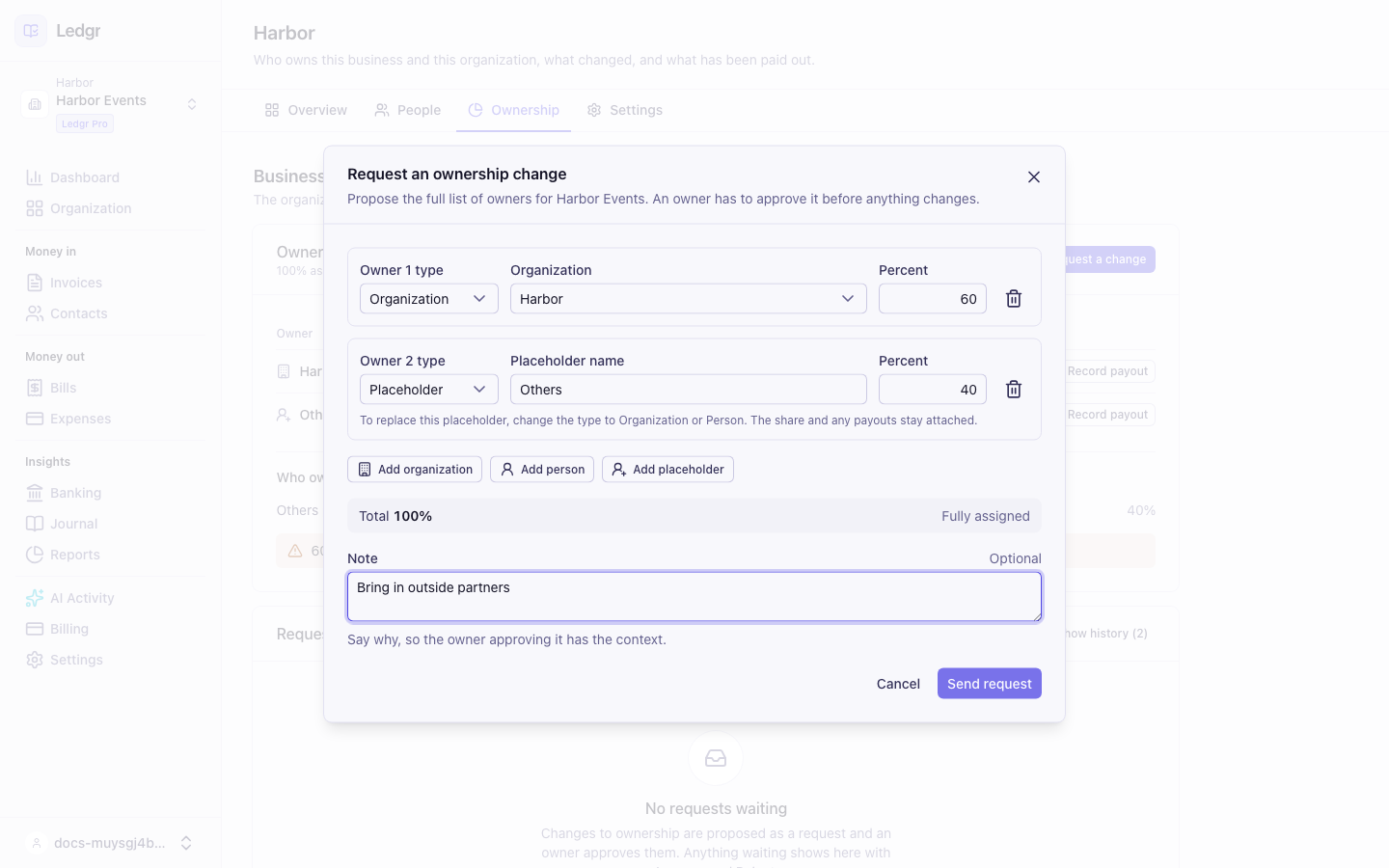
- The Request an ownership change window lists the current owners. Edit it so it shows the full list you want.
- To add an owner, select Add organization, Add person, or Add placeholder. Choose the Organization or person, or type the placeholder's name, then type its Percent. Organization ownership takes only people and placeholders.
- To remove an owner, select the trash icon on its row.
- Check the Total line. It reads Fully assigned at 100 percent and cannot go over 100.
- Add a Note that explains the change, such as "Sale of 10 percent to Jordan on 10/1/2026".
- Select Send request.
The request appears in the Requests card until an owner decides. To withdraw it, select Cancel request on its row.
Approve or reject a request
Only an owner of the business can approve or reject a request. An owner of an Organization that controls the business counts as an owner here. If you are the only owner, you can approve your own request, and Bookledo records that you did.
- Select Organization in the sidebar and open the Ownership tab.
- Find the request in the Requests card. Compare the current owners with the proposed owners.
- Select Approve or Reject.
- Add an optional Note in the window that opens, then select Approve or Reject again to confirm.
Approving a request applies the new owners right away. If ownership changed after the request was sent, Bookledo cannot approve it, because the request no longer matches. Reject it and send a new request.
When nothing is waiting, the Requests card says No requests waiting. Select Show history in the Requests card to see every earlier request and decision, with who asked, who decided, when, and the notes. Removed owners stay in the history too, along with their payouts.
Replace a placeholder
When you are ready to name the real owner behind a placeholder, replace it in one step.
- Select Organization in the sidebar, open the Ownership tab and select Request a change.
- On the placeholder's row, change the type to Organization or Person.
- Choose the Organization or the person who takes its place. Leave the percent as it is.
- Select Send request, then approve it.
The new owner keeps the placeholder's percent and its payout history.
Add a person
A person can own a business or an Organization without having a Bookledo login.
- Select Organization in the sidebar and open the People tab.
- In the People card, select Add a person.
- Enter the person's Name. The Contact email is optional.
- Select Add person.
To connect a person to a Bookledo login later, select the pencil icon on the person's row. Under Bookledo login, type the email address they sign in with in Login email and select Link login. That login must already be a member of the Organization. A linked person shows a Has a login badge. To undo it, open the person again and select Unlink.
Record a payout to an owner
Bookledo keeps track of what each owner has been paid.
- Select Organization in the sidebar and open the Ownership tab.
- On the owner's row under Business ownership, select Record payout.
- Enter the date in Paid on, the Amount, and an optional Memo.
- Select Record payout.
The Paid out column shows the total paid to that owner so far, and the Payout history card lists each payout, newest first. You need to be an owner or an admin of the business to record a payout. Payouts to a removed owner stay in the history, but you cannot add new ones.
Invite people
You can invite people to the whole Organization or to a single business. You need to be an owner or an admin to invite someone. Only an owner can invite another owner.
- To invite someone to every business the Organization controls, select Organization in the sidebar, open the People tab, and use Organization members. To invite someone to this business only, select Settings in the sidebar and open the Members tab.
- Under Invite someone, enter the person's Email and choose a Role.
- Select Send invite.
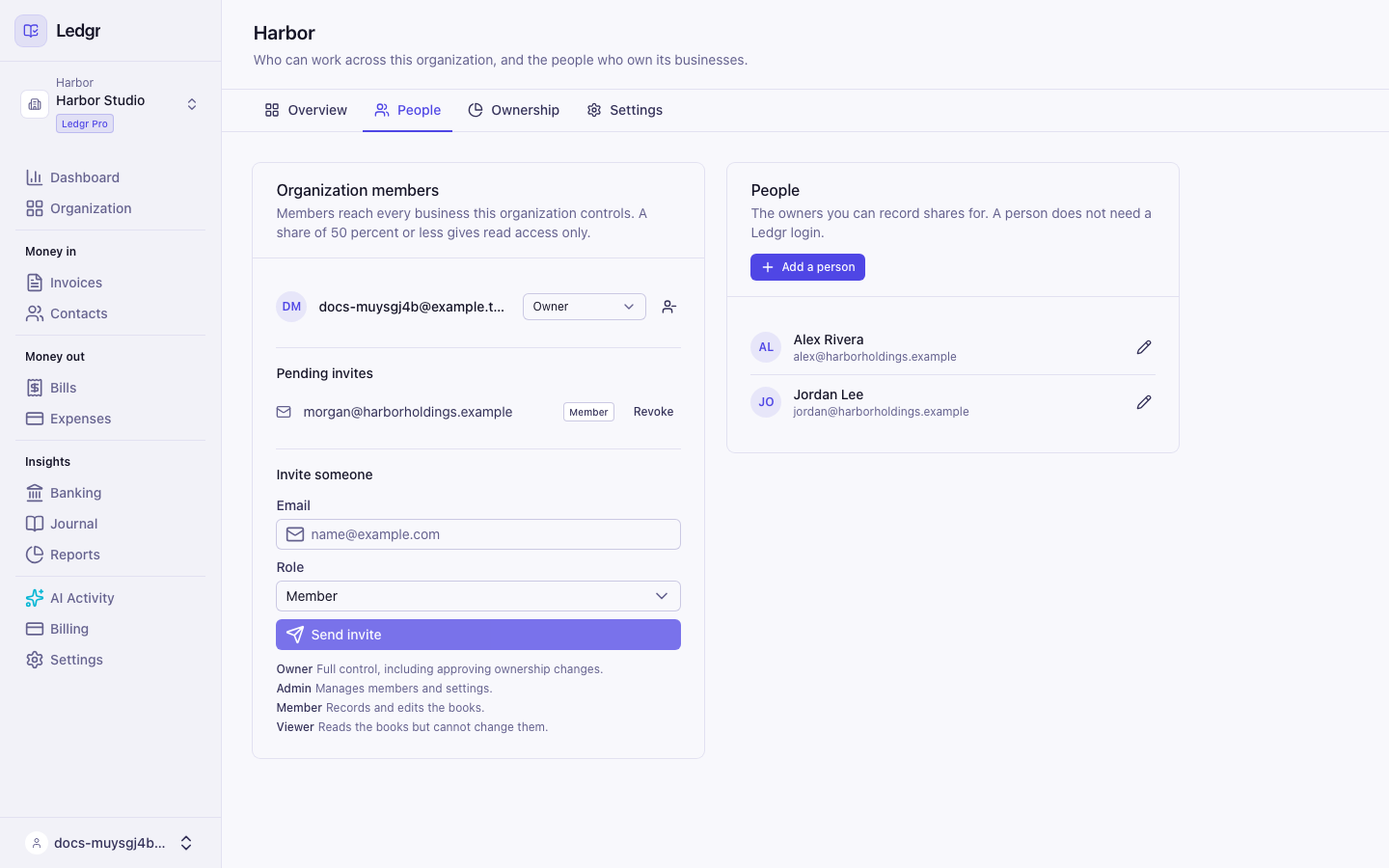
If the person already has a Bookledo account, they get access right away. If not, the invite waits under Pending invites until they sign in with that email address. When nothing is waiting, the list says No pending invites. To take back an invite, select Revoke on its row.
The Members tab in Settings works the same way for one business. It also points you to the People tab for people who should reach every business.
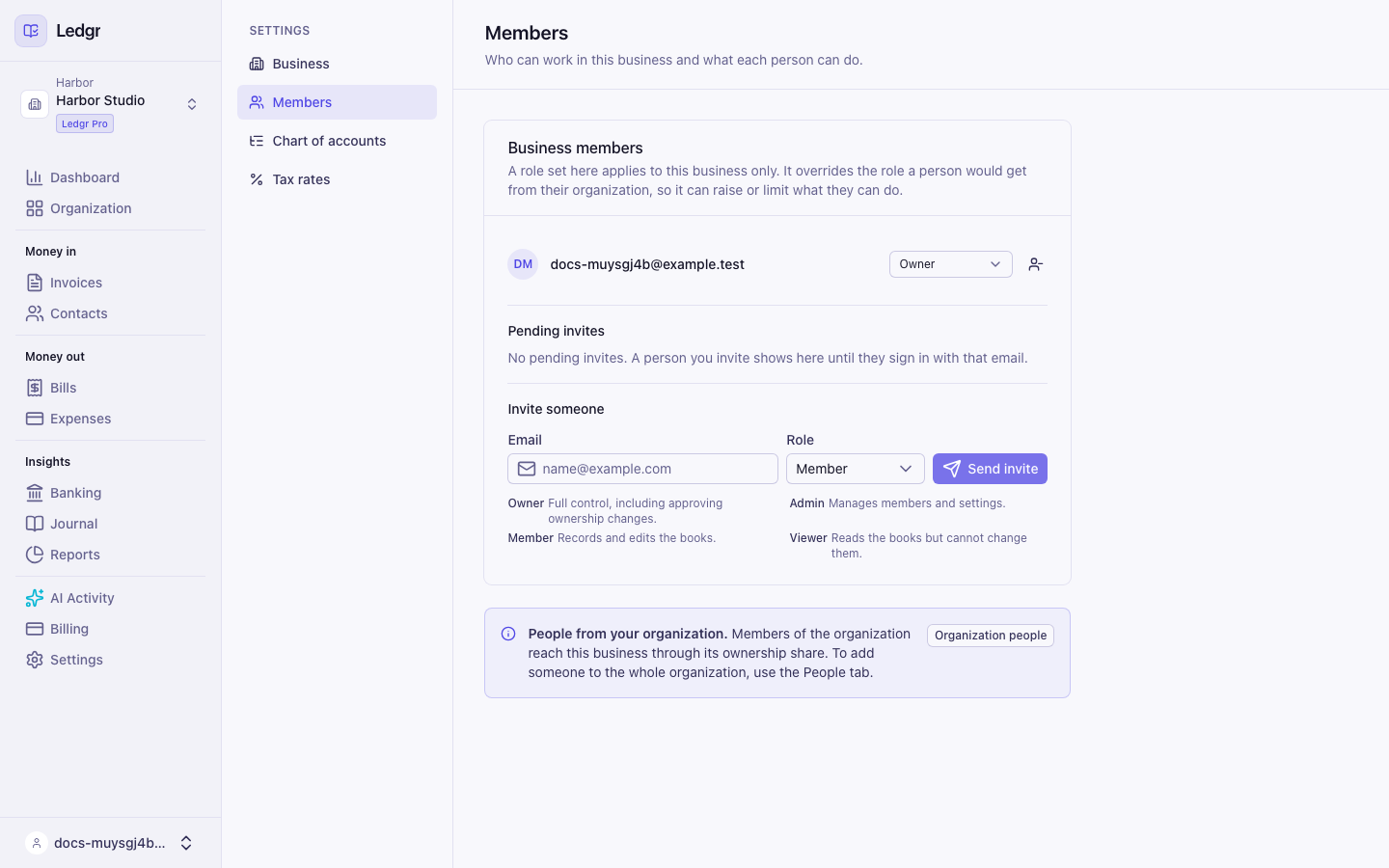
To change someone's role, choose a new one in the role menu on their row. To remove someone, select the remove icon at the end of their row and confirm. An Organization or business always keeps at least one owner, so the last owner cannot be removed or given a lower role.
Roles
| Role | What it allows |
|---|---|
| Owner | Everything an admin can do, plus approving ownership changes and managing other owners |
| Admin | Changing the books and settings, inviting people, requesting ownership changes, and recording payouts |
| Member | Entering and changing records in the books |
| Viewer | Reading the books and running reports, with no changes |
A viewer sees a notice at the top of each page that reads You can read the books for this business but not change them. If a viewer tries to change something, Bookledo says the role does not allow it.
How Organization and business roles work together
A role on the Organization covers every business it controls. An admin of the Organization is an admin of each of those businesses.
A role on a single business takes priority over the Organization role. Set it on the Members tab in Settings to give someone more access to one business, or less. For example, an Organization member can be made an owner of one business, or a viewer of another.
When an Organization owns 50 percent of a business or less, its people get viewer access to that business. They can read the books and include them in reports, but they cannot change them or approve its ownership changes. To give someone more, an owner of that business can invite them on the Members tab with a different role.
Support staff
Bookledo support staff can open your books when they help you with a problem. They never appear in your list of members unless you invited them yourself. While a staff member is in your books, their screen shows a banner that reads Support access. Every action is logged. Every page they open and every change they make is recorded, and support staff can never act as an owner.
Next steps
- Set up your business to add a business or start a separate Organization.
- Manage your organization for the Organization page, tab by tab.
- Run your reports to see consolidated statements across your Organization.