

Help center
Reconcile an account
Reconciling checks your books against a bank or card statement. You enter the statement's end date and closing balance, then tick each transaction the statement shows. When the difference reaches zero, your books agree with the bank, and Bookledo remembers the date your account is reconciled through.
Do this once a month for each bank, cash and card account, after your statement arrives and your transactions are categorized.
Start a reconciliation
- Select Books in the sidebar.
- Select the account at the top of the page, then select Reconcile at the right end of the accounts. You can also switch accounts later from the menu at the top of the reconcile page.
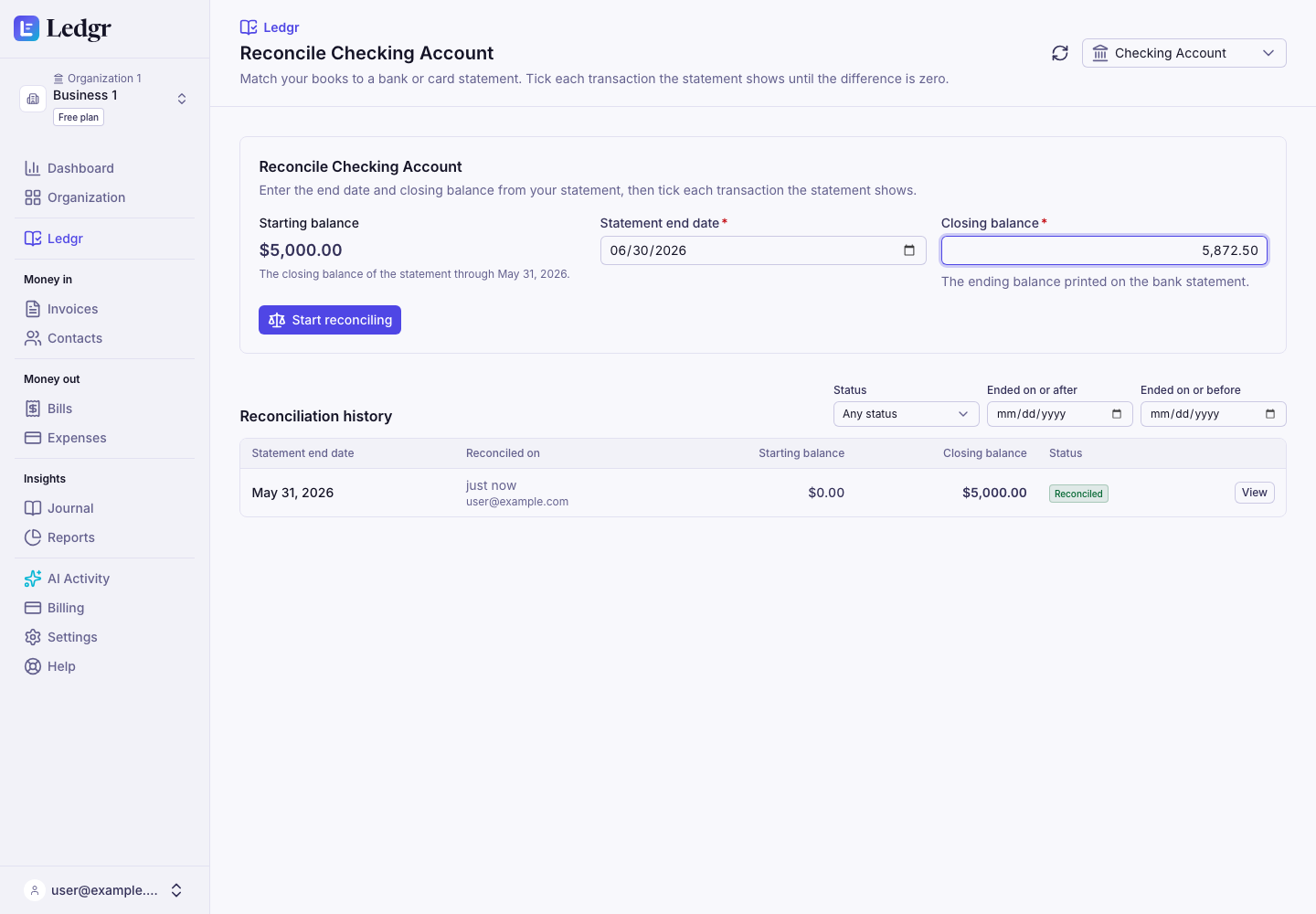
- Check the Starting balance. It is the closing balance of the last statement you reconciled, or zero if you have never reconciled this account.
- Enter the Statement end date and the Closing balance from your statement. For a credit card, enter the balance owed that the statement prints. Enter a credit balance on a card as a negative number.
- Select Start reconciling.
Tick what the statement shows
The page lists every transaction on the account dated on or before the statement end date that is not already reconciled. Each has a tick box. A transaction you reversed before any reconciliation included it is left out along with its reversal, because the two cancel out.
- Go down your statement one line at a time. Find the same transaction in the list and tick it.
- Watch the Difference at the top. It drops as you tick. It is the statement's closing balance minus the starting balance and everything you ticked.
- Leave a transaction unticked if it is not on this statement yet, such as a check that has not cleared. It shows again next month.
- To tick everything in the current view, use the box in the list's heading. The buttons above the list show only deposits, only withdrawals, or only what you have not ticked yet.
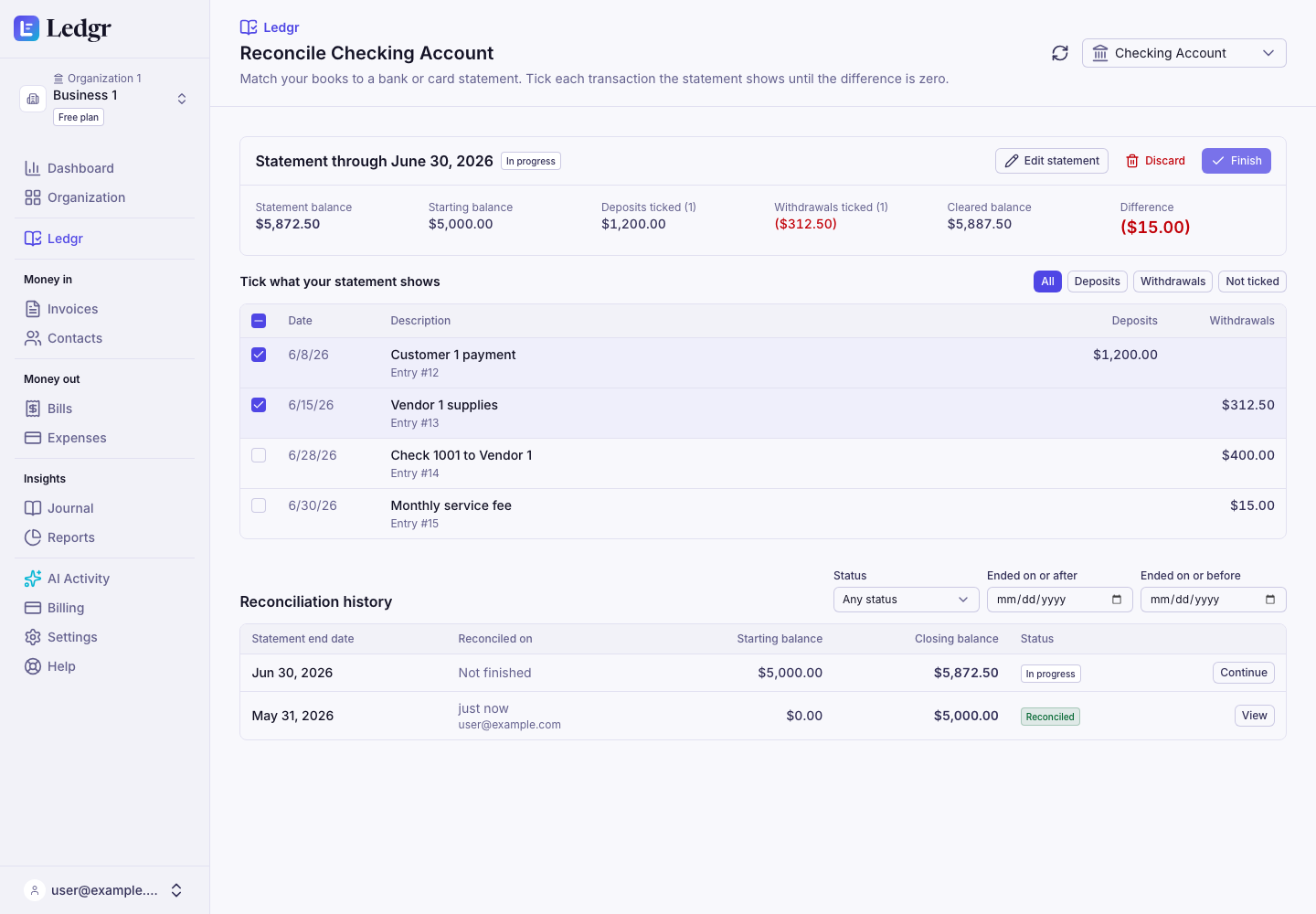
Your ticks save as you go. You can leave the page and come back to finish later, from Reconcile or from Continue in the history.
If you typed the end date or closing balance wrong, select Edit statement. Moving the end date earlier unticks anything dated after it.
Finish
When the Difference reads $0.00, select Finish. The account is now reconciled through the statement end date.
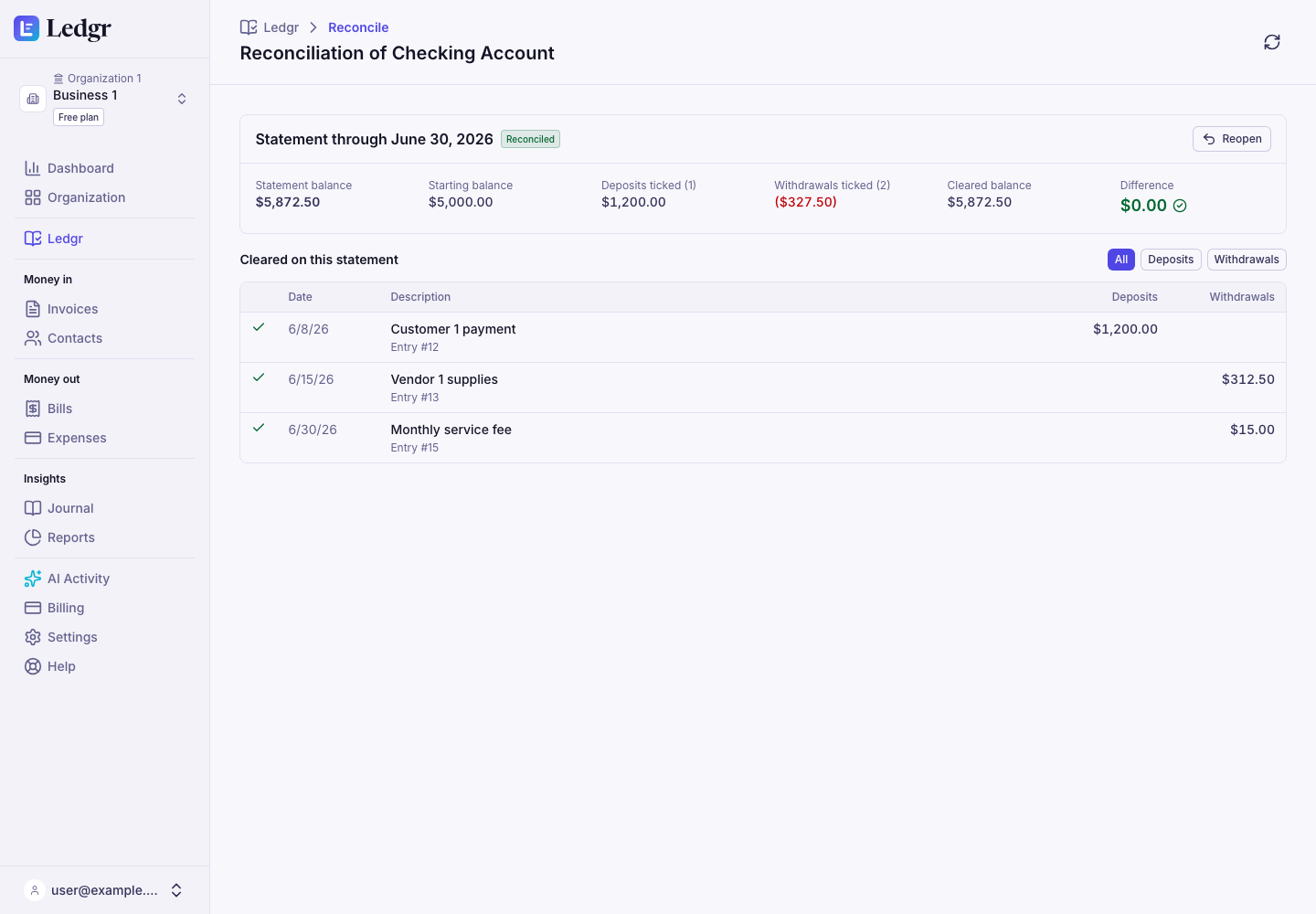
If the difference will not reach zero, check these first.
- A transaction on the statement is missing from your books. Add it from the Books page, then tick it.
- A transaction is in your books twice. Void the extra one.
- An amount was typed differently from the statement. Correct it, then tick it.
- The statement's closing balance or end date was entered wrong. Select Edit statement.
See where an account stands
- On the Books page, an account that has been reconciled shows a small scale icon beside its name. Select the arrow beside the account to see Reconciled through and the date, Never reconciled, or Needs attention.
- Each reconciled transaction shows a Reconciled badge in the register.
- Your chart of accounts shows the same badge beside each bank, cash and card account. Select it to open that account's reconciliations.
Reconciliation history
Below the reconcile panel, Reconciliation history lists every statement you reconciled for the account, latest first. Each row shows the statement end date, when it was reconciled and by whom, the starting and closing balance, and its status. Filter by status, or by a range of statement end dates. Select View to see what a reconciliation cleared.
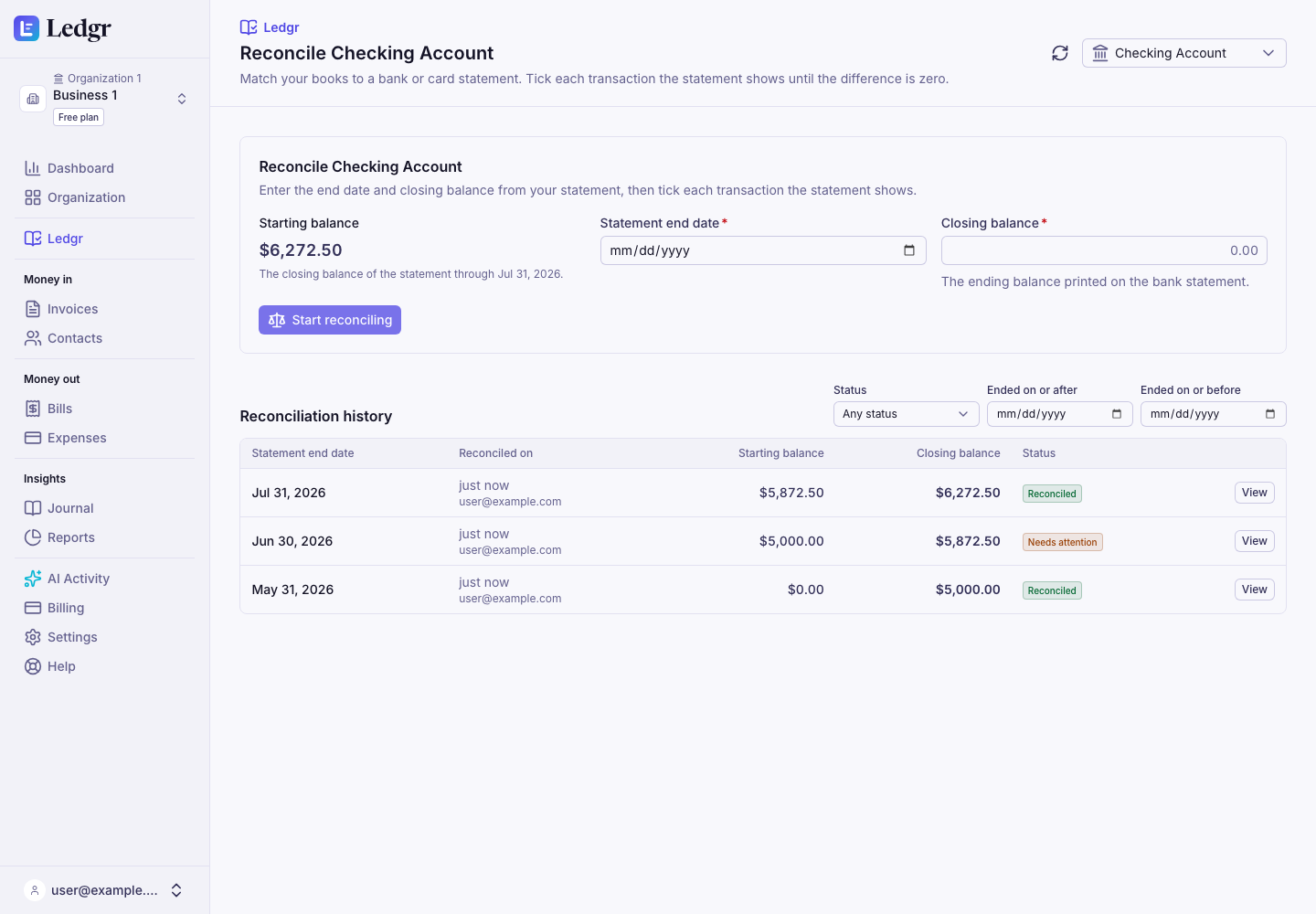
Each reconciliation has one of three statuses.
- Reconciled. Finished at a difference of zero.
- In progress. Started and not finished yet.
- Needs attention. A transaction it cleared was voided or reversed after it was finished.
Undo a reconciliation
Open the reconciliation from the history with View and select Reopen. It goes back to in progress with every tick kept, so you can change what it cleared and finish it again.
- You can reopen the latest reconciliation of an account, or any reconciliation that needs attention.
- To go back further, discard the later ones first, latest first. Open each one, select Reopen, then Discard.
- To throw a reconciliation away, open it and select Discard. You can discard one you never finished, or the latest one. Its transactions are then no longer reconciled.
Change a reconciled transaction
Bookledo does not lock a reconciled transaction. You can still void or reverse it, and Bookledo warns you first.
When you do, the reconciliation that cleared it shows Needs attention, with the entry that changed. To settle it, follow these steps.
- Record the corrected transaction dated on or before that statement's end date.
- Open the reconciliation and select Reopen.
- For a voided transaction, tick the corrected one. For a reversed transaction, tick the reversal together with the corrected transaction.
- Select Finish when the difference reads $0.00.
Record the correction first. A reconciliation that a later one starts from cannot be discarded once you reopen it. If you reopened it before the correction was ready, select Set aside. It keeps its ticks, shows Needs attention again, and the account is free for other reconciliations until you come back to it.
A transaction you void while a reconciliation is in progress simply drops out of it.
When Claude helps
Claude can start a reconciliation and tick transactions through a key with write access. Finishing, reopening and discarding are yours, in Bookledo. Connect Claude to your books explains keys.
Next steps
- Categorize and reconcile your transactions covers getting each bank line into your books, which comes before reconciling.
- See and record every transaction in Books covers the register and adding a missing transaction.