

Help center
Connect a bank
Link a checking or savings account and Bookledo brings in its new transactions every day, so you do not have to download and import statements. Linked transactions wait on the Books page like imported ones. Nothing reaches your books until you match or categorize each line.
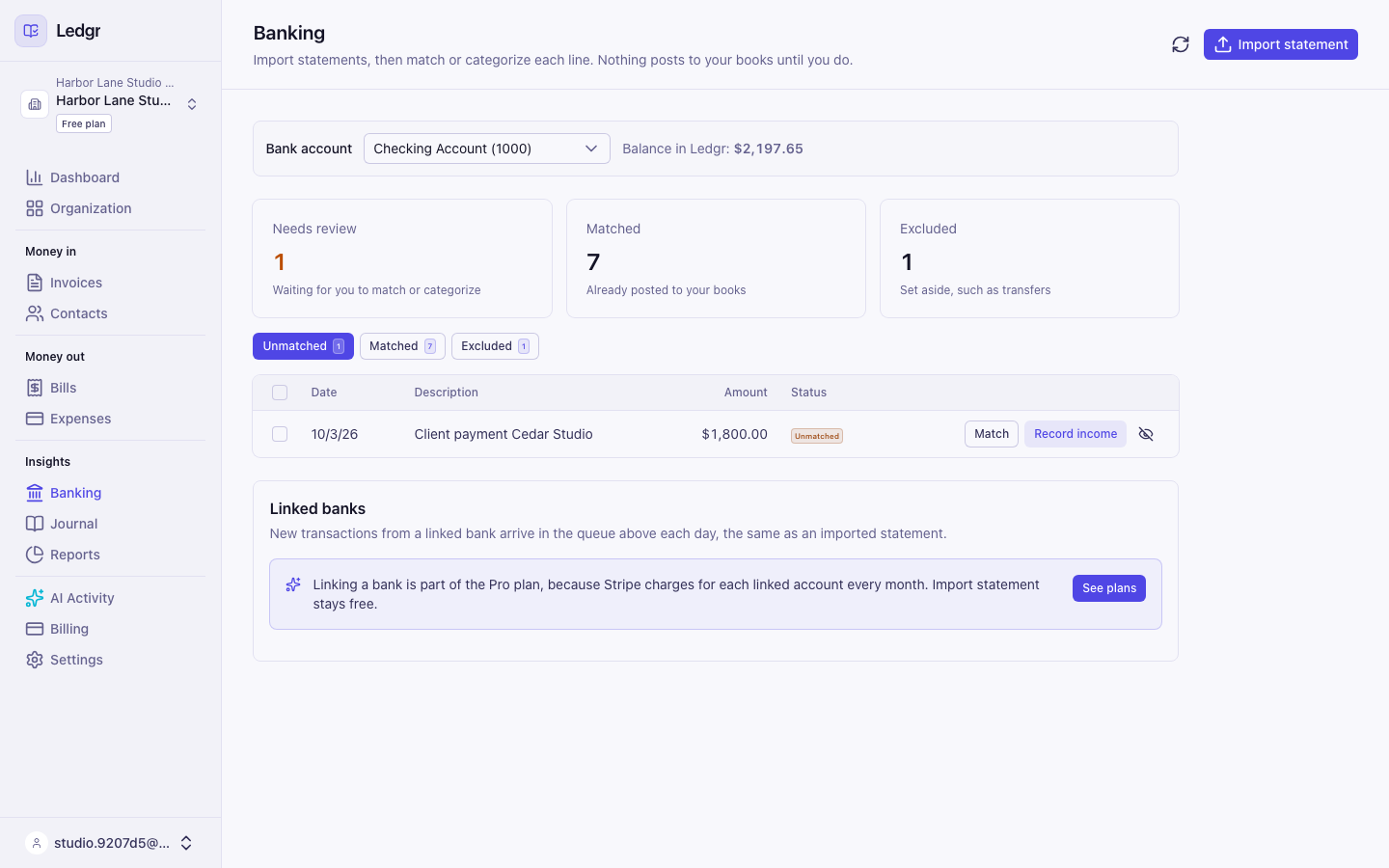
Linking a bank needs the Pro plan, because Stripe charges for each linked account every month. The plan belongs to your Organization and covers its businesses. On the Free plan you can still import statements.
If you are on the Free plan, the Linked banks section shows a blue note and a See plans button. Select it and pay in the window that opens, without leaving the Books page. Upgrade to Pro explains each step. When the payment is confirmed, the note is replaced by Link a bank on the same page. Nothing reloads and nothing you typed is lost. Only an owner or admin can upgrade.
Viewers can see linked banks but cannot link, sync, or disconnect one. Ask an owner, admin, or member of the business.
Bookledo links banks through Stripe. You sign in to your bank in a Stripe window, and Bookledo never sees your bank username or password. Bookledo asks for two things, your transactions and your balances.
Link a bank
- Select Books in the sidebar.
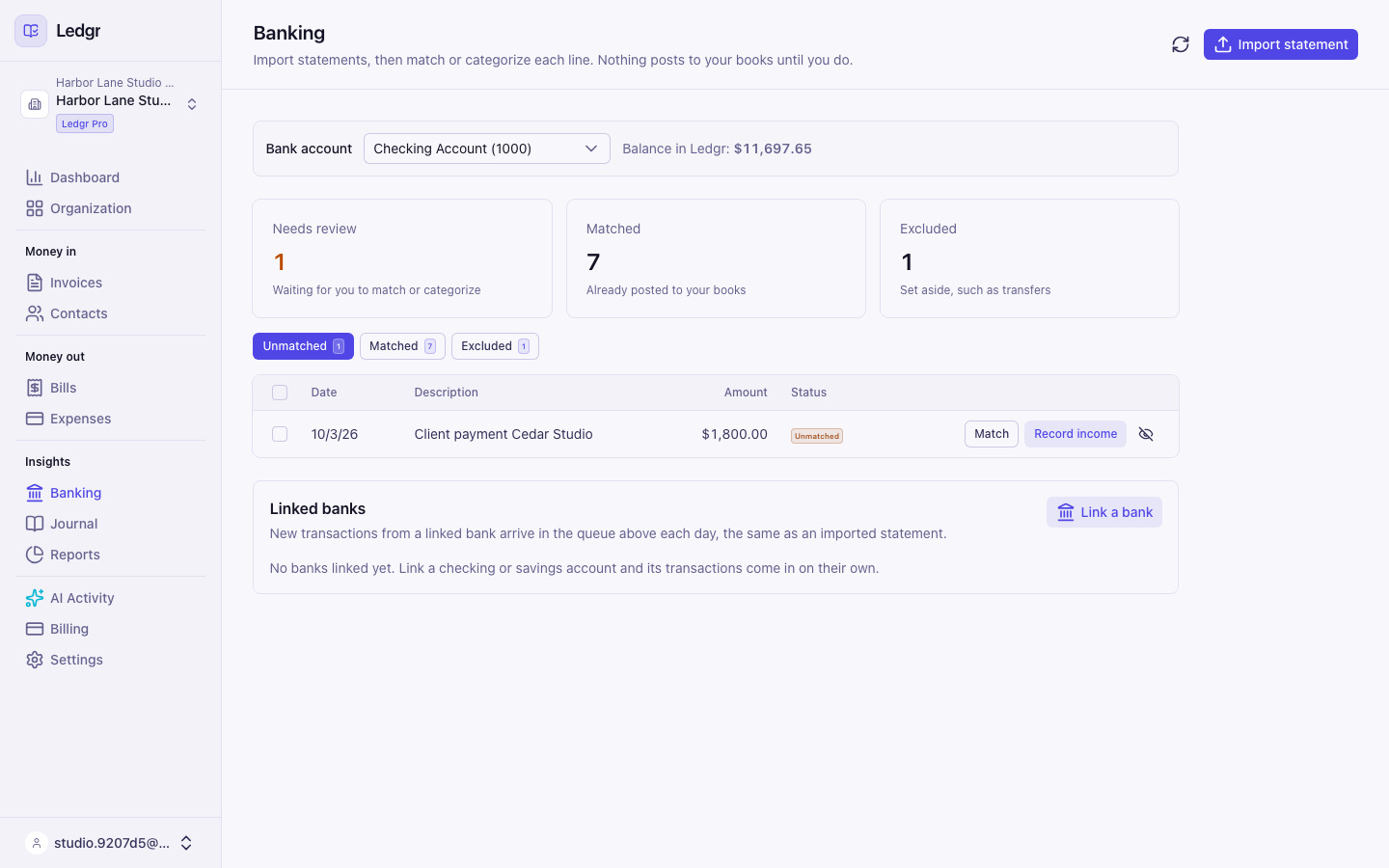
- Scroll below the list of transactions to the Linked banks section and select Link a bank. The section sits under the list so the lines that need your attention come first.
- A Stripe window opens. Search for your bank, sign in, and choose the accounts you want to link. Checking and savings accounts in the US can be linked.
- When the window closes, your accounts appear under Linked banks.
If you close the Stripe window before choosing an account, nothing is linked and you can start again.
Choose where each account files
Each linked account needs a home in your chart of accounts before anything comes in.
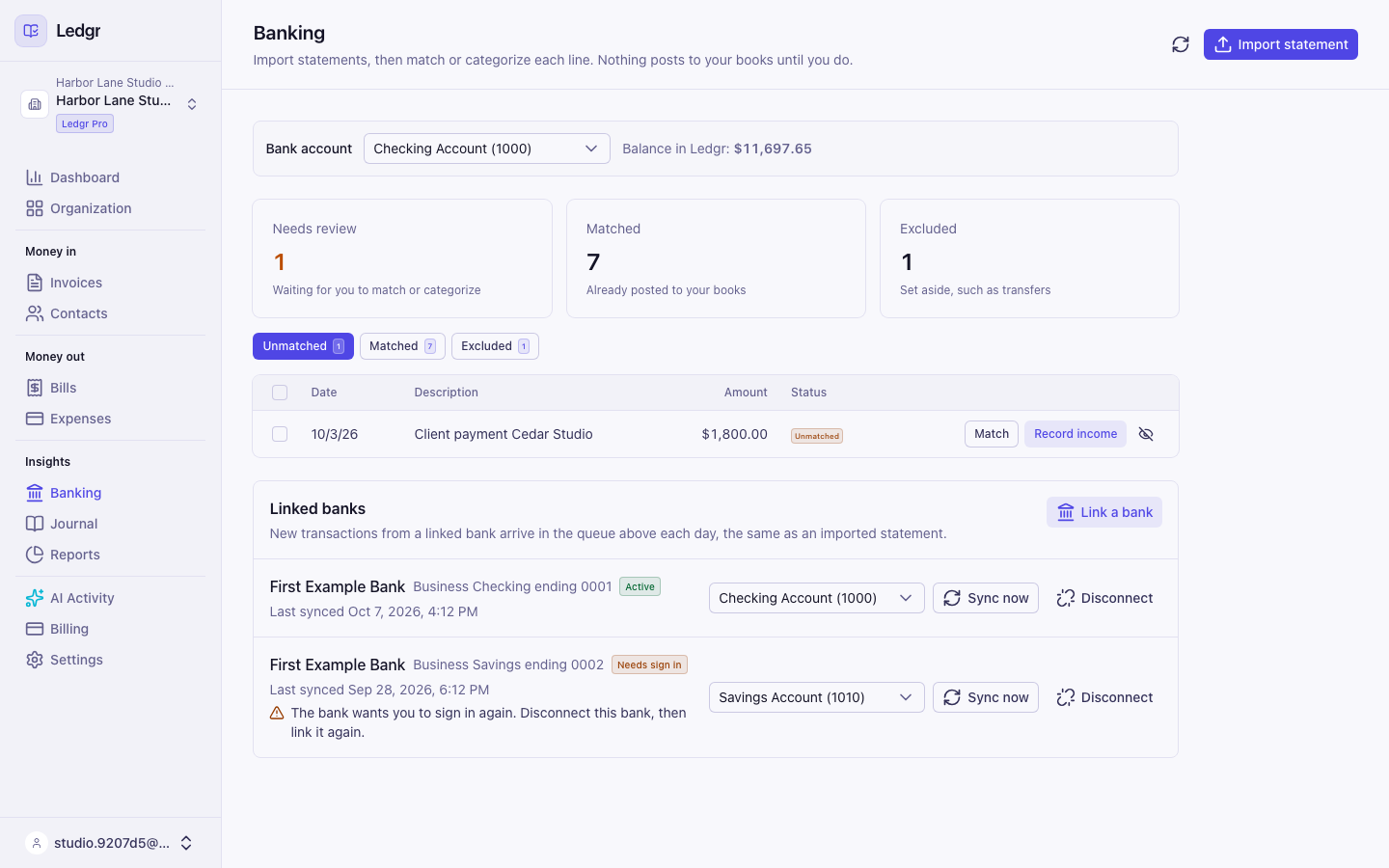
- Next to the linked account, open Choose an account.
- Pick the bank or cash account it belongs to, such as Checking Account (1000).
Bookledo syncs right away once you pick. Each Bookledo account can take one linked bank at a time, so two banks never fill the same account.
How new transactions arrive
Stripe checks your bank about once a day and Bookledo brings in anything new. New lines appear on the Uncategorized tab for the account you chose.
- Only transactions your bank has posted come in. A pending charge waits until it posts, so a hold that the bank later drops never reaches Bookledo.
- Bookledo keeps books in US dollars. A transaction in another currency is not brought in.
- Each transaction comes in once. If Bookledo sees the same transaction again, it skips it.
To check for new transactions now, select Sync now. The message tells you how many new transactions were added. If the bank is still working, the rest arrive on their own a few minutes later.
Linked banks and imported statements together
You can still import a statement into an account that has a linked bank, for example to bring in older months. Bookledo skips a line it already has when the date, amount, and description all match. A linked transaction and the same line from a statement can differ in description, so check the Uncategorized tab for doubles after importing a period the link already covered, and exclude any you find.
If a bank shows a problem
- Needs sign in. Your bank wants you to sign in again. Select Disconnect, then link the bank again.
- The last sync failed. Select Sync now to try again. If it keeps failing, disconnect the bank and link it again.
- The bank did not send new transactions on the last update. The bank did not answer this time. Stripe tries again on its own, or you can select Sync now later.
- That account already has a live bank feed. Another linked bank already files into that account. Pick a different account, or disconnect the other bank first.
Disconnect a bank
- Select Disconnect next to the linked account.
- Confirm with Disconnect.
New transactions stop coming in, and Bookledo loses access to that account at Stripe. Transactions already in Bookledo stay where they are. To start again later, select Link a bank.