

Help center
Categorize and reconcile your transactions
Each line your bank sends, by import or by a linked bank, needs one outcome. You can categorize it as an expense or as income, match it to something already in your books, or exclude it. You can work one line at a time, or select many lines and categorize them together. This article covers all of it.
Find the lines waiting for you
- Select Books in the sidebar.
- Select Uncategorized. The number on the tab is how many lines are waiting. Each account at the top of the page also says how many of its lines are waiting.
- To work on one account, select it at the top of the page.
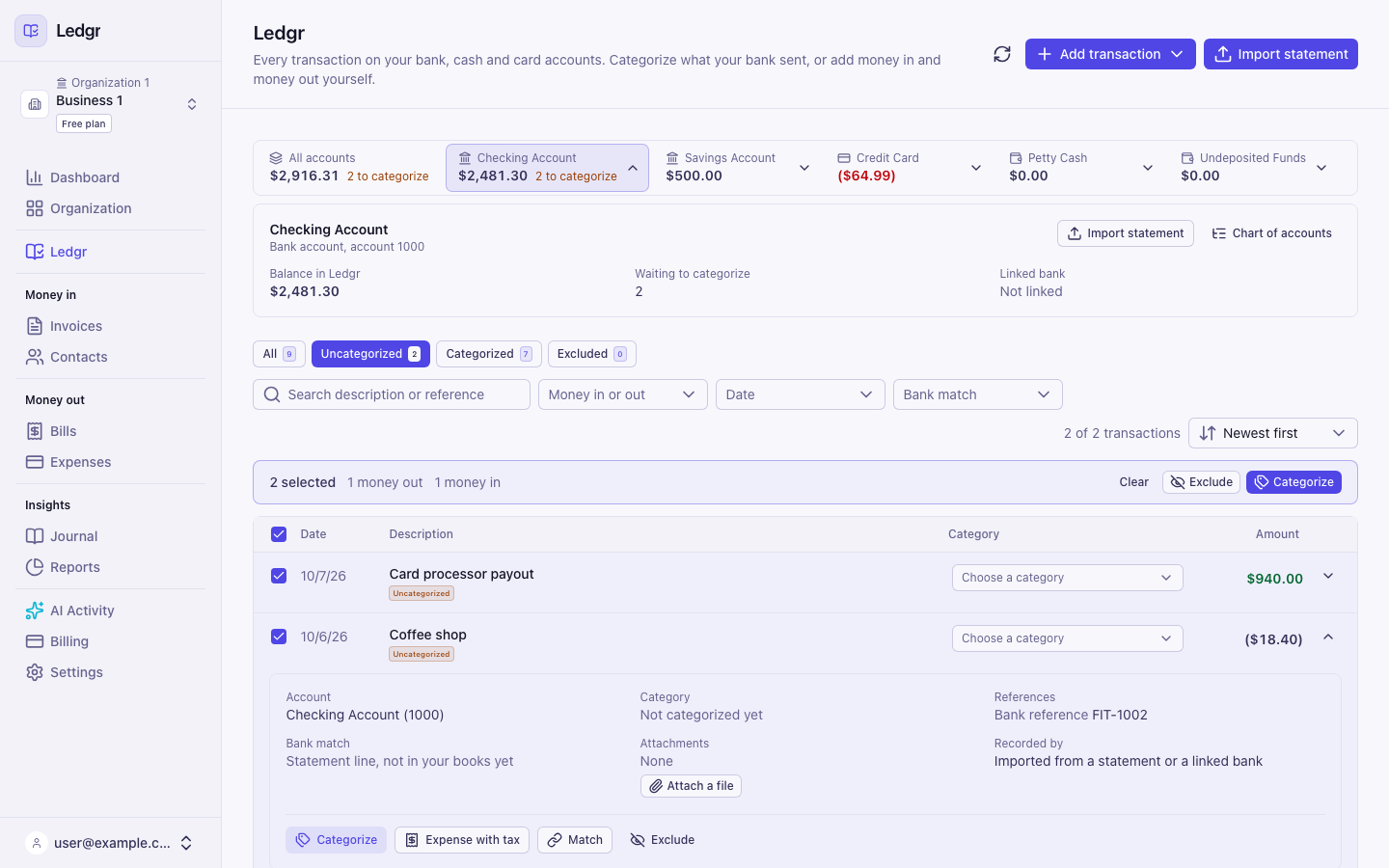
Money in shows in green. Money out shows in parentheses. When a line has the same description as one you categorized before, its picker says Suggested with that category, and Use followed by the category name sits under the picker so you can accept it in one step. Bookledo learns this from what you choose. See Let Bookledo categorize lines like these.
When something already in your books has the same amount on the same account within two weeks, such as the other side of a transfer you recorded or a payment you entered on an invoice, Match to entry followed by its number sits under the picker instead. Select it to tie the line to that entry so the money is not booked twice. Bookledo will not book that line to another of your bank, cash or card accounts while the entry is waiting for it.

If your bank sends the same transaction twice, only one of the two lines is offered the entry. Matching the second line to an entry that already has one is refused, so exclude the copy.
When every line has an outcome, the Uncategorized tab says You are all caught up. If nothing has come in yet, the page says No transactions yet and offers Add transaction. Import statement at the top of the page brings in a statement.
If the list cannot load, an alert says so and offers Retry.
Categorize one line
- On the line, open the category picker.
- Choose the category. Money out lists your expense accounts first, such as Software or Office Supplies. Money in lists your income accounts first, such as Sales or Other Income. Every other account follows, grouped by kind.
Bookledo records the line and posts it to your books in one step. A withdrawal to an expense account becomes an expense and shows on the Expenses page. Anything else becomes a journal entry and shows on the Journal page. The line moves to the Categorized tab with a Matched badge, and the counts change at once.
Let Bookledo categorize lines like these
Every time you categorize a line, Bookledo remembers the description and the category. Numbers and punctuation in the description are ignored, so "Vendor 3 COFFEE 0412" and "vendor 3 coffee 0519" count as the same. Money in and money out are remembered apart. The next line like it gets that category as a suggestion, and nothing more, until you say otherwise.
To have Bookledo book lines like it as they arrive, follow these steps.
- Open a line that shows a suggestion.
- Turn on Categorize lines like this automatically.
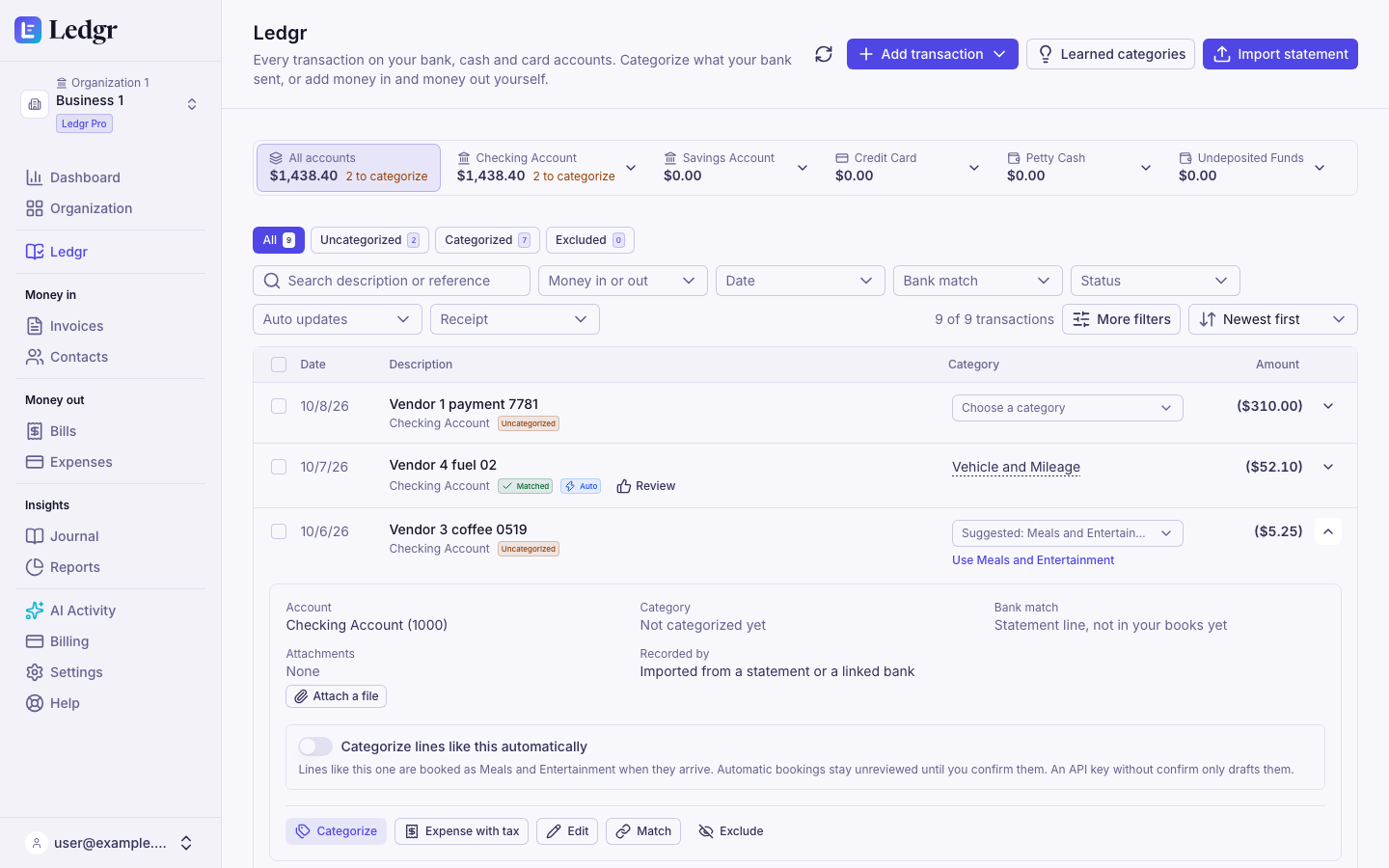
From then on, a matching line is booked when you import a statement or your linked bank sends it, as long as its amount is close to the amounts you categorized before, within a quarter either way. A line far outside that range keeps the suggestion and waits for you. A description that is too general to be safe can only be suggested, and Bookledo says so if you try to turn automatic booking on. That covers one word like "Check", and words that only say how money moved, like "Online transfer" or "POS purchase".
A line booked this way shows an Auto badge and stays not reviewed. Open it to see why it was booked, then select Confirm category or Change category.
Automatic booking turns off until you turn it back on when someone other than the person who turned it on changes the rule, when you choose another contact for a line like it, or when someone else categorizes a line like it for an amount outside the usual range.
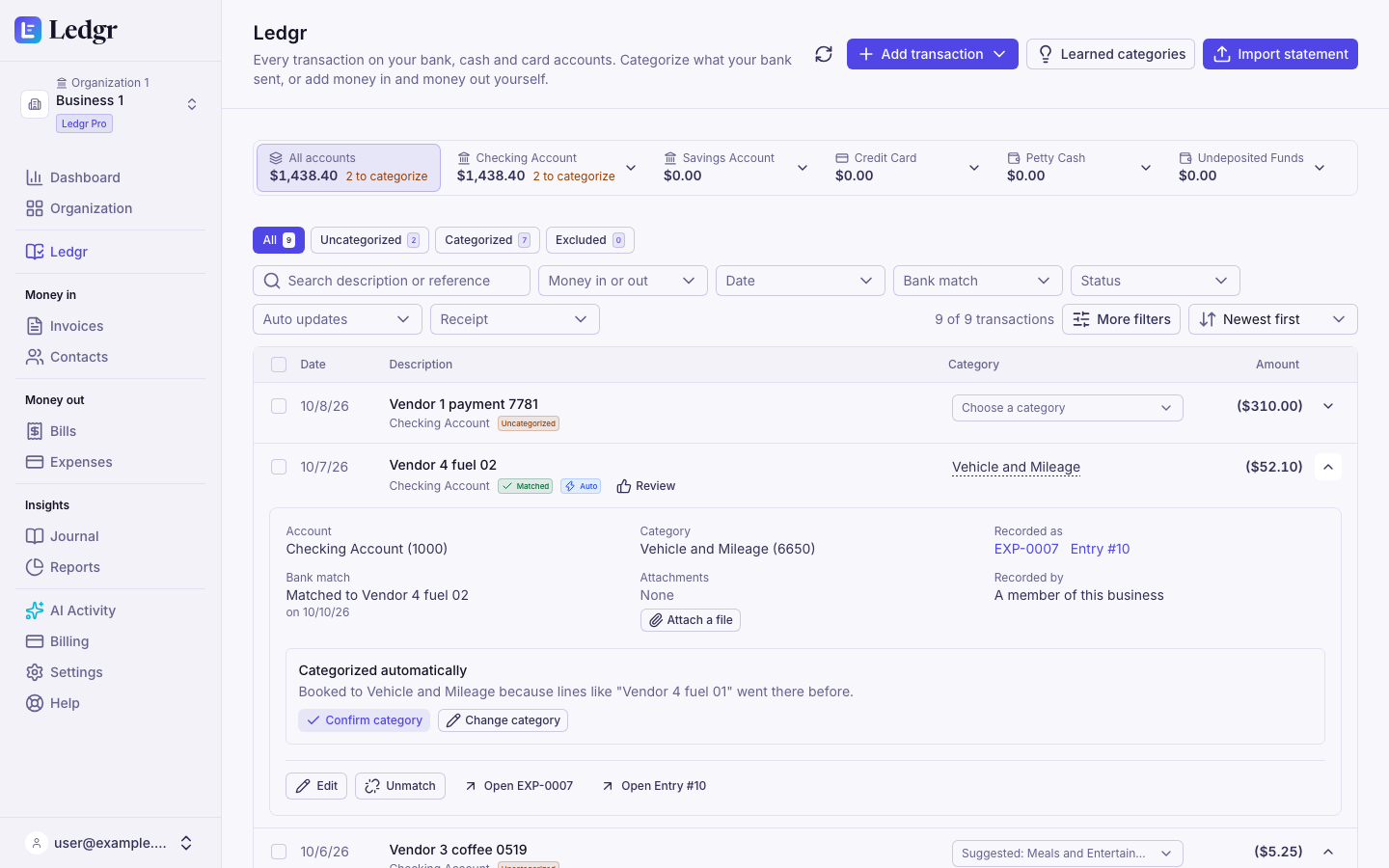
Bookledo never books a line on its own when it would count money twice, such as a line that matches something already in your books, or a deposit to an expense account. Those lines wait for you as usual. If you choose a different category for a line like it, Bookledo learns the new category and turns automatic booking off again until you turn it back on. If Claude imports a statement with a key that can only propose changes, the lines it would book wait in AI Activity for your approval instead.
To see everything Bookledo has learned, select Learned categories at the top of the page. You can turn automatic booking on or off for each one, or delete one so Bookledo stops suggesting it.
Transfers, owner draws and loan payments
A line can go to any of your accounts except Accounts Receivable and Accounts Payable.
- A transfer between your own accounts. Choose the other account, such as Savings Account for money moved out of checking. The transfer shows on both accounts. When the other account's statement comes in, its line offers Match to entry. Select it instead of categorizing, so the transfer is not counted twice.
- Money you put in or took out as the owner. Choose Owner's Equity for money you put into the business, and Owner's Draw for money you take out for yourself. Every new business starts with both accounts. Retained Earnings is not offered, since the books keep it themselves.
- A loan or card payment. Choose the loan or the card account. The payment lowers what you owe.
- A purchase of equipment. Choose the equipment account. It is kept as something you own rather than an expense.
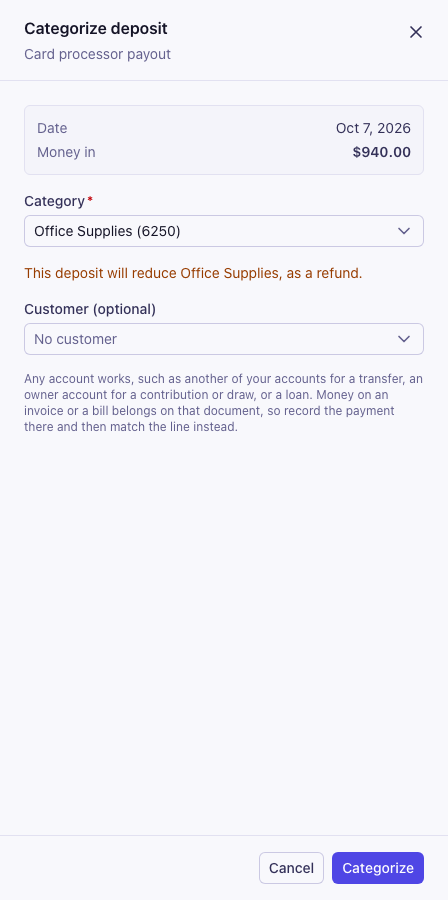
- A refund. Choose the expense account the purchase went to. The refund lowers that expense. Bookledo opens the categorize window first and says what will happen, for example "This deposit will reduce Office Supplies, as a refund." Refunds are booked one line at a time.
Money from a customer for an invoice, or to a vendor for a bill, belongs on that invoice or bill. Record the payment there, then match the line.
Categorize many lines at once
Use this when several lines belong in the same category, such as a month of office supply purchases or a set of payouts.
- Check the box at the start of each line you want. To pick every waiting line on the page, check the box in the header row.
- A bar appears above the list showing how many lines you picked.
- Select Categorize in that bar.
- Choose a Category. The list is the same one each line offers.
- Choose a Vendor or Customer if you want one on every line. This is optional. A customer cannot be the vendor on an expense, so Bookledo refuses the whole batch before recording anything if you pick one with an expense category.
- Select Categorize.
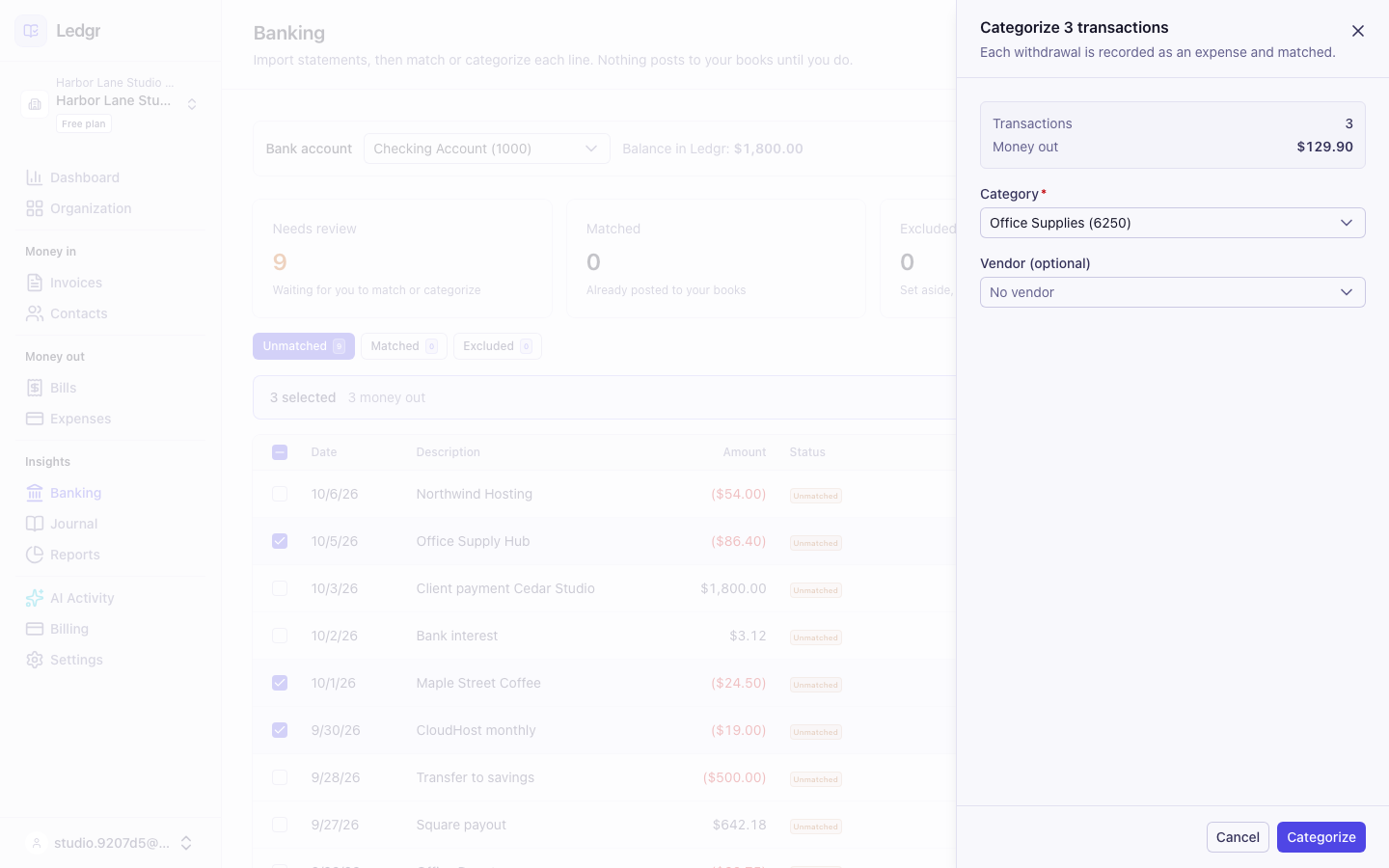
Each line is recorded on its own. With an expense category, each withdrawal becomes its own expense. A deposit in the same batch is skipped and listed with the reason, since a refund is booked one line at a time. The same goes for a withdrawal picked with an income account. To set aside every checked line instead, select Exclude in the bar.
If a line cannot be categorized, for example because someone matched it a moment earlier, the panel lists it with the reason. Every other line is still recorded.
Add a contact, tax or a memo to one line
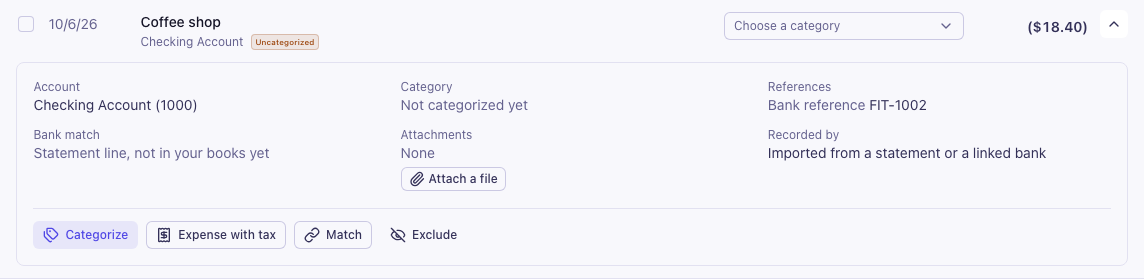
- Select the arrow at the right end of the line to open it.
- To add a vendor or customer, select Categorize. Choose a Category and a contact, then select Categorize.
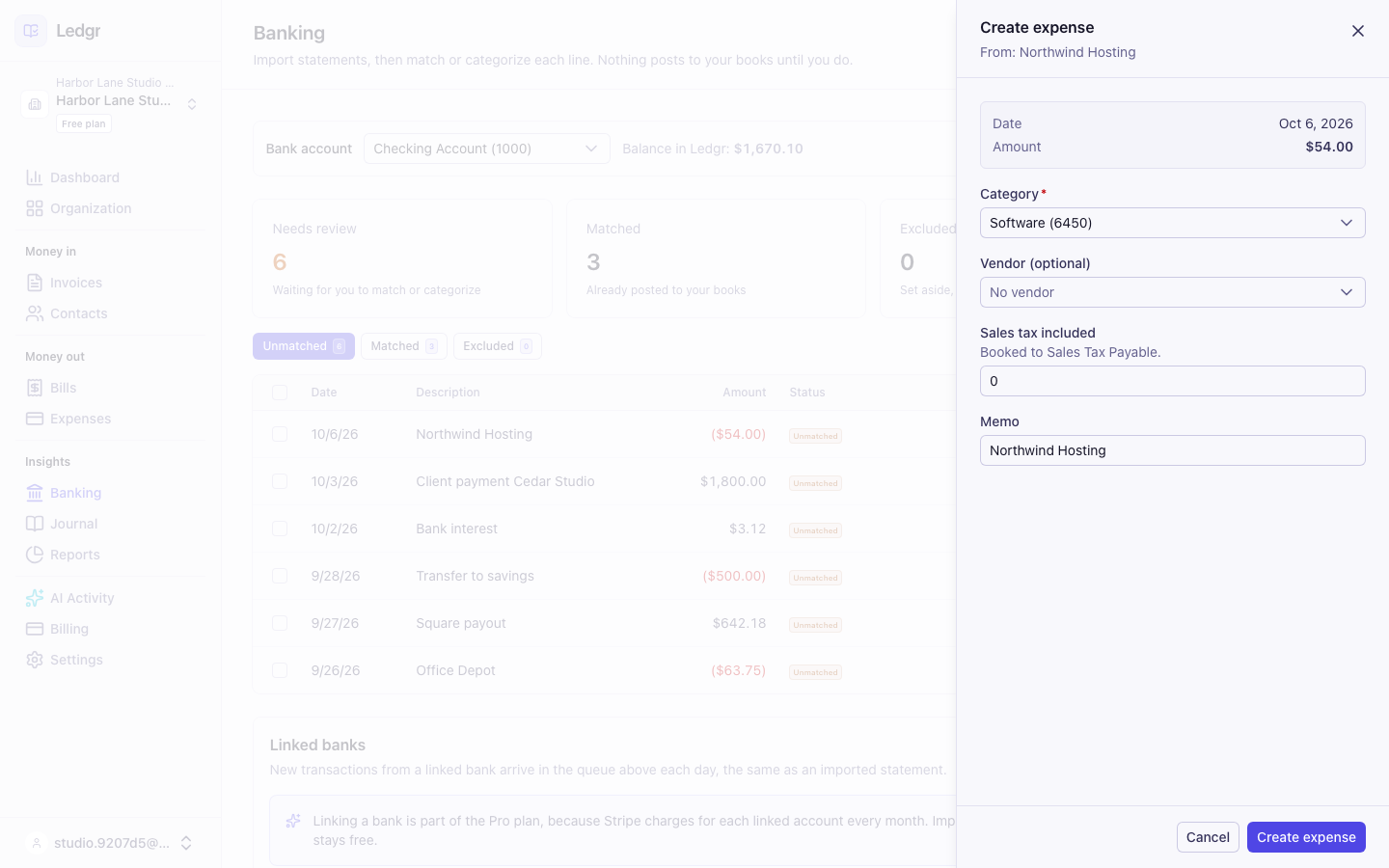
- For money out that included sales tax or needs its own memo, select Expense with tax. Choose the expense Category, enter the Sales tax included, change the Memo if you want, and select Create expense. The tax is kept on the expense and counted as part of its cost.
If a customer paid one of your invoices, record the payment on the invoice instead and then match the line, so the invoice shows as paid.
Match a line to something already in your books
Use this when the money relates to something you already recorded and the line does not offer Match to entry on its own, for example because the dates are more than two weeks apart.
- Open the line and select Match.
- Bookledo lists entries dated within 14 days of the line that touch the same account. An entry with the same amount carries an Amount matches badge and sits at the top.
- Select the entry that belongs to this line.
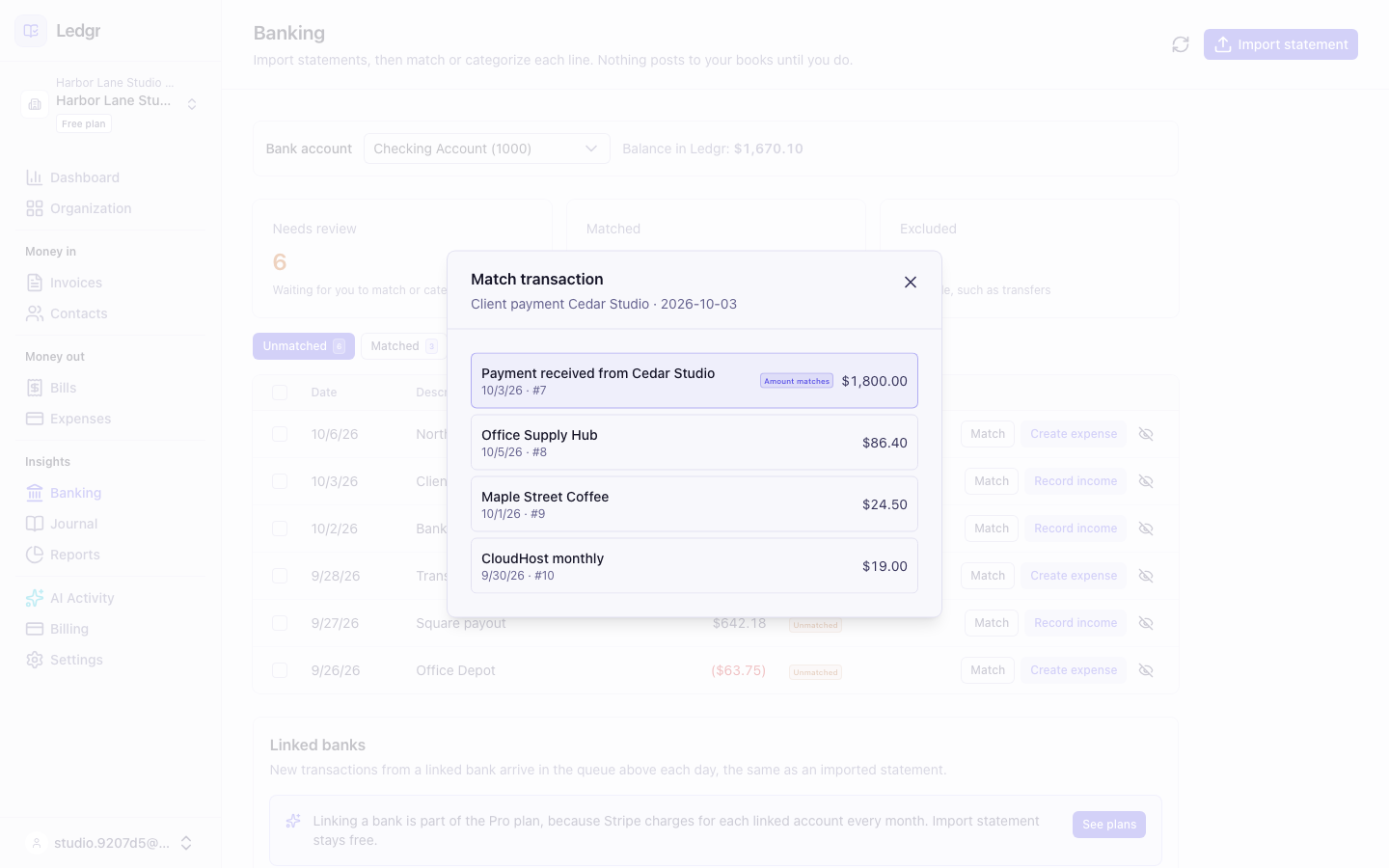
The line joins the entry it matched, so the register shows one row with a Matched badge. The amounts must agree, or Bookledo refuses the match and tells you why.
If the window says No nearby journal entries, the entry does not exist yet. Record the payment on its invoice or bill, or use Add transaction, then come back and match the line.
To undo a match, open the row on the Categorized tab and select Unmatch. The line goes back to Uncategorized. The entry stays in your books.
Exclude a line
Use this for lines that do not belong in your books, such as a transfer between your own accounts that you already recorded from the other side, or a line your bank sent twice.
- Open the line and select Exclude.
- The line moves to the Excluded tab.
To bring it back, open it on the Excluded tab and select Include. Both counts change at once.
Work with the keyboard
Everything on this page works without a mouse.
- Press Tab to move through the accounts, the tabs, the filters and the rows. Each control names its line, for example Show details for Bank interest, so a screen reader reads out which line you are on.
- Press Enter on a row's arrow to open it, then Tab to its buttons.
- In a category picker or a panel, press Enter to open the list, use the Down and Up arrow keys to move, and press Enter to choose.
- Press Esc to close a panel without saving.
Split one payment across categories
- Open the line and select Edit. For a line already in your books, open its row on the Categorized tab and select Edit.
- Select Split this transaction.
- Give each line a category and an amount. On money out booked only to expense accounts, each line can also carry the sales tax inside its amount.
- Add lines until Left to assign reaches zero, then select Save changes.
The split is one transaction in your books, matched to the one line from your bank. Charging part of a payment to another business you own is not available in the app screens yet.
When Claude categorizes for you
If Claude is connected with a key that can propose changes but not confirm them, the expenses and income it records from bank lines wait in AI Activity for your approval. Review what Claude drafted explains how. The lines stay on the Uncategorized tab until then, with a note that a proposal is waiting. Approving it books the line and matches it in one step. If you categorize the line yourself first, Bookledo refuses to approve the proposal, so the money is never booked twice. Reject it instead. Approval also checks what is in your books at that moment. If you typed the same money in yourself, or booked the other side of a transfer, Bookledo refuses and asks you to match the line instead.
One case is left to you. If you matched the line to an entry with a different category and then unmatched it, Bookledo still lets you approve the proposal, because a different category can be a different payment. Check it is not the same money before you approve.
A mistake after you categorize
Open the row on the Categorized tab and select Edit. Change the category or anything else and select Save changes. Bookledo cancels the original with a reversing entry and records your correction, and the line from your bank stays matched to it. To change the amount or the account, unmatch the line first. The row's History shows what it replaced. Bookledo also learns the new category for lines like it.
To fix many rows at once, check them and use Bulk edit. See and record every transaction in Books explains it.
If the line should not be in your books at all, check the row and select Void. The line goes back to Uncategorized, where you can exclude it.
Next steps
See and record every transaction in Books covers the rest of the page. Run your reports shows the effect on your profit and loss. Once a month's lines are in your books, Reconcile an account checks them against the statement's closing balance.