



Help center
Print a customer statement
A statement shows one customer where their account stands. Pick the kind you need, check it on screen, then print it or save it as a PDF and send it with your own email. Bookledo does not email statements yet.
Choose the kind of statement
- Outstanding invoices lists every invoice the customer still owes on, with its due date and balance, and totals what they owe by how late it is. Use it when you are chasing payment.
- Account activity lists everything you invoiced and everything they paid between two dates. It starts with the balance brought forward from before the first date and shows the balance after every line. Use it when a customer asks what they paid and when.
Draft and voided invoices never appear, and neither do voided payments. A payment counts for the part of it that went to this customer's invoices.
Create the statement
- Select Invoices in the sidebar, then select Customer statement at the top of the page.
- Choose the Customer. Type to search.
- Choose Outstanding invoices or Account activity.
- For account activity, set From and To. They start at the first day of this year and today.
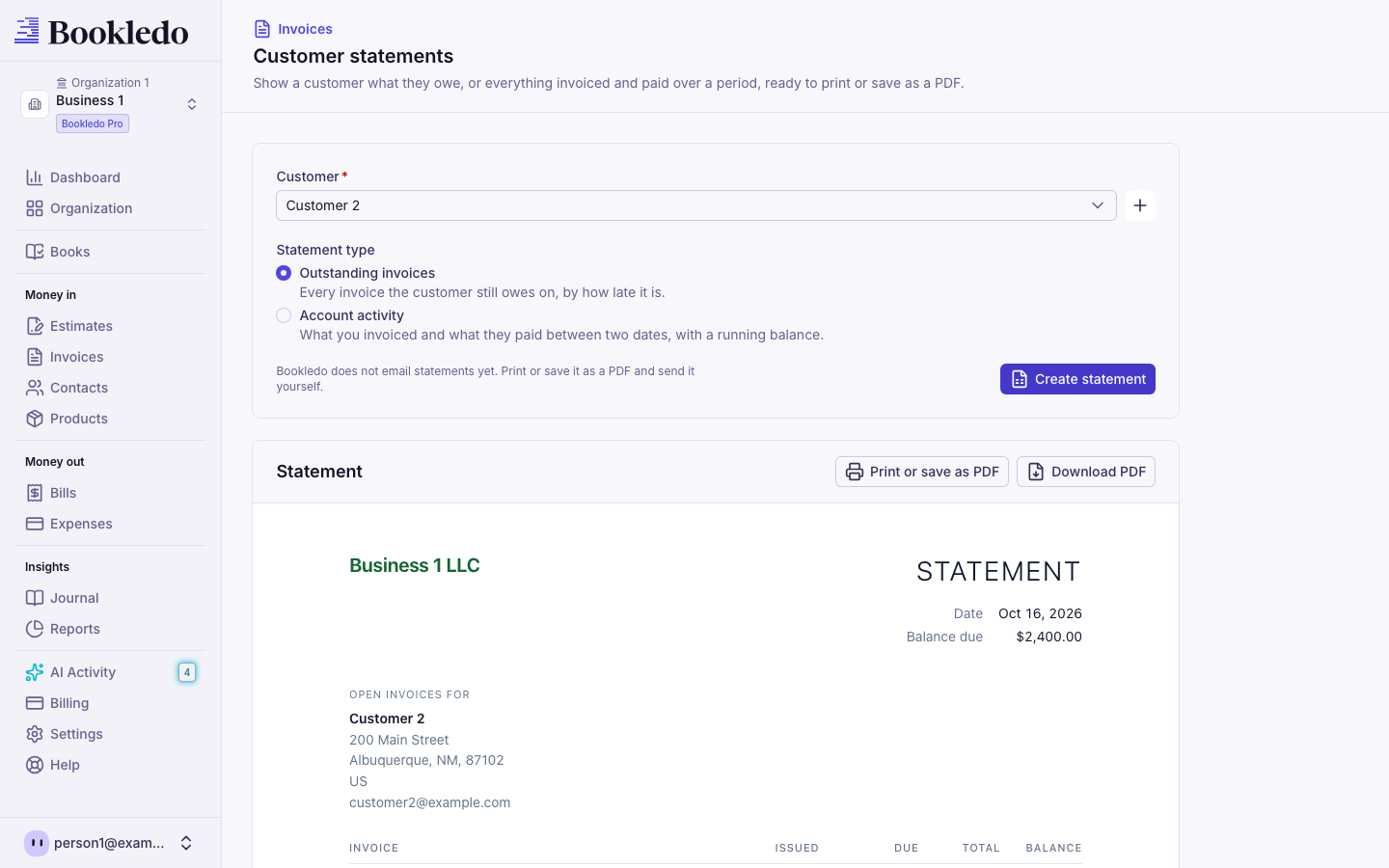
- Select Create statement. The statement appears below, exactly as it prints.
- Select Download PDF to save the statement to your computer as a PDF. To print it instead, select Print or save as PDF, and it opens in a new tab.
To start from a customer, open them under Contacts and select Statement at the top of their page. The statement page opens with that customer chosen.
If you change the customer, the kind or the dates, select Create statement again to see the new one.
A statement prints with the same logo, colors, business details and footer as your invoices. Set them in your invoice and estimate settings.
Check it against your reports
The balance due on an outstanding invoices statement is the same figure the AR aging report shows for that customer. See Run your reports.
Next steps
Create and send an invoice. Quote a customer with an estimate.