



Help center
Quote a customer with an estimate
Give a customer a price before the work starts, record whether they said yes, and turn the estimate into an invoice when they do. An estimate never goes into your books. Only the invoice it becomes does, once you post it. Bookledo does not send email yet, so you print or save the estimate as a PDF and send it yourself.
Create the estimate
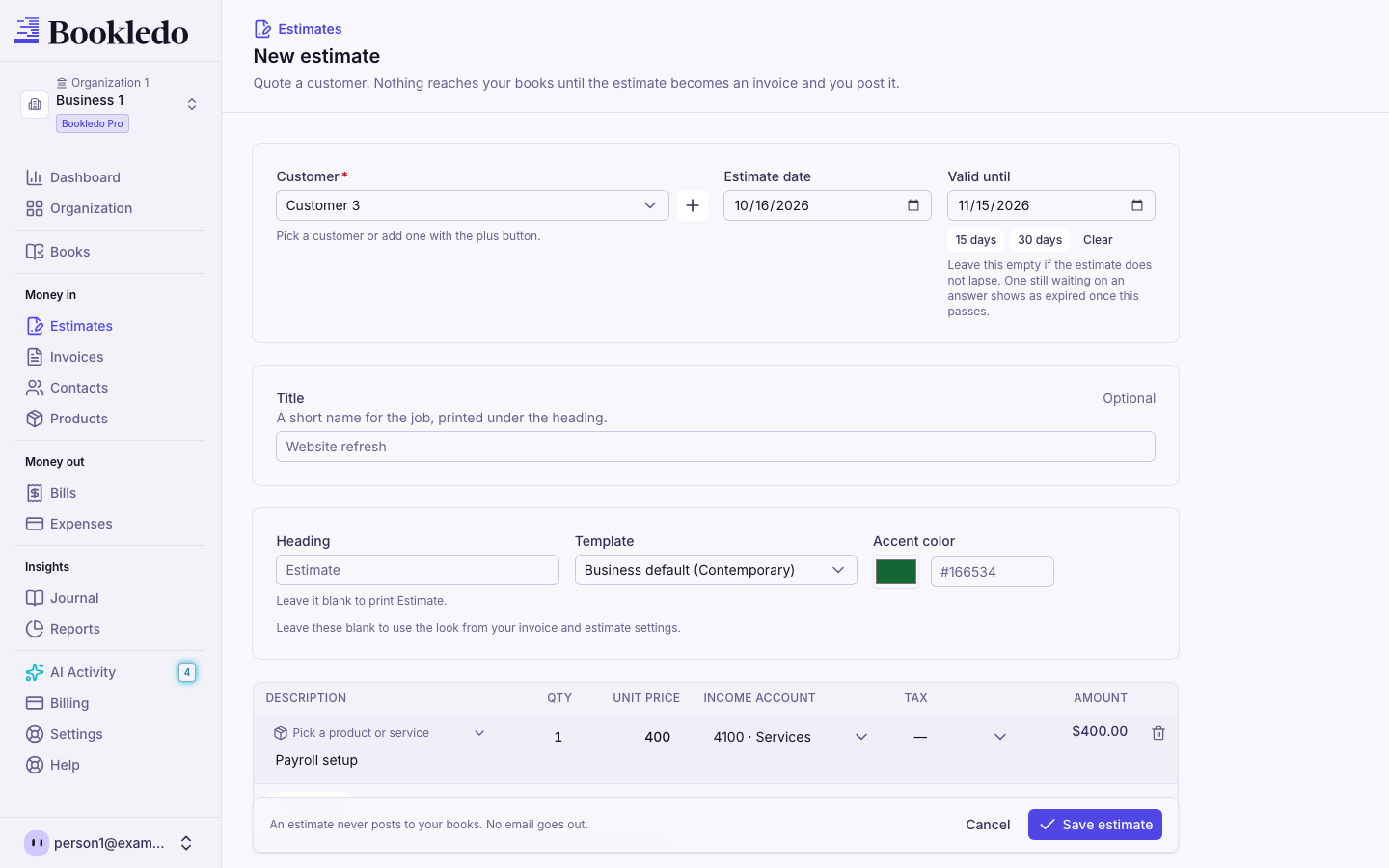
- Select Estimates in the sidebar, then select New estimate.
- Choose the Customer. Type to search, or select the plus button beside the field to add a new one.
- Check the Estimate date. It starts as today.
- Check Valid until. It starts 30 days after the estimate date. Select 15 days or 30 days to change it, or Clear for an estimate that does not lapse.
- Add a Title if you like, such as Website refresh. It prints under the heading. To change the heading itself, the template or the accent color for this estimate only, see Change the look of one invoice or estimate.
- Fill in the lines the same way as on an invoice. Enter what it is for, the Qty, the Unit price and the Income account, and choose a Tax rate if you charge one. If you keep a list of products and services, select Pick a product or service on a line to fill it in.
- To give a discount, choose Percent off or Amount off under Discount and enter it. It comes off before tax, and the invoice the estimate becomes keeps it.
- Add Notes, Terms or a Footer for your customer if you want them. If you set defaults in your invoice and estimate settings, the title, notes, terms and footer start filled in, and you can change them here.
- Select Save estimate.
Send it
- Open the estimate and select More, then Download PDF. The estimate saves to your computer as a PDF named for its number. To print it instead, select More, then Print or save as PDF, and it opens in a new tab.
- Send it to your customer with your own email.
- Back in Bookledo, select More, then Mark as sent.
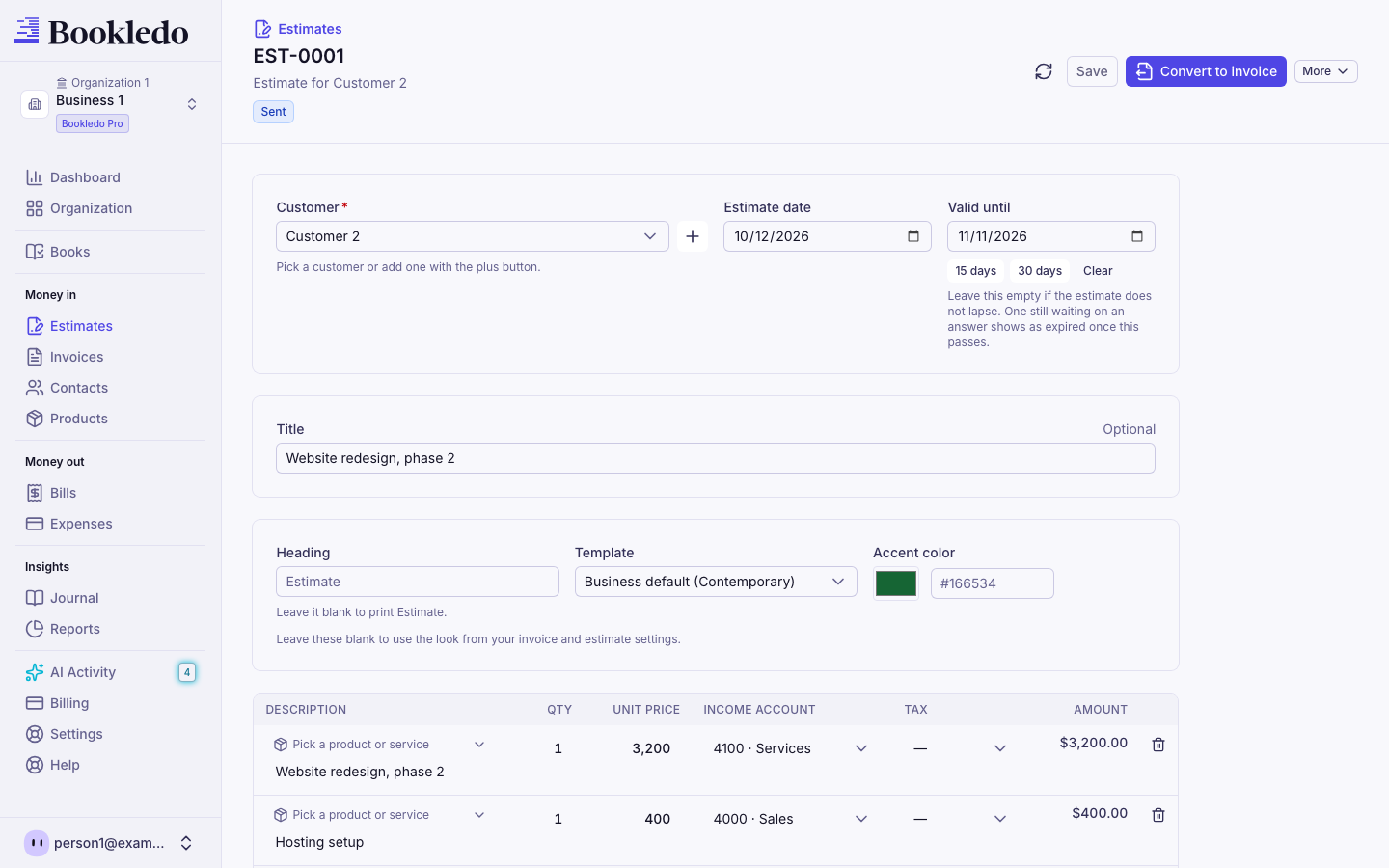
You can keep changing an estimate until the customer answers. Select Save after an edit.
Record the answer
Open the estimate, select More, then Customer accepted or Customer declined. If a customer who said no comes back, select Customer accepted on the declined estimate.
An estimate still waiting on an answer shows as Expired once its valid until date passes. Filter the Estimates list by Valid until to see them.
Turn it into an invoice
- Open the estimate and select Convert to invoice. You can also open the Actions menu on its row in the Estimates list.
- Select Create invoice to confirm.
Bookledo makes a draft invoice for the same customer with every line, the notes and the terms, and opens it. Nothing is in your books yet. Check the invoice, set its due date, and select Save and post when you are ready to bill. See Create and send an invoice.
An estimate becomes one invoice only. Once converted it shows as Invoiced with a button to open its invoice, and it can no longer be edited. A declined estimate has to be marked accepted before it can be converted.