Help center
Add products and services
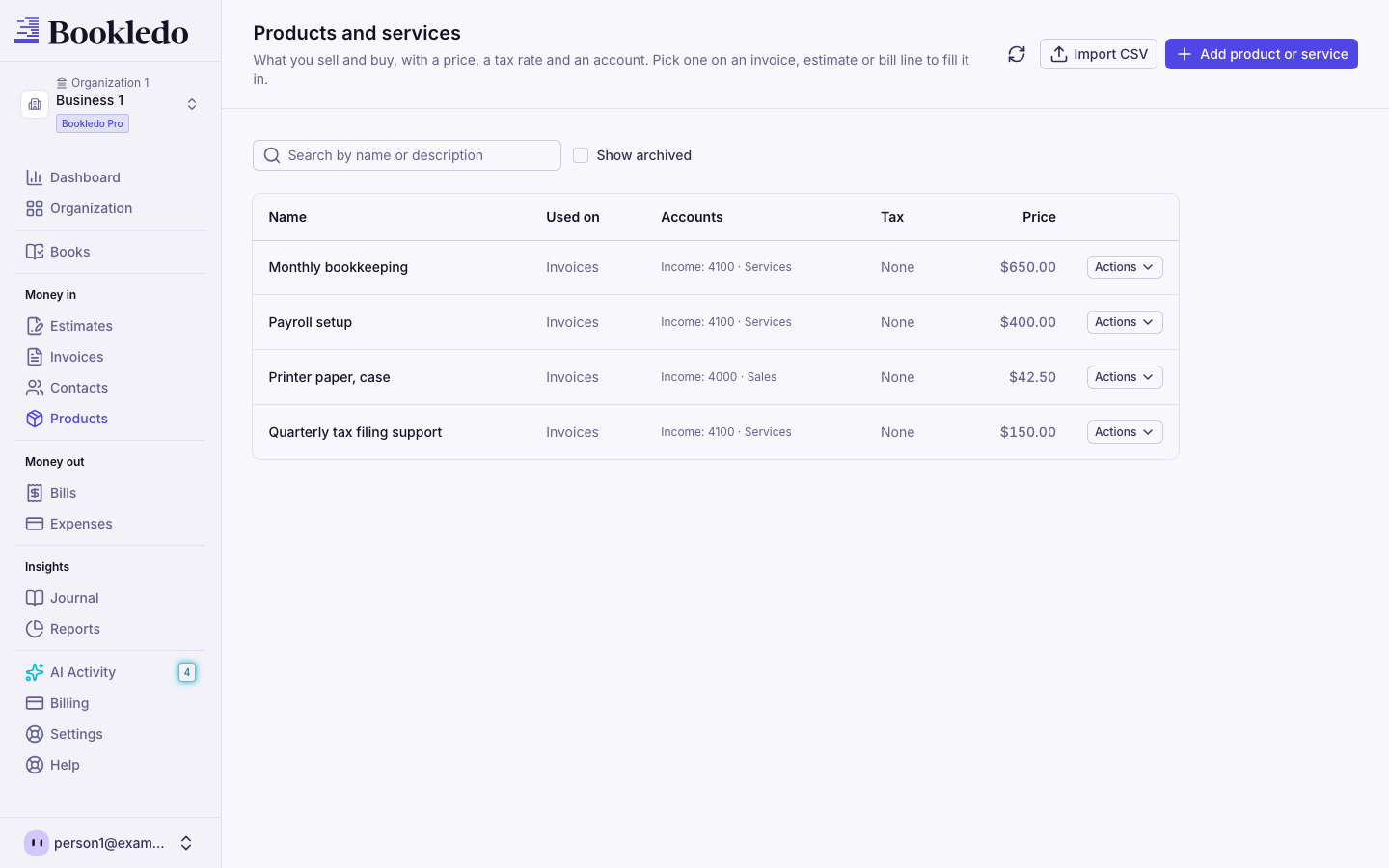
Keep a list of what you sell and what you buy, each with a price, a tax rate and an account. When you build an invoice, an estimate or a bill, pick an item on a line and Bookledo fills in the description, the price, the tax and the account for you. You can still change anything it filled.
Add a product or service
- Select Products in the sidebar, then select Add product or service.
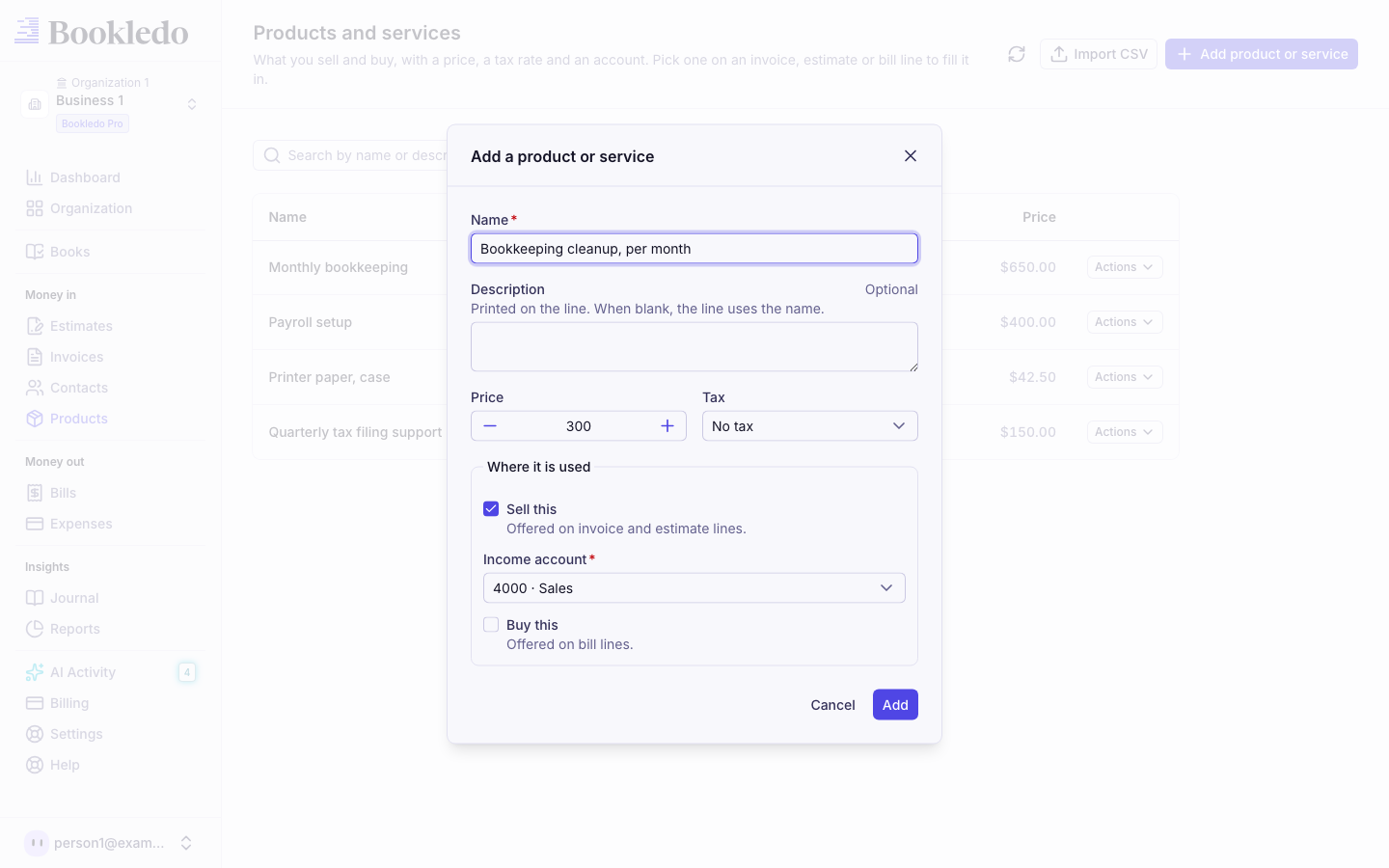
- Enter a Name, such as Bookkeeping, monthly. Each name can be used once in a business.
- Add a Description if you like. It is what prints on the line. Leave it blank and the line uses the name.
- Enter the Price and choose a Tax rate, or leave it at No tax.
- Under Where it is used, tick Sell this for something you put on invoices and estimates, and choose the Income account the sale is recorded in. Sales is right for most work.
- Tick Buy this for something you put on bills, and choose the Expense account the cost is recorded in. An item can be both.
- Select Add.
Use it on an invoice, estimate or bill
- Open a new or draft invoice, estimate or bill.
- On a line, select Pick a product or service above the description and choose the item. Type to search the list.
- The line fills in. Change the quantity, the price or anything else that is different this time.
Invoices and estimates offer the items you sell. Bills offer the items you buy.
Changing a product later only changes the lines you fill from then on. Invoices, estimates and bills you already made keep what they were written with.
Import a list from a spreadsheet
- Save your list as a CSV file. The first line names the columns. Bookledo needs a Name column and also reads Description, Price, Income account, Expense account, Tax, Sell and Buy when they are there. Accounts can be written as a code, such as 4000, or a name.
- On the Products page, select Import CSV and drop the file in.
- Choose the Income account for rows that name none. Rows with no account at all are added as items you sell, recorded in this account.
- Select Import.
Bookledo adds every row it can and lists the ones it could not, with the line number and the reason, such as a price that is not a number. Names already in your list are skipped, so importing the same file twice adds nothing the second time.
Edit, archive or restore an item
- Open the Actions menu on the item's row and select Edit to change it.
- Select Archive to stop offering it on new lines. Nothing you already made changes.
- Tick Show archived to see archived items, then select Restore on the row to bring one back.