

Help center
Manage your organization
This article covers the Organization page, one tab at a time. It covers the overview of your businesses, the people who work in and own them, who owns what, and the Organization's name and list of businesses.
An Organization holds one or more businesses. Each business keeps its own books, and the Organization sits above them. Select Organization in the sidebar to open it. The page has four tabs under its title. They are Overview, People, Ownership and Settings. Each tab is its own page with its own address, so you can bookmark one or send the link to a colleague.
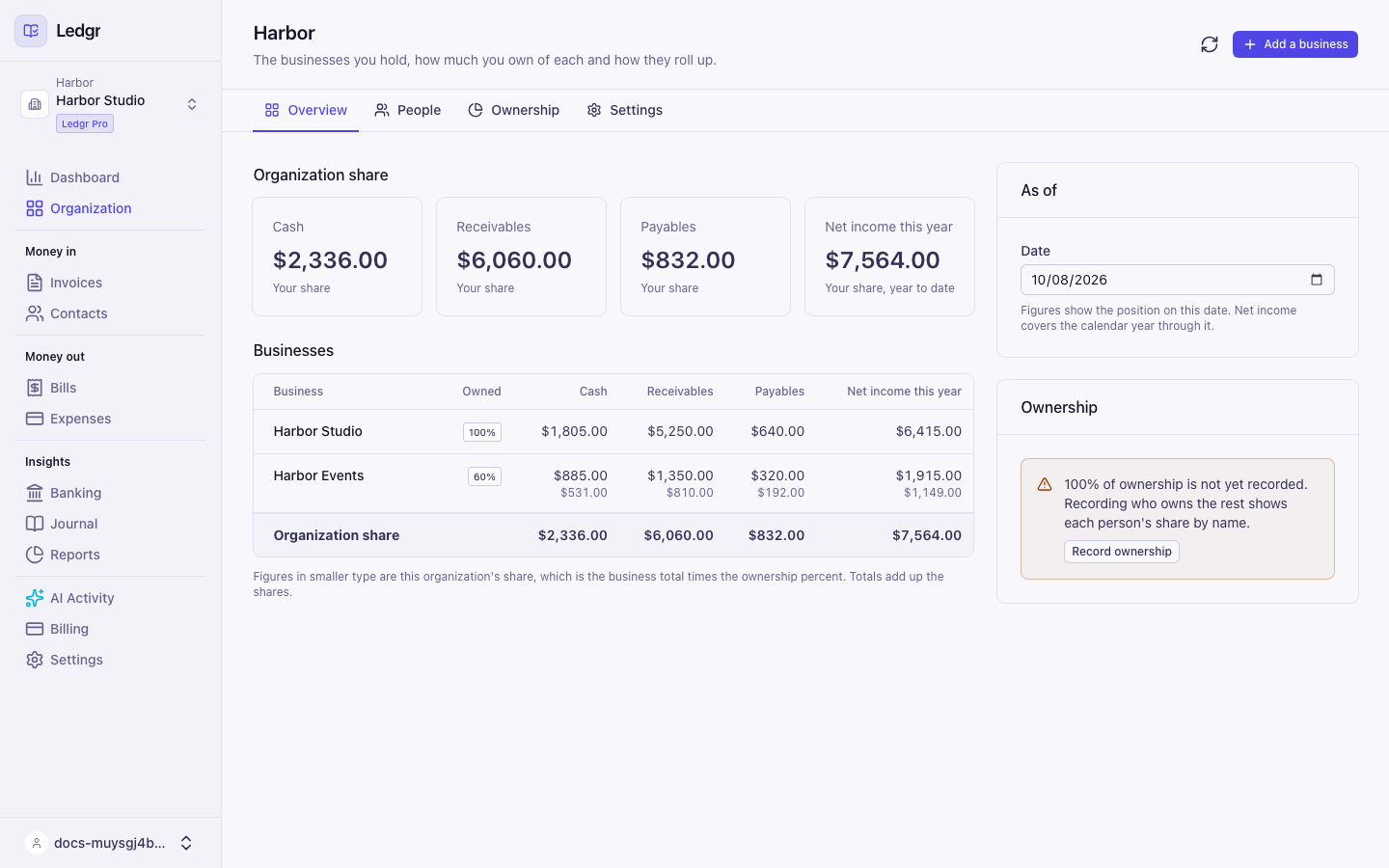
Overview
The overview is where you check how all of your businesses are doing at once. It shows cash, receivables, payables and net income for the year to date. For a business the Organization owns only part of, it also shows the Organization's share. Choose a date in the As of box to see the position on that day.
Set up your business explains every figure. From the overview you can also select Add a business at the top right, and select a business name to open its books.
People
The People tab has two cards.
- Organization members lists everyone who can work across the Organization, with their role. Use it to invite someone, change a role, revoke an invite or remove a person. A member of the Organization reaches every business it controls. A share of 50 percent or less gives read access only.
- People lists the owners you can record shares for. A person here does not need a Bookledo login.
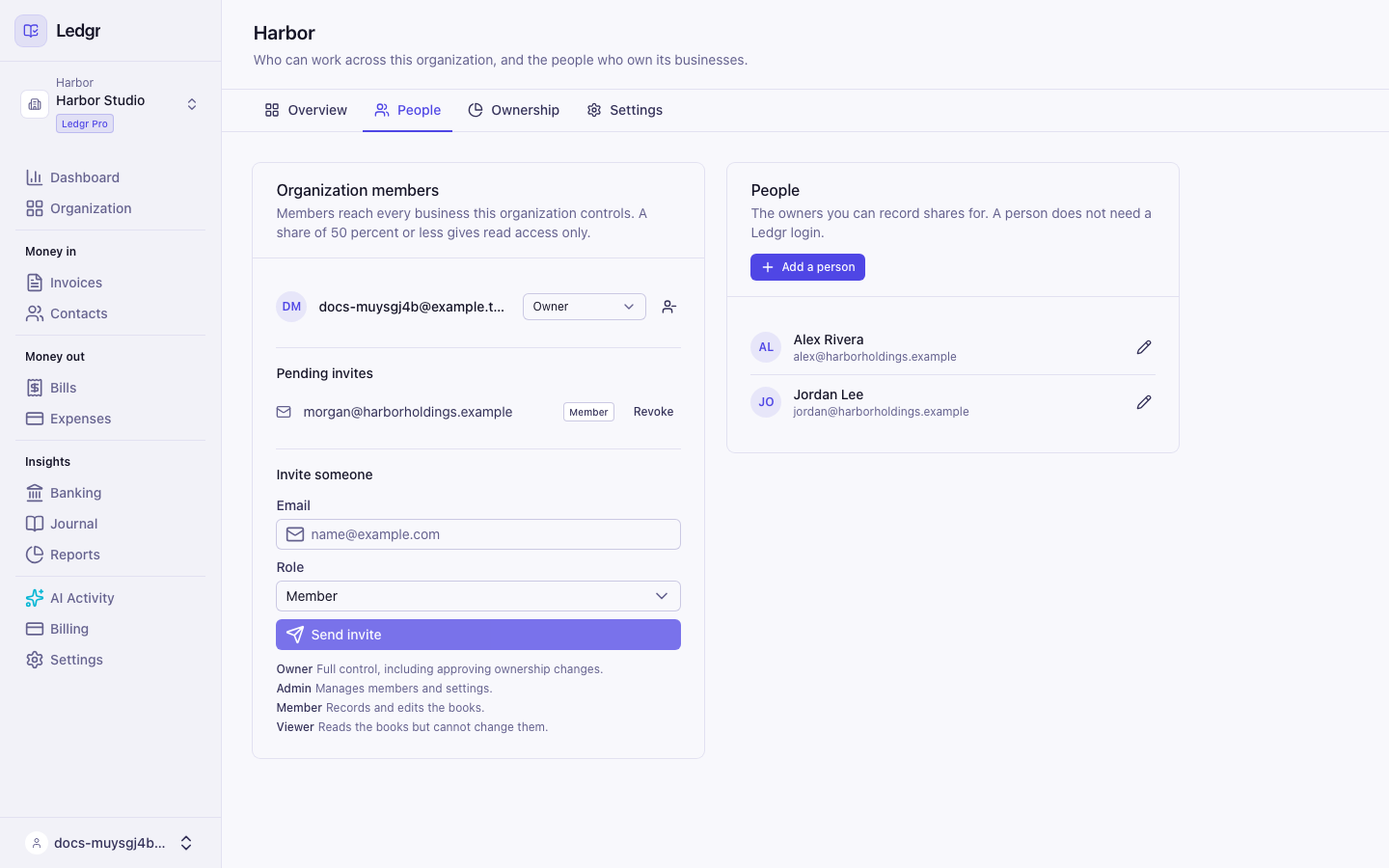
Own and share your businesses explains inviting people, roles and adding a person.
Ownership
The Ownership tab shows who owns the business you are in and who owns the Organization itself. It is also where you request a change, approve or reject a request, and record payouts to owners.
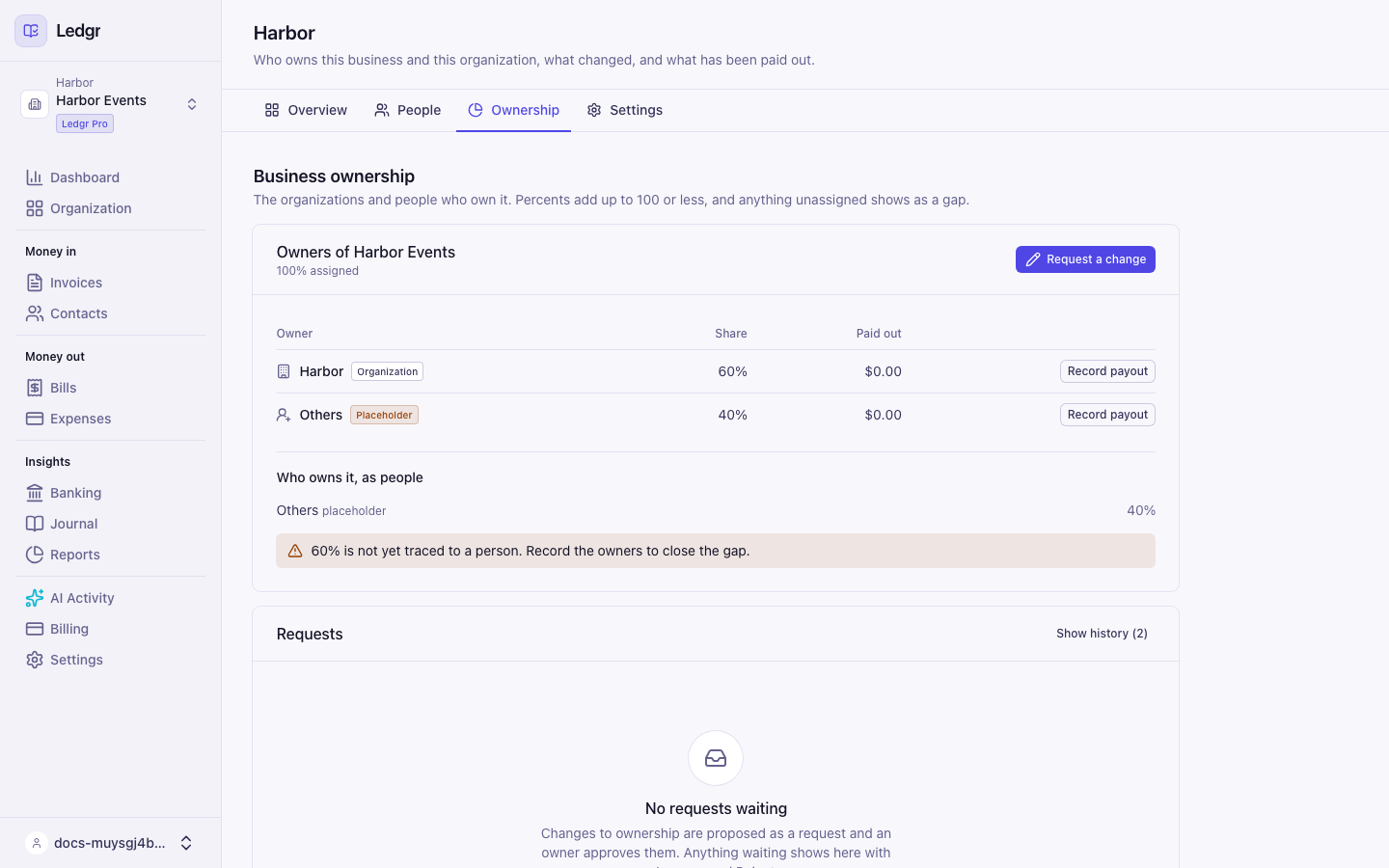
Every change starts as a request and an owner approves it, so there is always a record of who agreed. Read Own and share your businesses for the steps.
Settings
The Settings tab holds the Organization's own details.
- Organization details is the Legal Business Name and the optional Display Name. Reports use the legal name. The rest of Bookledo shows the Display Name when there is one.
- Businesses lists every business the Organization holds, with the share it owns and your role. Select Open to switch to one, or Add a business to create another.
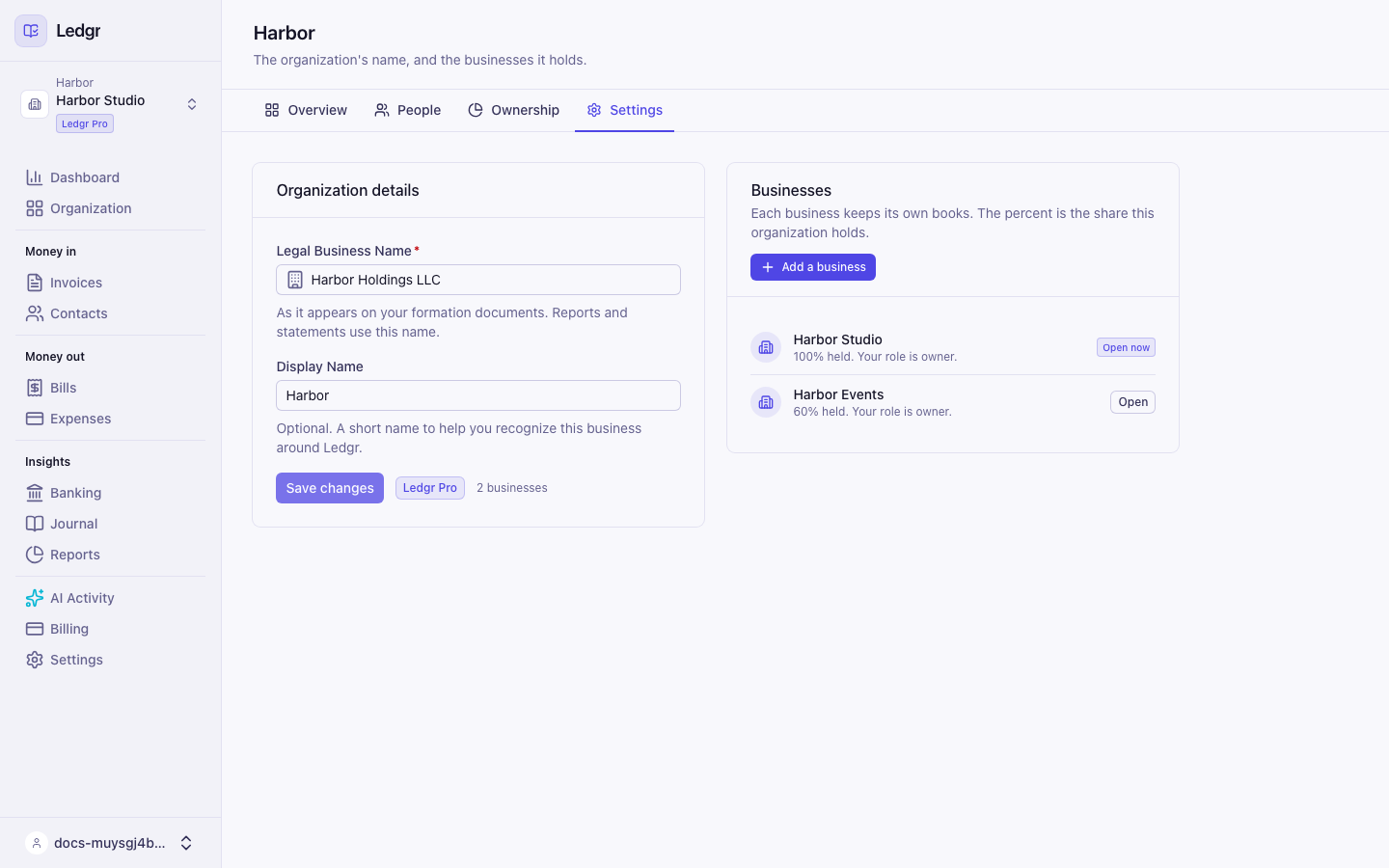
Only an owner or an admin can change the name or add a business. Everyone else sees the fields as read only, with a note saying who can change them.
Where things moved
Earlier versions kept the Organization and Ownership tabs under Settings. They now live here. If you open an old link or bookmark to Settings > Organization or Settings > Ownership, Bookledo sends you to the matching tab. Settings itself now covers the business you are in. Its tabs are Business, Members, Chart of accounts and Tax rates.
Next steps
- Set up your business to add a business or start a separate Organization.
- Own and share your businesses to record owners, approve changes and invite your team.
- Run your reports for statements across the whole Organization.