



Help center
Bill a customer on a schedule
Set up an invoice once, and Bookledo creates a fresh copy on a schedule, such as every month for a retainer. Each one gets its own number and the date it was due to go out. You choose whether each invoice waits as a draft for you to check, or posts to your books on its date.
Bookledo does not send email. Each new invoice still needs to reach your customer the usual way. See Create and send an invoice.
Set up a recurring invoice
- Select Invoices in the sidebar, then Recurring, then New recurring invoice.
- Choose the Customer.
- Under Schedule, give it a Name you will recognize, such as Monthly retainer. Customers do not see the name.
- Choose how often it Repeats, weekly, monthly or yearly, and how many weeks, months or years apart. For every quarter, choose Monthly and enter 3.
- Set the Start date. The first invoice is dated that day. It can be today or later.
- Choose when it Ends, either Never, After a number of invoices, or On a date.
- Under Payment due, enter how many days after each invoice's date it is due. Leave it empty to use the payment terms from your invoice settings.
- Choose how each invoice is created.
- Save as a draft for me to review leaves each invoice as a draft. Open it, check it, and post it yourself.
- Post it to my books posts each invoice on its date, so it counts toward what the customer owes right away.
- Fill in the heading, lines, discount, notes and terms the same way as a regular invoice.
- Select Save recurring invoice.
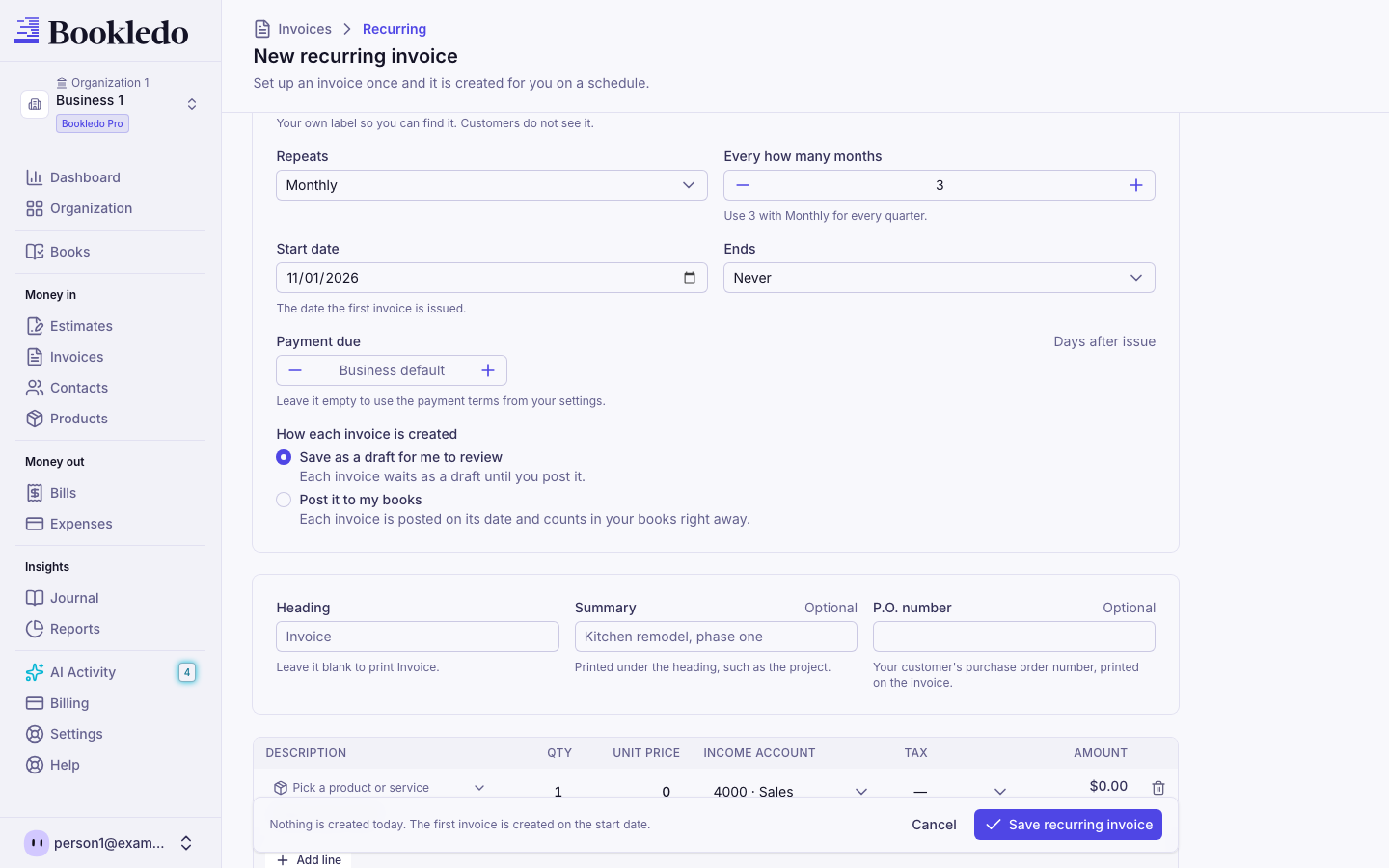
Saving does not create an invoice. Invoices are created once a day, early in the day, so with a start date of today the first invoice can take up to a day to appear. It is still dated today. A later start date means nothing is created until that day.
A month end start date stays on the month end. A schedule that starts on January 31 creates invoices on February 28, March 31, April 30 and so on.
See what it has created
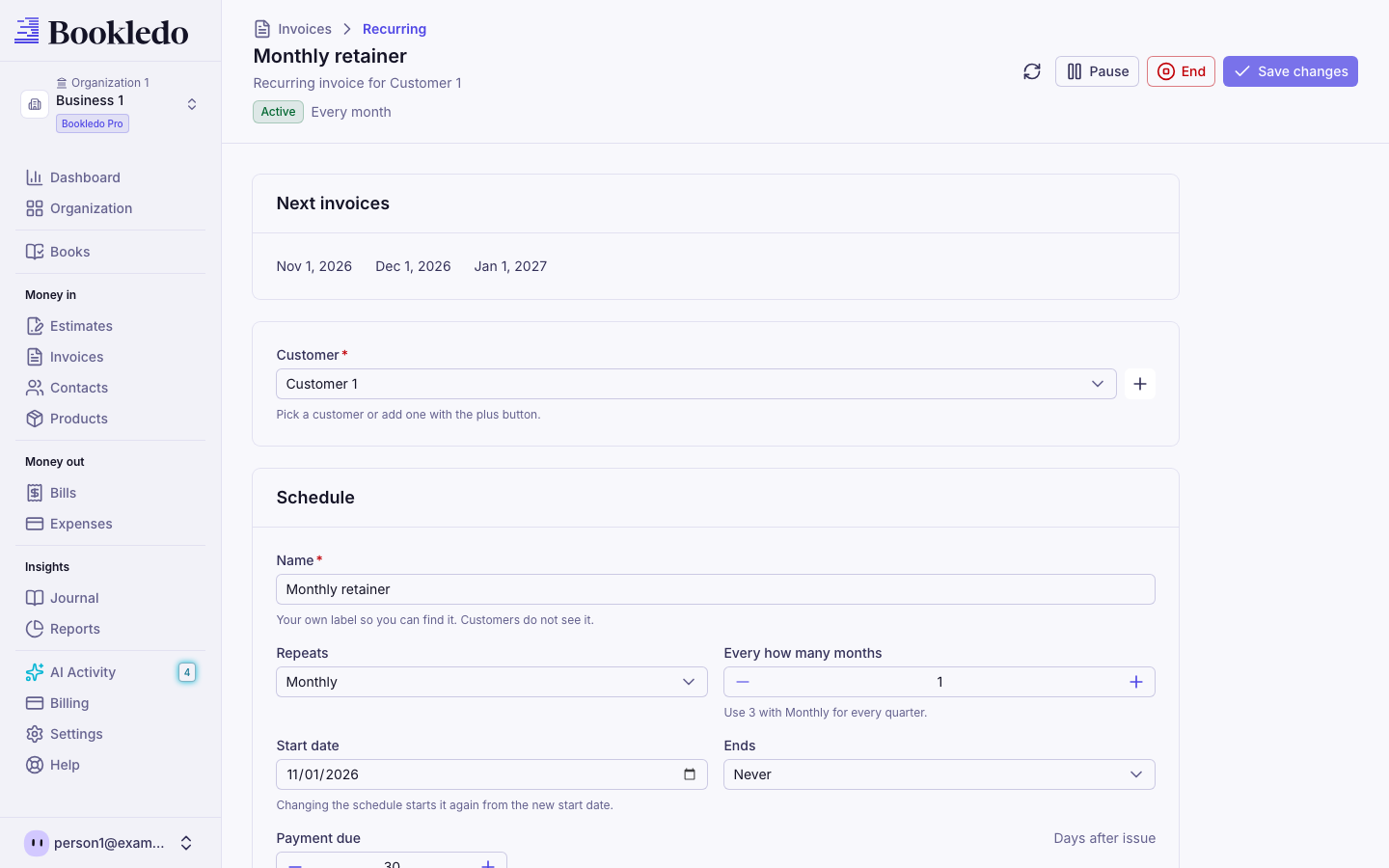
Open the recurring invoice from the Recurring list. The page shows the next three dates and the Run history, one row per date, with a link to the invoice it created and whether it was posted or left as a draft.
Each invoice is priced with your tax rates as they are on its date. If you change a tax rate, the next invoice uses the new rate.
Change, pause or end it
- To change it, edit the lines, the text or the schedule, then select Save changes. Invoices already created stay as they are. Changing how often it repeats, the start date or the end starts the schedule again from the new start date.
- To stop it for a while, select Pause. No invoices are created until you resume it.
- To start it again, select Resume, then choose what happens to the dates that passed while it was paused. Skip the missed dates carries on from today. Create the missed invoices too creates one invoice for each missed date, up to twelve a day.
- To stop it for good, select End. An ended recurring invoice cannot be started again, so set up a new one instead.
If an invoice could not be created
When Bookledo cannot create an invoice, the recurring invoice is paused and the page says why, for example that the customer was archived or a line's account or tax rate can no longer be used. Fix the cause, then select Resume and choose Create the missed invoices too to create the one that was missed.
Next steps
Create and send an invoice. Brand your invoices and estimates to set the default payment terms and notes.