

Help center
Manage your subscription
Everything about your plan lives on the Billing page in the sidebar. It covers your plan, how you are billed, the card on file and your invoices. Only owners and admins can change anything here. Members and viewers can see the plan and what the organization uses, with a note about who can change it.
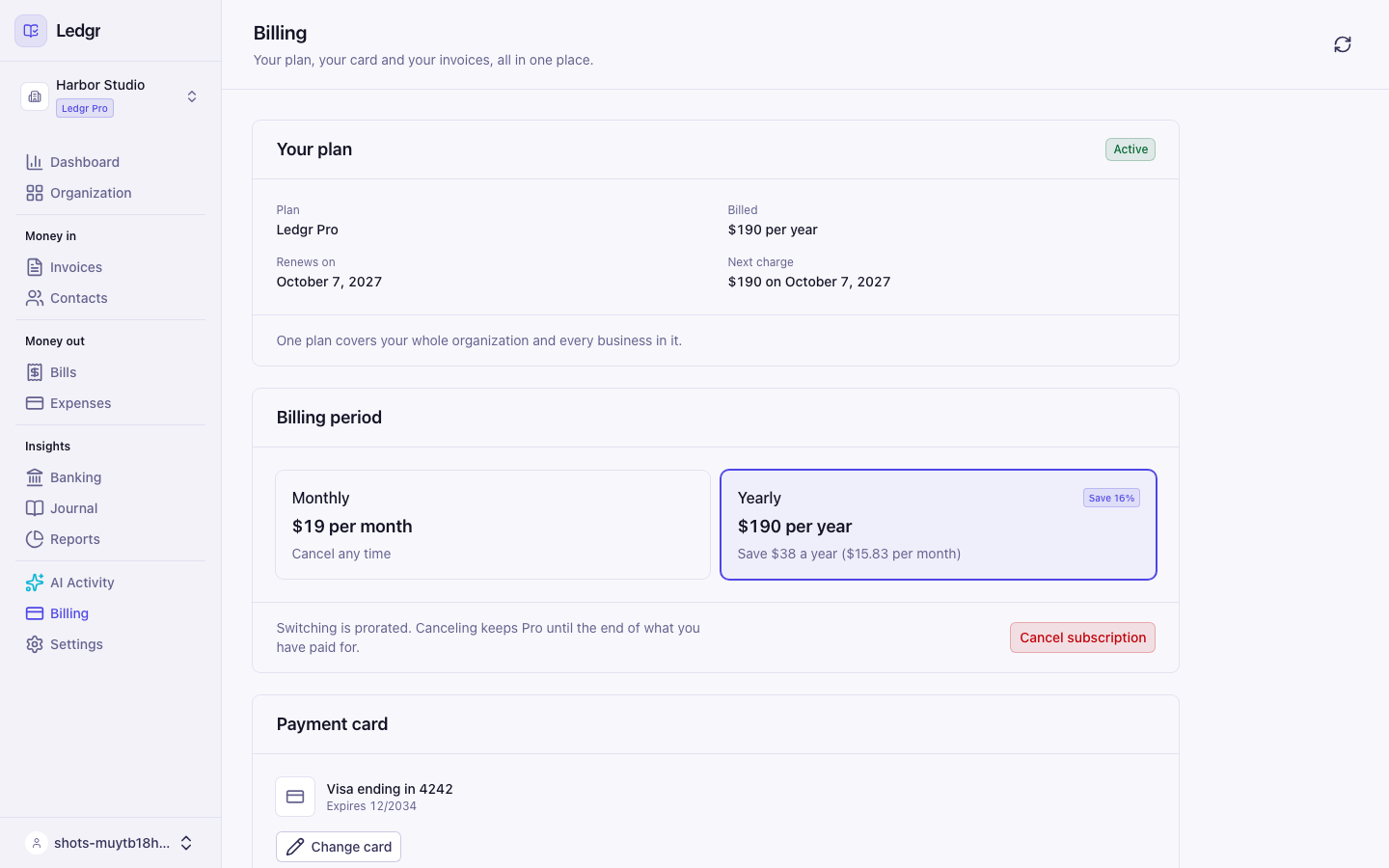
See your plan
The Your plan card shows the status of your subscription, how you are billed, the date it renews, and the amount of the next charge. The Usage section below shows how many businesses you use of the number your plan allows, how many AI actions your keys made this month, and how many keys are active.
Extra businesses
Pro includes 5 businesses in an Organization. Each business past that is $5 a month, or $50 a year if you are billed yearly. When your Organization pays for extras, the Your plan card shows a Businesses line, such as 7 of 7, and an Extra businesses line, such as 2 x $5 per month, $10 total.
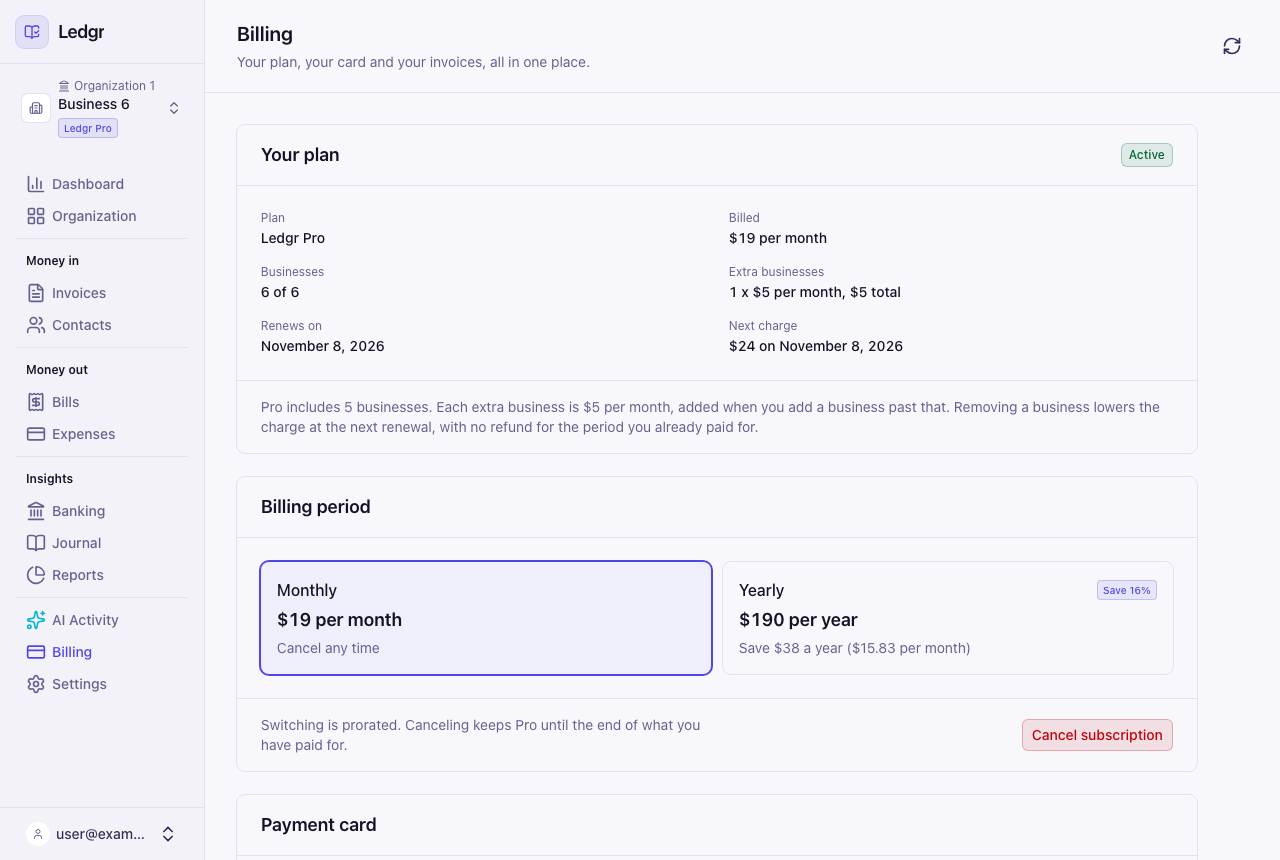
To add a sixth business, add it from the Organization page. Bookledo asks you to confirm the new price in a window, and you pay in the window. Set up your business covers the steps.
- What you pay today. The first charge is prorated. It covers only the rest of the current period, so a business added late in the month costs less than $5 today.
- What you pay next. From the next renewal, your total includes every extra business. The window shows the new total before tax.
- Removing a business. When a business leaves the Organization, Bookledo lowers the number of extra businesses you are billed for right away, and your next renewal charges the lower number. The place you already paid for stays yours until the renewal date, so adding a business in its place before then costs nothing. The Your plan card shows it as a Reusable until line with that date. Bookledo does not refund the period you already paid for.
- Switching between monthly and yearly. A switch starts a new billing period, so a place freed by a removed business ends with the switch, and the unused time on it is not credited. Billing period warns you before you switch. Add any business you want to keep in that place first.
Switch between monthly and yearly
- Open Billing. Under Billing period, choose the other period.
- Read the line under the choices. It says what you will be charged today and what is credited for the time you already paid for.
- Select Switch to monthly or Switch to yearly.
The change is prorated. Switching to yearly charges the yearly price today minus a credit for the unused part of your current period, and your renewal date moves to one year from today. Switching to monthly starts a monthly period today and credits the unused part of your yearly payment toward your next invoices.
Change your card
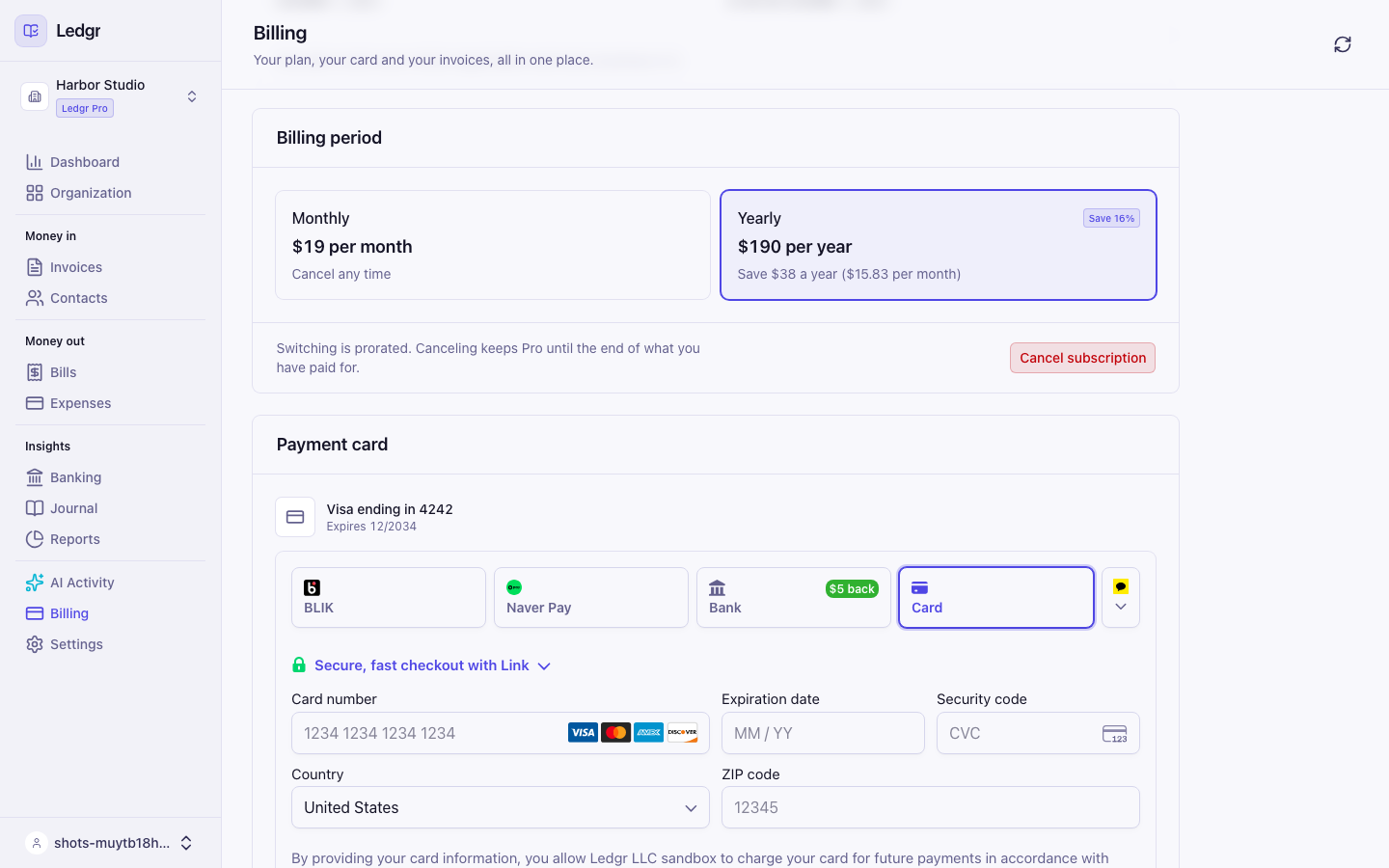
- Open Billing. In the Payment card section, select Change card.
- Enter the new card in the secure form that opens on the page.
- Select Save card.
If your bank asks you to confirm the card, the confirmation opens right on top of the form. When it is done, the section shows the new card and a message says Card updated. The new card pays your next invoice.
If a payment fails
If a payment does not go through, a banner at the top of Billing says Your last payment did not go through. Pro stays on until the end of the period you already paid for. Select Update card in the banner, enter a working card, and save it. Bookledo tries the unpaid invoice again on the new card right away.
Cancel your subscription
- Open Billing. Select Cancel subscription.
- The window states the date your access ends and what changes after that. Select Cancel my subscription to confirm, or Keep Pro to go back.
Canceling does not end Pro today. You keep Pro until the end of the period you paid for. After that, the organization moves to the Free plan. API keys become read only, bank feeds stop syncing, and the organization can hold one business. Your books and history stay.
Resume a canceled subscription
Until the end date, a banner at the top of Billing says Your subscription ends on that date. Select Resume subscription in the banner, or in the Billing period section. Nothing changes: Pro renews as usual and you are not charged again for the current period.
Download an invoice
The Invoice history section lists your last 24 invoices with their date, amount, and status. Select PDF on a row to download it.