



Help center
Attach a receipt to a transaction or a bill line
Keep the receipt with the money it proves. A receipt goes on something already in your books, either a transaction in Books or a line on a bill. Enter the transaction or the bill first, then attach the receipt to it.
A receipt can be a photo or a PDF. A record can hold more than one file, so a receipt that runs to two pages can be attached as two files.
Attach a receipt to a transaction
- Select Books in the sidebar.
- Find the transaction and open its details.
- Under Attachments, select Attach a file and choose the photo or PDF.
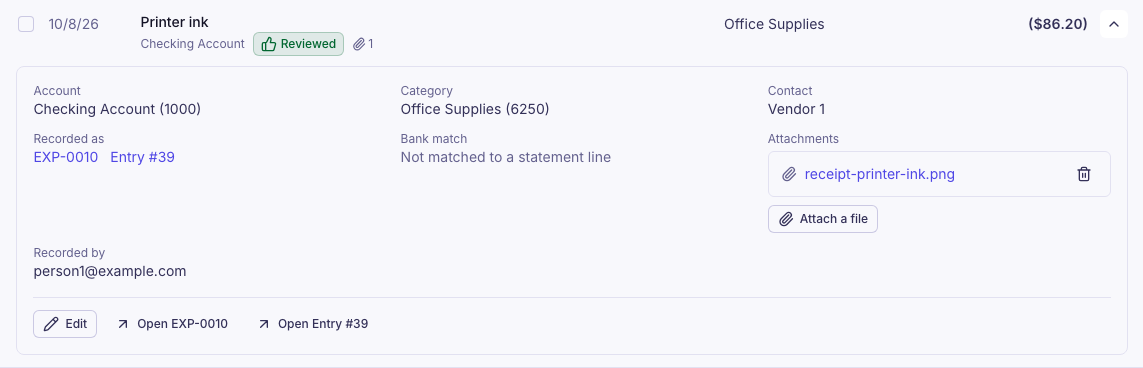
The file is kept with the expense, invoice, bill or payment behind the row, so it shows there too. A statement line nobody has booked yet keeps the file itself, and the file stays with the line when you book it.
Attach a receipt to a bill line
- Select Bills in the sidebar and open the bill.
- Under Receipts, choose the line the receipt is for. A bill with one line skips this step.
- Select Attach a file and choose the photo or PDF.
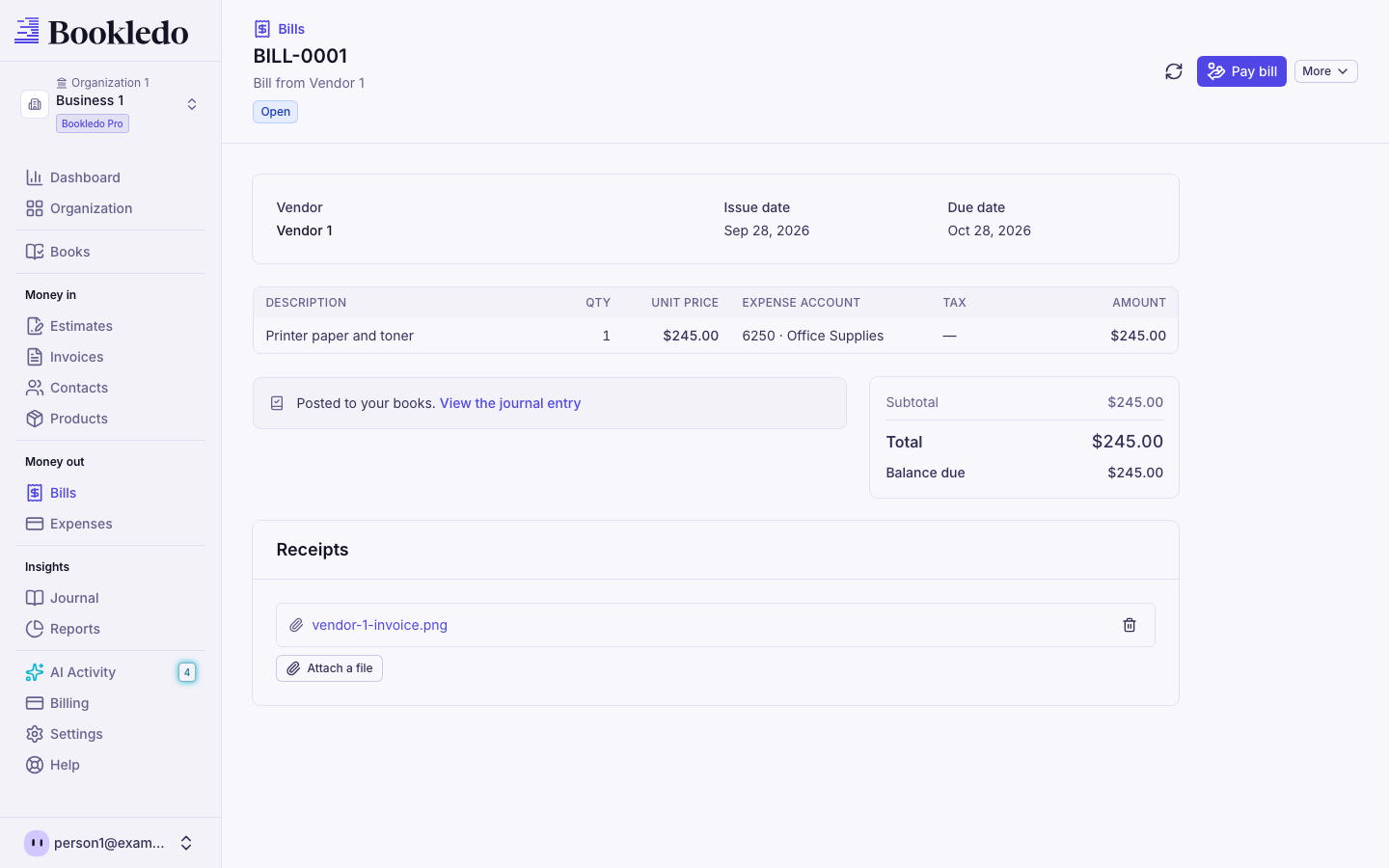
Each file in the list shows the line it belongs to. Only saved lines can take a receipt, so save a draft first if you just added the line.
A draft bill can still be edited. A line you keep keeps its receipt. If you delete a line that has a receipt, the receipt stays on the bill and no longer names a line.
Attach a receipt from your phone
Sign in to Bookledo in your phone's browser and follow the same steps. When you select Attach a file, your phone offers to take a photo or to pick a file. Take the photo and it is attached as soon as it uploads.
Open or remove a file
- Select a file's name to open it in a new tab.
- Select the trash button beside a file to remove it. The transaction or bill is not changed.
A person who can only view the books can open files but cannot attach or remove them.
Find transactions with a receipt
In Books, open the Receipt filter to show only the transactions with a file attached, or only the ones without. A receipt on a bill line counts for that bill's transaction.
Next steps
See and record every transaction in Books. Enter and pay a bill. Export your data to download every attachment as a ZIP.