



Help center
Connect an AI app that signs in
Some AI apps cannot hold an API key. A Claude custom connector on claude.ai is one of them. These apps ask you to sign in to Bookledo instead, and you approve what they can do. You give the app one address and nothing else.
https://bookledo.co/mcp
The app then works like a key on one business. It follows the same plan rules, and its changes wait for your approval in the same way. If your AI app can hold a key, Connect AI to your books covers that route.
Connect the app
- In your AI app, add a custom connector or remote MCP server. In claude.ai, open Settings, then Connectors, then Add custom connector.
- Paste
https://bookledo.co/mcpas the server address. Leave any client ID or secret fields empty. - Select Connect or Add. The app opens Bookledo in a new window.
- Sign in to Bookledo if you are not signed in already.
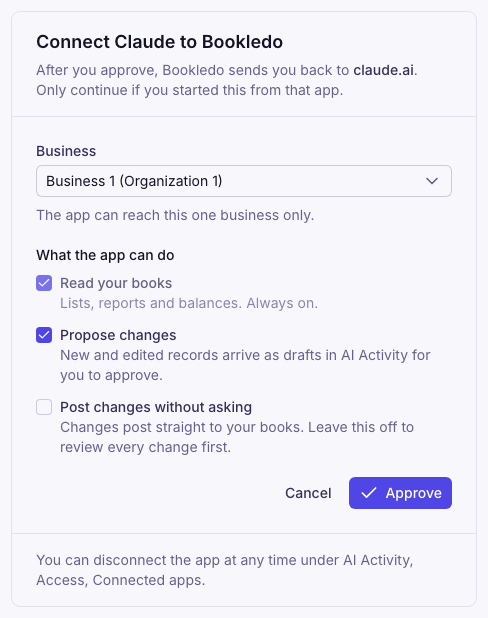
- Read the screen that opens. It names the app and the site Bookledo sends you back to. Only continue if you started this from that app.
- Under Business, choose the business the app can use. The app can reach this one business only.
- Under What the app can do, tick the boxes you want. The next section explains each one.
- Select Approve. Bookledo sends you back to the app, and the app is connected.
To connect the app to another business, add the connector again and choose that business. Each connection covers one business.
Select Cancel if you did not expect this screen. Bookledo sends the app a refusal and nothing is connected.
Choose what the app can do
- Read your books lets the app list records and run reports. It is always on.
- Propose changes lets the app create and edit records. Each change arrives as a draft under AI Activity for you to approve. It does not touch your books until you do.
- Post changes without asking lets the app post changes straight to your books. It is never ticked for you. Leave it off unless you trust the app with your books.
On the Free plan an app can read only. The two other boxes are turned off, and a note explains that Bookledo Pro lets the app propose changes. Upgrade to Pro covers the steps.
Only an owner, admin or member of the business can connect an app. Viewers, editors and tax preparers do not see the business in the list.
See and disconnect connected apps
- Select AI Activity in the sidebar, then open the AI access tab.
- Scroll to Connected apps. Each row shows the app's name, what it can do, when you connected it, and when it last reached your books.
- To disconnect an app, select Disconnect on its row, then Disconnect app.
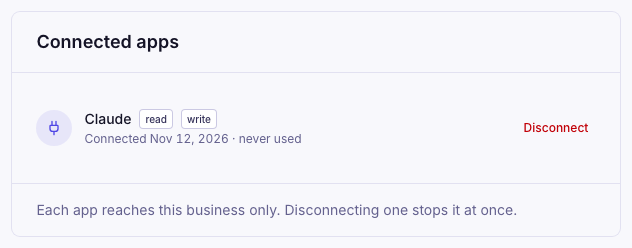
The app loses access right away. To use it again, connect it again from the app. To change what an app can do, disconnect it and connect it again with the boxes you want.
Good to know
- The app stays signed in. It renews its own access in the background, so you do not need to approve it again each day.
- If the person who connected the app leaves the business, or moves to a role that cannot make keys, the business's choice under When someone leaves applies to the app too. Connect AI to your books explains the choices.
- Bookledo records every change the app makes, the same as for a key.
- Review and approve the app's drafts as described in Review what AI drafted.
If something goes wrong
If the app says it cannot reach Bookledo, check the address ends in /mcp.
If the Bookledo screen says the link cannot connect an app, start again from the app. The link may be from an older attempt.
If the app says a request needs a plan upgrade, the app was connected on the Free plan or without Propose changes. Disconnect it, then connect it again with the boxes you want.