



Help center
Connect AI to your books
You can let an AI assistant read your Bookledo books, and on the Pro plan you can let it propose changes. Bookledo works with any AI app that supports MCP, the standard way AI apps connect to outside tools. The assistant connects with an API key you create. Each key belongs to one business, so the assistant only sees the books of the business the key was made in.
A key never reaches past its business, even when the business belongs to an Organization with other businesses in it. The Organization overview, ownership, and the members list all need you to be signed in to Bookledo. An AI assistant cannot open them with a key. For the consolidated reports, an Organization owner can make an Organization key, described below.
Some AI apps, such as a Claude custom connector on claude.ai, cannot hold a key. They sign in to Bookledo instead. Connect an AI app that signs in covers them.
Editors and tax preparers cannot make or see keys. The AI access page asks them to check with an owner or admin of the business.
Connect your AI assistant in three steps
Everything happens on one page. Select AI Activity in the sidebar, then open the AI access tab.
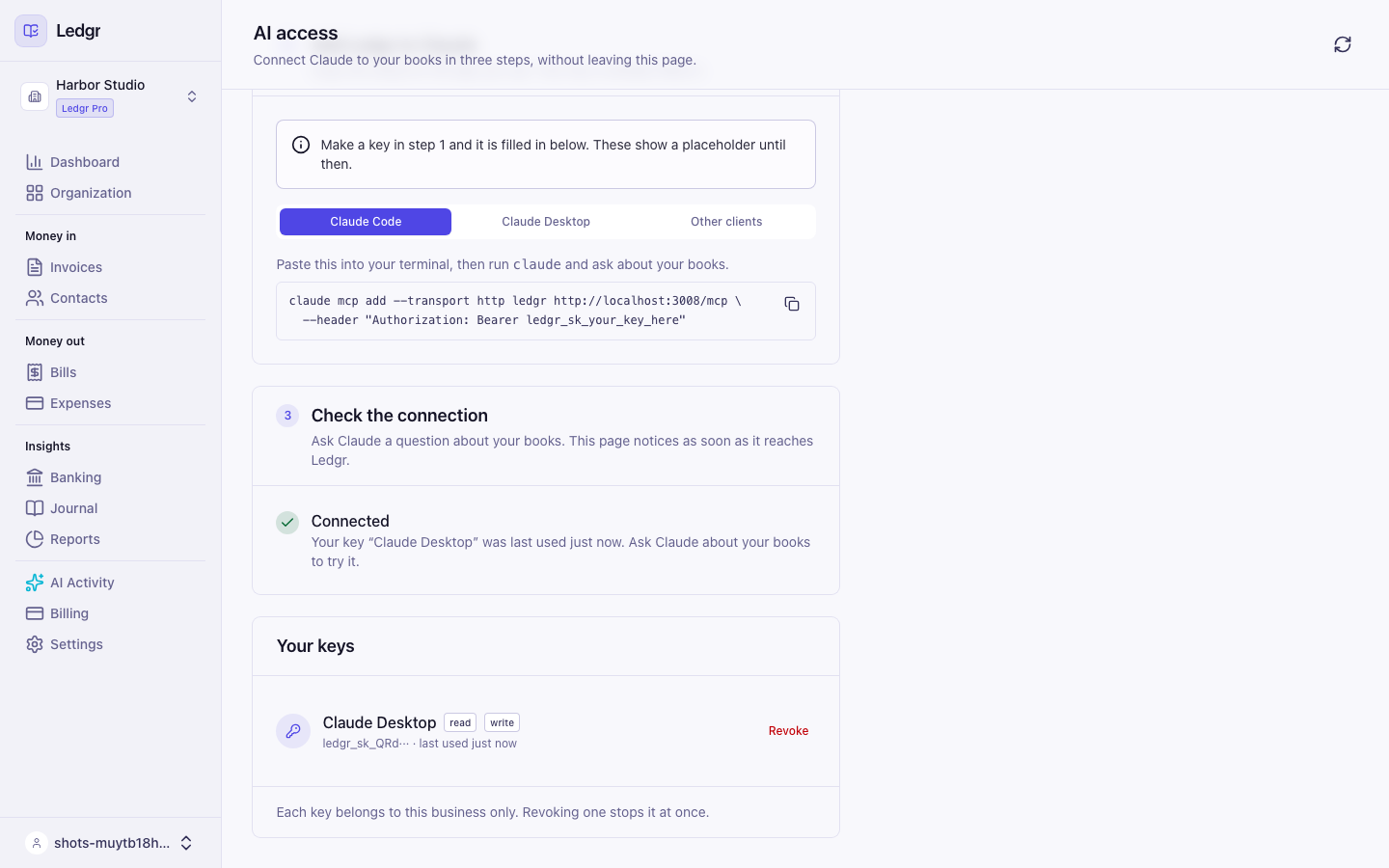
Step 1. Create a key
- Type a Key name, such as Work laptop. The name helps you recognize the key later.
- Choose what the key can do. The next section explains each choice.
- Select Create key.
- Copy the key from the yellow box and store it in a password manager. Bookledo shows the full key one time only. Keys made before the product rename keep working until you replace them.
If you lose a key, revoke it and make a new one. To revoke, select Revoke on the key's row under Your keys and confirm. The list shows each key's first characters, what it can do, and when it was last used.
Step 2. Add Bookledo to your AI assistant
Your new key is already filled into the setup text, so there is nothing to edit. Copy the text with the copy button above it.
Any AI app that can connect to a remote MCP server works. Give it two things.
- The server address shown on the page. It ends in
/mcp. - A header named
Authorizationwith the valueBearerfollowed by a space and your key.
The page shows the setup as tabs. Choose the one for the app you use.
Any MCP client. The first tab holds the address and the header in the shape most apps accept. Use it for any app that can add a remote MCP server with a header.
Claude Code. Paste the command into your terminal. It uses claude mcp add --transport http with the address and the header.
Claude Desktop. Open Settings, then Developer, then Edit Config. Paste the text in, save the file, and restart the app. The text uses a small bridge called mcp-remote, so your computer needs Node.js installed.
OpenAI. The tab holds two setups. For Codex, add the first text to ~/.codex/config.toml, then run codex and ask about your books. For an app built on the OpenAI Responses API, add the second text to the request as a tool. OpenAI asks for approval before each tool call unless the request sets require_approval to "never".
Cursor. Add the text to ~/.cursor/mcp.json, or to .cursor/mcp.json in one project.
VS Code. Add the text to .vscode/mcp.json in your project, then start the server from the editor.
Treat the key like a password and do not share it. If you select Hide key, the page forgets the key and shows a placeholder in its place. The key itself keeps working.
Step 3. Check the connection
Ask your AI assistant a question, such as "What is my profit and loss for this quarter?" The page checks every few seconds and changes from Waiting for the first request to Connected when the assistant reaches your books. Select Check now to look right away.
Choose what the key can do
- Read lets the assistant look at your books. It can list invoices and run reports. It cannot change anything.
- Write lets the assistant create and edit records. Without Confirm, everything it writes lands as a draft for you to approve.
- Confirm lets the assistant post its writes directly instead of leaving drafts. It requires Write.
Start with Read. Add Write when you want the assistant to do data entry. Add Confirm only for a key you trust. You cannot change a key's scopes after you create it. To change them, make a new key and revoke the old one.
What the Free plan allows
On the Free plan, keys are read only. Write and Confirm show a lock and an Upgrade to Pro button. An assistant can still read your books and run reports.
- Select Upgrade to Pro next to the choice you want.
- Pay in the window that opens. Upgrade to Pro explains each step.
- When the payment is confirmed, the window closes and the same choice is switched on for you. Your key name is still there. Select Create key.
You stay on the same page the whole time.
Let your AI assistant read across your Organization
An Organization key lets an assistant read the consolidated reports and the Organization balances across every business your Organization holds. Only an owner of the Organization can make one.
- Select AI Activity in the sidebar, then open the AI access tab.
- Under Organization key, type a Key name and select Create organization key.
- Copy the key from the yellow box. Step 2 above now has it filled in, so add it to your AI assistant the same way.
An Organization key can only read. It cannot open any one business's books, change anything, or make another key. Every request it makes is logged. A business stops showing up in its reports as soon as the Organization no longer holds it. To revoke one, select Revoke beside it, then Revoke for good.
Choose what happens when someone leaves
Each key is held by the person who made it. When that person leaves the business or the Organization, or moves to a role that cannot make keys, Bookledo has to decide what happens to their keys. You decide, one answer for each business and one for the Organization.
- Select AI Activity in the sidebar, then open the AI access tab.
- Scroll to the card called When someone leaves. Owners and admins of the business see it under Your keys. The Organization's owner also sees one inside the Organization key card, for Organization keys.
- Choose an answer.
- If you chose a number of days, type how many.
- Select Save.
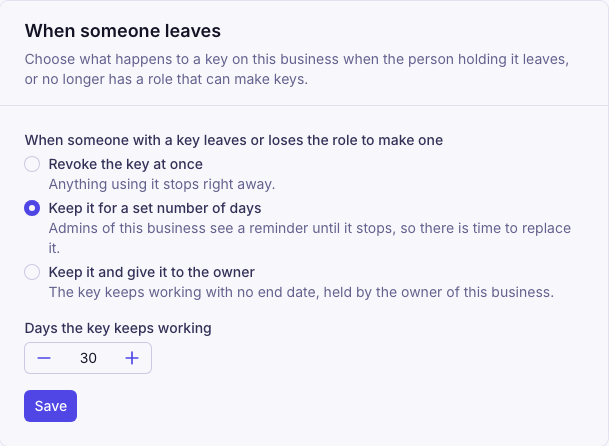
- Revoke the key at once. Anything using the key stops right away. This is the choice every business starts with.
- Keep it for a set number of days. The key keeps working for the number of days you choose, from 1 to 365, and then stops. This gives you time to make a new key and move your AI assistant over to it.
- Keep it and give it to the owner. The key keeps working with no end date, and the owner of the business or Organization holds it from then on. If there is no owner to take it, the key is revoked instead.
Your choice applies the next time someone with a key leaves or loses the role to make one. Bookledo checks as soon as the person's role changes. It checks again each time the key is used, so a key never works after it should have stopped.
The warning before a key stops
When a key is counting down, owners and admins see a banner at the top of every page in Bookledo. It names the key, shows the date it stops working, and links to Make a new key. If more than one key is counting down, the banner says how many and gives the first date. The warning shows as a banner in the app. Bookledo does not send it by email.

Under Your keys, the key also shows a Stops label with the date. To replace the key, select Make a new key, create a new key, add it to your AI assistant, and then revoke the old one.
Good to know
- If the person gets a role that can make keys again before the key stops, the key keeps working and the banner goes away.
- If you change your choice while a key is counting down, the new choice applies to that key right away.
- Only a person signed in to Bookledo can change this choice. A key cannot.
- Bookledo keeps a record of every change to a key, including when it is revoked, set to stop, moved to the owner, or stopped on its date.
Ask your AI assistant about your books
Once your assistant is connected, ask in plain language.
- "What is my profit and loss for this quarter?"
- "Which customers have invoices more than 30 days overdue?"
- "Show me my balance sheet as of 9/30/2026."
How drafts work
The assistant proposes and you decide. When a key has Write but not Confirm, anything it creates is saved as a draft. A draft does not appear in your reports and does not change any balance until you approve it.
An assistant can draft invoices, bills, expenses, and journal entries.
Approve or reject drafts
- Select AI Activity in the sidebar. A number beside it shows how many drafts are waiting. The Review tab is where drafts appear.
- Drafts are grouped under Bills, Expenses, Invoices, and Journal entries. Each row shows what the assistant proposed, the date, and the amount.
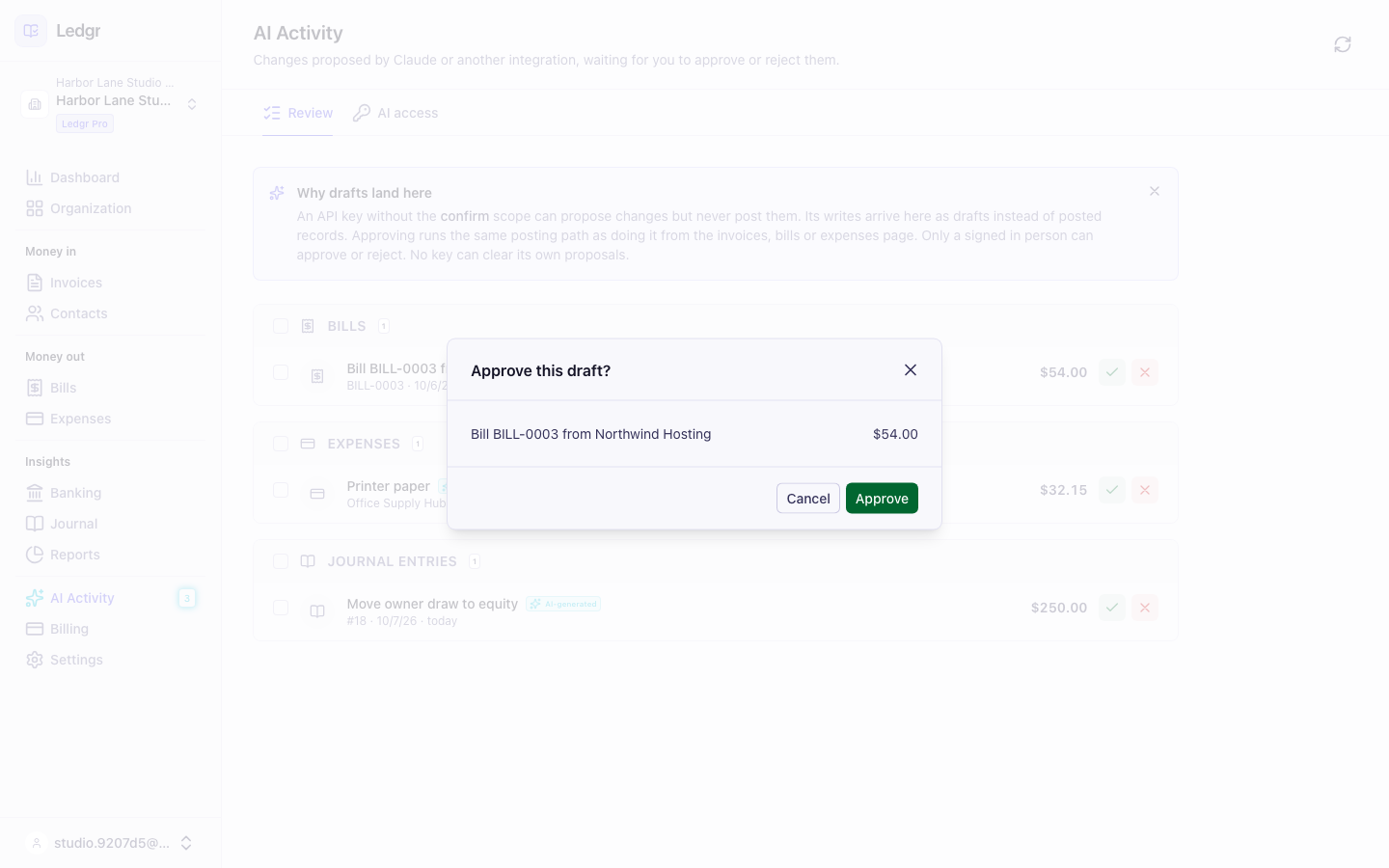
- Select the green check mark on a row to approve it, or the red X to reject it.
- In the window that opens, select Approve or Reject to confirm.
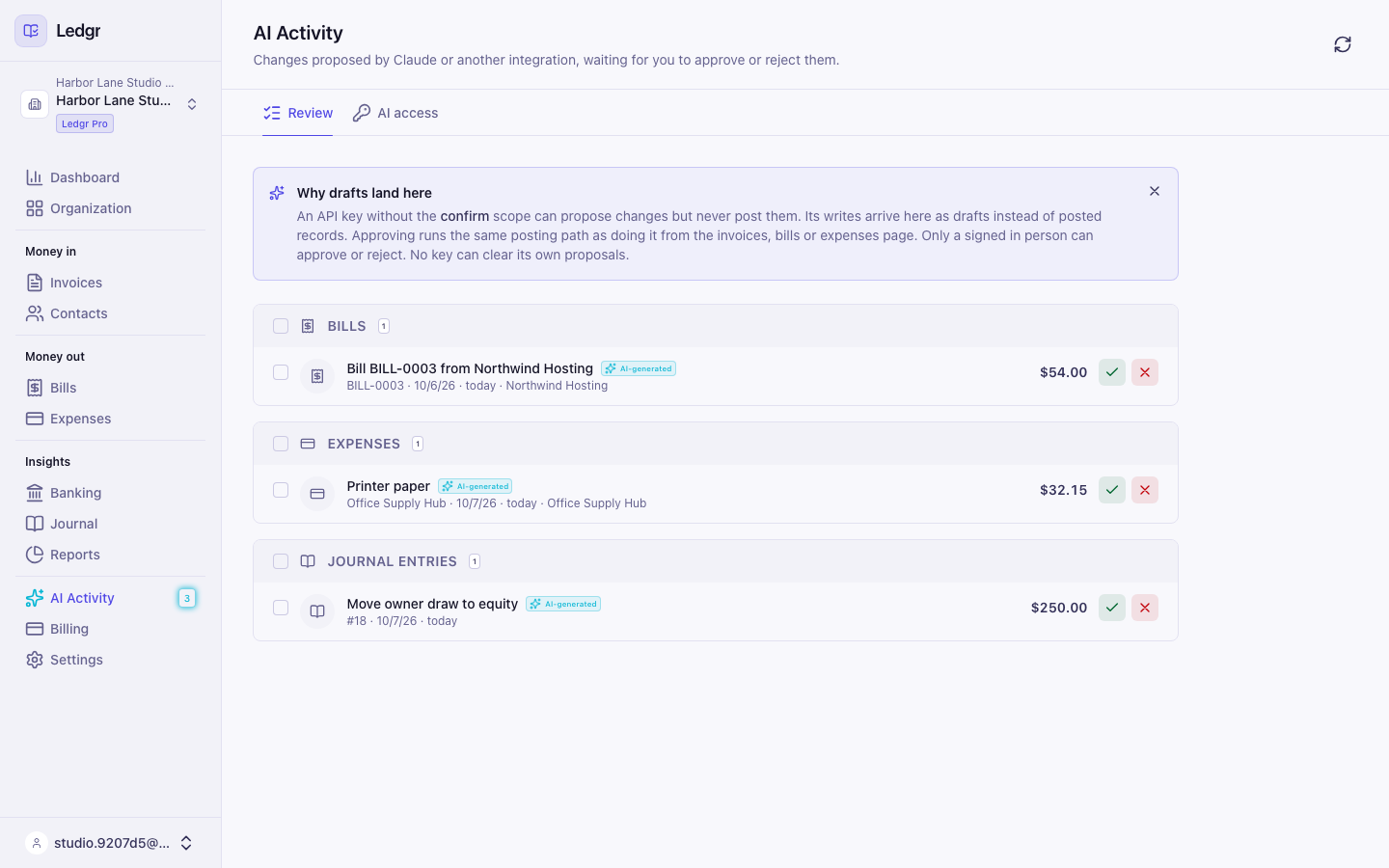
To handle several drafts at once, tick the boxes beside them and use the buttons that appear at the top of the list. Review what AI drafted covers the whole screen.
Approving a draft posts it to your books in the same way as if you had entered it yourself. Only a person signed in to Bookledo can approve or reject drafts. A key cannot approve its own work, even a key with Confirm.
If something goes wrong
Posted entries cannot be edited or deleted. If an assistant posts something wrong through a Confirm key, correct the row on the Books page, or void the invoice, bill, payment or expense it belongs to. A journal entry an assistant typed in can be reversed from the Journal page.
If your assistant says a request needs a signed in session, it asked for something that covers your whole Organization. Open that page in Bookledo yourself, or use an Organization key for the consolidated reports.
If your assistant says an organization key is refused, it asked an Organization key for something other than the consolidated reports and balances. Use a key made for one business instead.
If your assistant says a request needs a plan upgrade, the key was made on the Free plan or lacks the Write scope. Open AI Activity, then AI access, and create a new key with the scopes you want. Scopes cannot be changed after a key is created.